KnowledgeOwl Data Migration: Import Your Knowledge Base with Confidence
Moving to KnowledgeOwl without starting over. Migrate your articles, categories, files, and structure flawlessly — preserve your content, keep your links intact, and skip the manual work.
KnowledgeOwl is a standalone knowledge base platform built for teams creating internal or customer-facing documentation. Help Desk Migration securely moves records to or from KnowledgeOwl with no business disruption to your team.
Interactive Migration Calculator
Adjust sliders to estimate your migration time and cost savings
Estimates based on 60,000+ successful migrations. Actual results may vary.
What data can you migrate to KnowledgeOwl?
Articles, categories, files, tags — every piece of your documentation matters, and none of it should be left behind just because you're switching platforms. Here's exactly what transfers to KnowledgeOwl.
Articles and their content (including formatting, images, and embedded media)
Categories and nested folder structure
Tags, keywords, and search phrases
Files and attachments
Authors, contributors, and user roles
How to Migrate to KnowledgeOwl Step by Step
Migrating to KnowledgeOwl follows five clear stages: connect your platforms, map your data, run a free demo, complete and verify the full migration, then catch new records with Delta Migration. The transfer runs through the Migration Wizard in the background — no scripts, no manual exports — so your team keeps publishing uninterrupted while progress is tracked in real time. Each step builds confidence: no surprises, no downtime, full visibility throughout.
Connect Your Source & Target Platforms
Securely connect your source platform and KnowledgeOwl via API:
- Encrypted authorization for all credentials
- No scripts or manual exports required
- Connection setup completed in minutes
Choose the Records & Map the Data
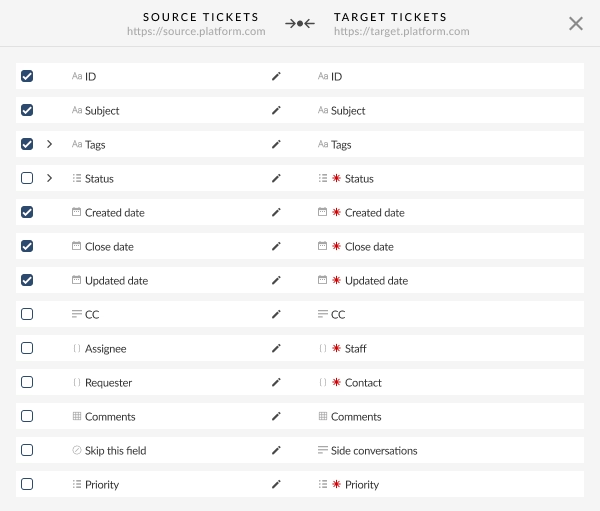
Data mapping is where you control exactly how your content translates from your old platform into KnowledgeOwl — matching categories, preserving article relationships, and catching mismatches before anything goes live.
- Select your entities. Choose the record types you want to migrate, such as articles, categories, files, and authors.
- Match authors first. Map source authors and contributors to their corresponding KnowledgeOwl accounts to preserve authorship and edit history.
- Review categories and folder structure. Make sure articles land in the correct nested categories so navigation stays intact for readers.
- Check tags and search phrases. Verify that tags, keywords, and metadata map to the right KnowledgeOwl equivalents so search performance carries over.
- Adjust the mapping. Focus on custom fields, embedded media, or article-to-article links without a direct match.
- Select additional options. Enable settings like tagging migrated articles, skipping attachments, or updating cross-links between articles.
The result: your articles, category structure, and the relationships between content and authors land in KnowledgeOwl exactly where they belong — no reorganizing from scratch.
Run a Free Demo Migration
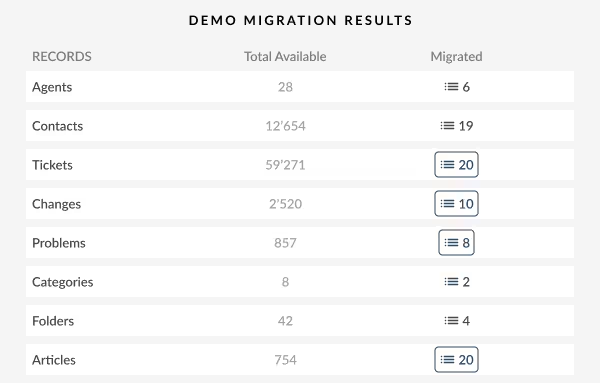
Run a Free Demo Migration to transfer a sample of your content to KnowledgeOwl. Preview articles, categories, files, tags, and other supported records to see exactly how your knowledge base will appear in the new platform.
Why it matters: Validate content accuracy, structure, and formatting before the full migration — no surprises after go-live.
Full Migration and Verification
Launch the full migration after reviewing your Demo results:
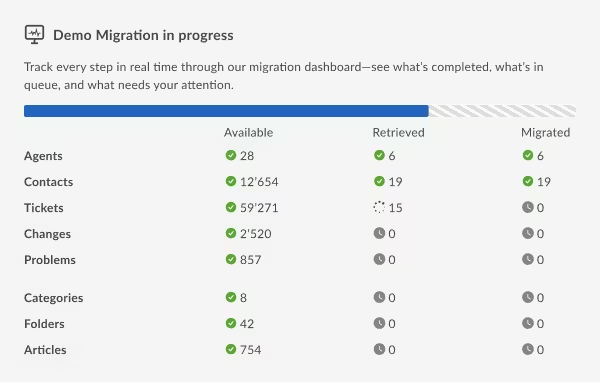
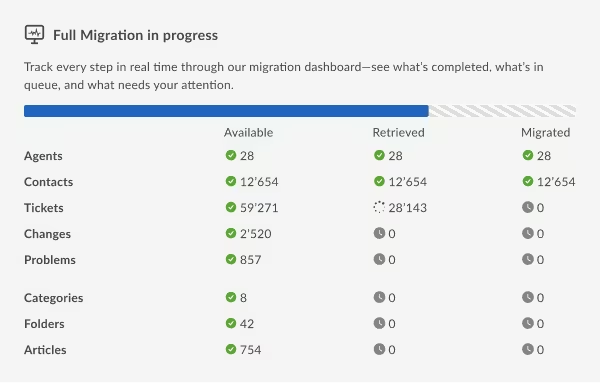
- Progress is monitored in real time
- Your team can continue publishing in the source platform during migration
After completion, verify your KnowledgeOwl content:
- Review migrated articles and categories
- Confirm formatting, images, and embedded files rendered correctly
- Check authors, tags, and internal links
- Identify and resolve any inconsistencies
Benefit: Your knowledge base is fully available in KnowledgeOwl, accurate, structured, and ready for readers.
Delta Migration
Run a Delta Migration to transfer new and updated articles from your source platform after the initial migration:
- Captures articles created or updated since the initial migration
- Helps avoid re-migrating unchanged content and creating duplicates
- Keeps KnowledgeOwl in sync with your source before go-live
- Minimizes the need for manual re-entry
This is especially useful when your writers keep publishing in the source platform while the migration is underway.
Automated migration vs. CSV import vs. engineer-led migration
Not all migration paths are equal, and the right one depends less on how much content you have and more on how interlinked that content is.
| Feature / Metric | Raw CSV Export/Import | Automated Help Desk Migration | Bespoke Engineer-Led |
|---|---|---|---|
| Article Formatting & Embedded Media | Frequently broken or stripped | Preserved via automated mapping | Fully preserved / custom mapped |
| Files & Attachments | Frequently skipped or exported separately | Preserved and re-linked automatically | Handled via custom scripts |
| Category & Folder Structure | Often flattened or lost | Original nesting preserved | Original nesting preserved |
| Cross-Links Between Articles | High risk of broken links | Maintained via ID-based mapping | Maintained via custom logic |
| Self-Serve Transparency | Direct, but manual and error-prone | High: direct field mapping & immediate visibility | Low: managed behind the scenes by engineers |
| Pre-Migration Testing | Manual trial and error | Free demo migration with real sample data | Requires custom staging test runs |
| Time to Launch | Immediate start, slow execution/cleanup | Rapid self-serve rollout | High: dedicated planning and build phases |
| Total Cost | Low upfront / high hidden manual effort | Balanced: priced by number of records | High: expensive dedicated engineering hours |
This is the middle ground, and where most migrations land:
- Bespoke-level accuracy and coverage — preserve article-to-category and article-to-author relationships through ID-based mapping, without custom engineering
- Full self-serve transparency — map fields directly in the migration tool and see exactly how your content will be handled
- Free demo migration before you commit — transfer a sample of your real content, review the results, and validate the setup before running the full migration
- No mandatory consulting engagement — get started without a paid discovery phase or a dedicated project team
- Expert support when you need it — get help with complex mapping decisions and edge cases without being locked into a consulting package
Out-of-the-Box Migration Options for KnowledgeOwl
Migration options are customization settings you can layer onto your migration to control exactly what moves and how — you can activate all of them with a single click during setup, and most can be tested in the Free Demo Migration before you commit to the full transfer.
Automatically Tag Your Migrated Articles
Selecting this option activates a tag field where you can add a new tag to migrated articles — useful for flagging imported content for easy filtering, reporting, or follow-up cleanup once it lands in KnowledgeOwl.
Prioritize Your Newest Articles
With this option, the latest articles appear in your new platform immediately, so readers can find current content without waiting. Older articles follow for a smooth, organized migration. It's available exclusively during a Full Migration, not the demo.
Skip Attachments to Speed Up Your Migration
If files aren't mission-critical, skipping them makes the migration faster and leaner — a useful way to leave outdated documents behind and keep your new knowledge base free of unnecessary storage clutter.
Never Lose Inline Images in Migration
Inline images embedded in article bodies are pulled out and reattached as proper files, so there's no need to manually reattach images after the move.
Keep Cross-Links Working After Migration
Cross-links between articles and categories update automatically, keeping references pointing to the right place in KnowledgeOwl instead of a dead link back to your old platform.
Customize Your Demo Migration
A Custom Demo Migration lets you hand-pick specific articles or categories to preview before the full migration — your selected content migrates with all related data, even overriding any filters set for the eventual Full Migration. It's the option to reach for when you want to stress-test your trickiest, most complex articles specifically — not just a random sample.
Preserve Author–Content Connections
Only the authors and contributors actually tied to migrated content come across, keeping your new KnowledgeOwl instance clutter-free from day one.
The Features That Make Complex Migrations Simple
For complex or large-scale migrations, flexibility matters as much as data accuracy. These features help you minimize downtime, keep content up to date, and fit the migration around your team's schedule.
Delta Migration
Delta Migration lets teams keep publishing in their source knowledge base after the initial Full Migration. It automatically transfers articles created or updated afterward, while preventing duplicates by replacing outdated versions with the latest ones. This enables a smoother cutover without freezing your writers out of their workflow.
Note: Delta Migration can't be tested separately during the Demo and is available only on the Premium support package.
Interval Migration
Interval Migration lets you pause and resume the Full Migration around your team's schedule. You can start during off-hours, pause when writers need access, and resume later without losing progress. You can pause up to five times, with each pause lasting up to five days. Combined with Delta Migration, it provides a flexible approach to large migrations without requiring a single high-risk cutover window.
Help Desk Migration supports KnowledgeOwl migration to or from the following platforms
Help Desk Migration supports migrations between KnowledgeOwl and 100+ platforms. Popular migration sources and destinations include:
Accelo
Atera
Atlas
Autotask PSA
BMCHelixITSM
BoldDesk
Chatwoot
ConnectWise
Crisp
CSV
Custify
Deskpro
DevRev
Dixa
Document360
Drift
Dynamics 365
eDesk
eGain
Enchant
Forumbee
FreeScout
Freshdesk
Freshservice
Front
Gladly
Glassix
Gleap
GLPI
Gmail
Google Docs
Gorgias
Groove
Halo Service Solutions
HappyFox
Harmony
HelpCrunch
HelpDesk
HelpDocs
Helpjuice
Help Scout
HelpShift
HelpSpot
HubSpot Service Hub
InstantDocs
Intercom
Ivanti
Jira Service Management
Jitbit HelpDesk
Kayako
Kayako Classic
KnowledgeOwl
Kundo
Kustomer
Lansweeper
Live Agent
LiveChat
Manage Engine
Mayday
Missive
NinjaOne
Odoo Helpdesk
Oracle Service Cloud (RightNow)
osTicket
((OTRS)) Community Edition
Outlook
Paligo
Plain
Planhat
Pylon
Reamaze
Request Tracker
Respond.io
Richpanel
Salesforce Service Cloud
ServiceDesk Plus
ServiceNow
SherpaDesk
Siit
SmarterTrack
SolarWinds Service Desk
SolarWinds Web Help Desk
SparrowDesk
Spiceworks
Spiceworks Cloud
SQLite
SuperOps
SupportBee
SupportPal
Syncro
SysAid
Tawk.to
TeamSupport
TeamworkDesk
Thena
Thulium
Tidio
TOPdesk
Trengo
Unthread
Vitally
Vivantio
Zammad
Zendesk
Zoho Desk
Zoho Mail
Check the name for typos or leave us a message.
How much does KnowledgeOwl migration cost?
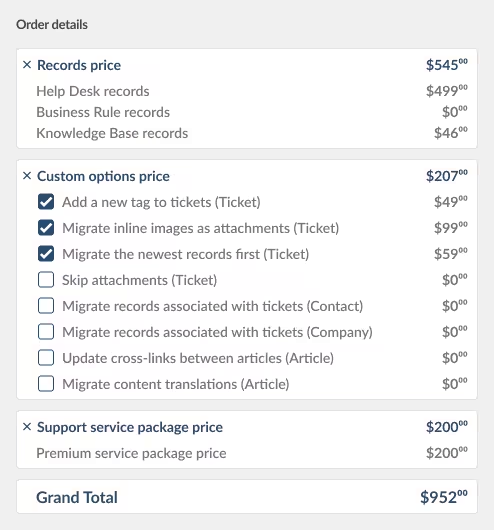
Migrating to KnowledgeOwl with Help Desk Migration is priced by volume, not a flat fee. The pricing isn’t linear, so the cost per record decreases as your migration volume increases.
How pricing works:
Pricing is based on the number of records you migrate — only substantial records (articles, categories, files) count toward the price; comments and notes don't add to it.
As an example, a basic migration with no pre-built customizations on a Essential support package runs about $100 for 1,000 records, while 10,000 records under the same conditions cost around $514 — the larger the migration, the lower the cost per record.
Cost also depends on your level of customization — enabling options like tagging, cross-link updates, or custom demo selections can adjust the final price.
Support tiers scale up from Essential to packages with white-glove setup; the right one depends on your priorities, custom work required, and migration scenario.
Before you pay anything:
The Free Demo Migration transfers a small sample (typically 20 articles) so you can test field mapping and check accuracy — always free, no commitment. If you run the Free Demo, Help Desk Migration will calculate your total record count and give you an estimated Full Migration price, broken down by data type, so you know the number before committing.

Is My Data Safe During Migration?
Data security is a critical part of any knowledge base migration. When moving content between platforms, you need to know that sensitive internal or customer-facing information remains protected throughout the process. Help Desk Migration uses security measures designed to protect your data before, during, and after migration.
GDPR Compliance
Help Desk Migration follows GDPR requirements when processing and transferring personal data. Data handling practices are designed to support privacy, data protection, and responsible processing throughout the migration process.
SOC 2 Type II, SOC 3
Help Desk Migration maintains SOC 2 Type II, SOC 3 compliance, demonstrating that its security controls are regularly evaluated against established standards for protecting customer data.
Data is protected with encryption
Secure connections help prevent unauthorized access during migration, while encryption at rest adds another layer of protection for stored migration data.
Fast, easy and cheap solution
I had to migrate my knowledge bases from Intercom to Zoho Desk. Help Desk Migration is the fastest, easiest, and cheapest solution to get the job done.

Marcos Custodio
CMO at Webpeak
This tool is fantastic
We used it to migrate ~36,000 tickets and ~400 knowledge base articles. The tool supports any and every ticketing system. The support team are super helpful and offer customisations for your migration. Migrating from Freshservice, we asked to have requested items migrated as plain text into the description.
The total cost was only $2,000 US, which is really good value. The migration itself does take a while (ours took about 30 hours), but it's totally worth it. Anyone who is migrating to JSM from another ticketing system should use this tool!

Anthony Kendrew
Microsoft 365 Developer at The Salvation Army
Zendesk & Jira to Salesforce—Migration Made Easy!
We recently completed a Zendesk-to-Salesforce Knowledge Article migration as well as Jira-to-Salesforce Case migrations using Relokia’s Help Desk Migration service. Relokia’s entire team was knowledgeable, responsive, and incredibly supportive throughout this time-sensitive project. Their solution proved especially valuable when working with the many custom fields we needed to import into, and their guidance helped ensure a smooth and accurate migration. We truly appreciate their partnership and the quality of the service they provide.

Matthew Fox
Manager, Program Management at Command Alkon
Long-Term Collaboration with Consistently Smooth Migrations
We've used the Help Desk Migration tool multiple times to transfer both knowledge base articles and tickets from platforms such as Salesforce Service Cloud, Freshdesk, and TeamSupport. Each migration has gone smoothly, and the team at Relokia has consistently provided prompt and effective support, quickly addressed any issues and offered practical solutions whenever challenges arose.

Jakob Blomstrand
Customer Support Manager at Compusoft Group
Why migrate to KnowledgeOwl
KnowledgeOwl is a standalone knowledge base platform built for teams that need a single source of truth — without the overhead of a full help desk or wiki. With unlimited nested categories, a WYSIWYG editor, and flexible permissions for internal and external audiences, it gives writers more control while keeping readers oriented.
Move from Confluence or another knowledge base to KnowledgeOwl without custom development. Help Desk Migration handles content transfer and field mapping, while KnowledgeOwl's authoring tools let your team organize and maintain documentation independently.
Companies that trusted Help Desk Migration


