BoldDesk Migration: Move Your Data Out of BoldDesk to a New Platform
A BoldDesk migration with Help Desk Migration moves tickets, contacts, contact groups, agents, and knowledge base articles out of BoldDesk and into another help desk. BoldDesk is supported as a source only, so data moves out of BoldDesk, not into it. You can test the transfer on up to 20 tickets and 20 knowledge base articles in a free demo before paying for anything.
No credit card required Fast setup
Interactive Migration Calculator
Adjust sliders to estimate your migration time and cost savings
Estimates based on 60,000+ successful migrations. Actual results may vary.
BoldDesk migration at a glance
What a BoldDesk migration with Help Desk Migration covers, based on the records BoldDesk exposes through its API:
| Feature / Record | BoldDesk Migration Details |
|---|---|
| Direction | Out of BoldDesk only (BoldDesk is a source platform) |
| Records that migrate | Tickets, contacts, contact groups, agents, knowledge base categories, sections, and articles |
| Ticket details that migrate | Requesters, assignees, comments, attachments, tags, custom fields, created / updated / closed dates |
| Not migrated | Ticket group field, Change / Problem / Request objects |
| Built-in options | Article cross-links, translations, newest records first, demo record selection, skip attachments |
| Free test | Up to 20 tickets and 20 articles you choose |
| Typical project length | 1-2 weeks including preparation and validation |
| Security | SOC 2 Type II, SOC 3, GDPR-compliant, encryption in transit and at rest |
How a BoldDesk migration works in five steps
A BoldDesk migration runs in five steps: connect, map, test, migrate, and validate. The data transfer usually takes from a few hours to a few days depending on record volume and knowledge base size, and a full project is typically planned at 1-2 weeks. BoldDesk and the new platform both stay live, so agents keep working while records move in the background.
Connect BoldDesk as the source platform
Connect BoldDesk and your destination platform to Help Desk Migration with API credentials. Because BoldDesk is a source-only platform, the connection is one-directional: the migration copies records out of BoldDesk, and the records in BoldDesk stay where they are.
Select records and map fields
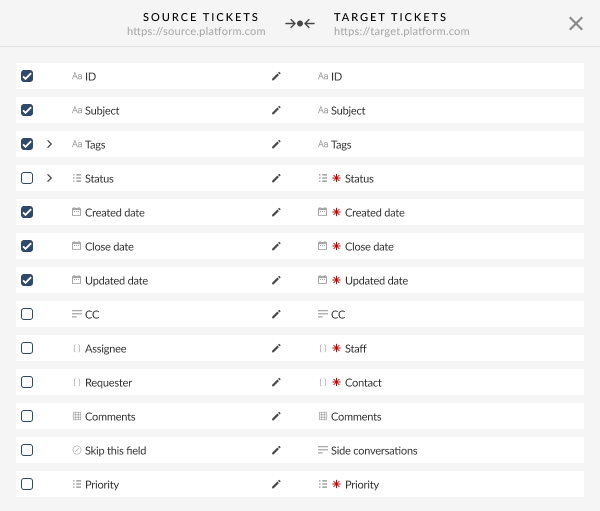
Choose which BoldDesk records to move. Help Desk Migration maps standard fields automatically and matches custom fields where names and types line up. You review and adjust the mapping before anything moves, so statuses and custom field values do not land as blanks.
Pick options and run a free demo migration
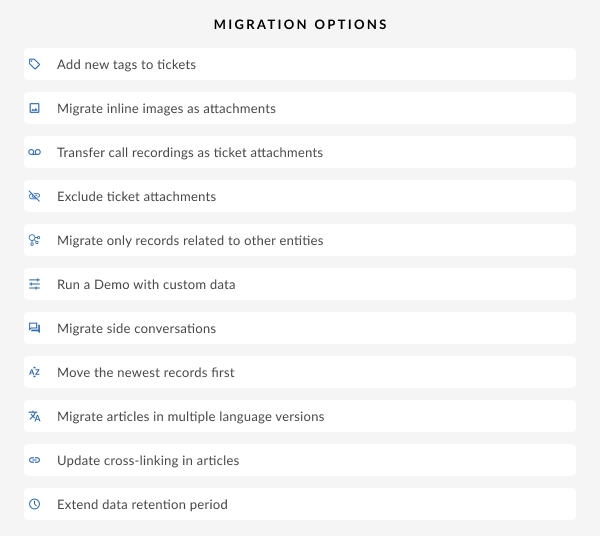
Switch on the options you need, such as article cross-links or newest records first, then run the free demo on a sample of your real BoldDesk data. You can let the tool pick the sample or hand-pick up to 20 tickets and 20 articles. The demo shows how mapping behaves and gives you the price of the Full Migration.
Launch the Full Migration
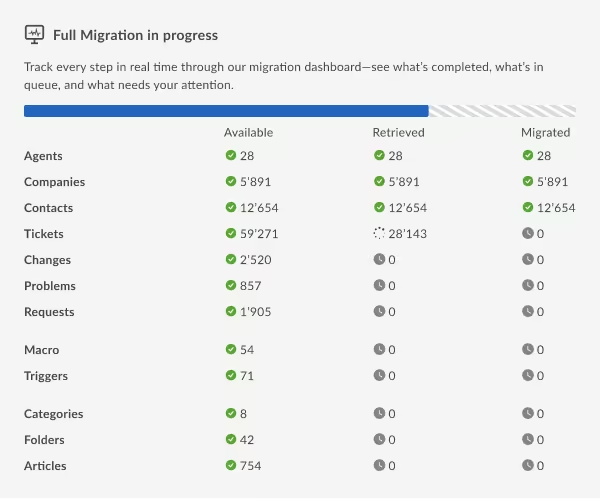
When the demo results look right, start the Full Migration immediately or schedule it. Progress is visible in the Migration Wizard, and both platforms remain usable during the transfer.
Validate the results and go live
Compare record counts between BoldDesk and the new platform, then spot-check tickets, contacts, and articles, focusing on custom fields, inline images, and article links. Run a Delta Migration for anything created in the meantime, then move your team over.
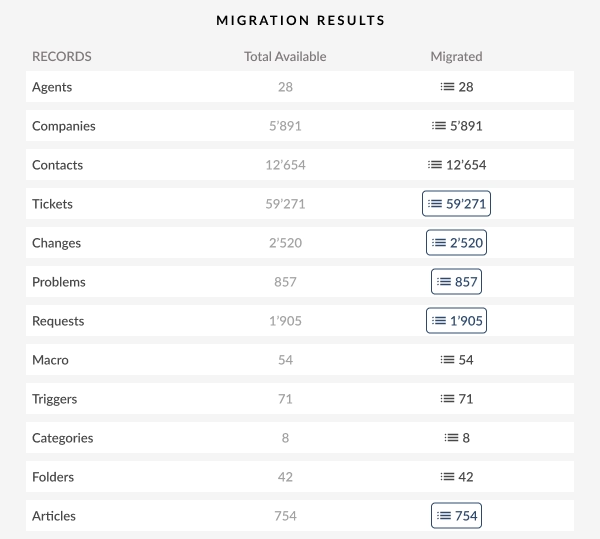
What data you can migrate from BoldDesk
Help Desk Migration moves seven BoldDesk record types. BoldDesk uses its own names for some of them, and each one maps to a standard help desk record in the destination:
| BoldDesk record | Becomes in the new help desk |
|---|---|
| Tickets | Tickets |
| Contacts | Contacts / customers |
| Contact Groups | Companies / organizations |
| Agents | Agents |
| Knowledge base categories, sections, articles | Categories, sections, articles |
Tickets and conversation history
BoldDesk tickets migrate with their full history: requesters, assignees, comments, attachments, tags, and custom fields, along with created, updated, and closed dates. BoldDesk's API does not expose a group field on tickets, so ticket group assignments are not part of a BoldDesk export and are usually rebuilt with routing rules in the new platform.
Contacts and contact groups
BoldDesk contacts and contact groups migrate with domains, tags, custom fields, phone numbers, and notes. The link between each contact and their contact group carries over as a contact-to-company relationship, so the customer context behind each ticket stays connected.
Knowledge base articles and categories
BoldDesk knowledge base articles migrate with inline images, attachments, and tags, inside their original multilevel category and section structure. Two options add article cross-links and translated versions. The knowledge base migration overview explains how article structure moves between platforms.
What does not migrate from BoldDesk
Three kinds of BoldDesk data fall outside the supported set:
Advanced options for larger BoldDesk migrations
Three advanced options cover tickets created during the move, a cutover spread over several days, and data the standard mapping does not handle.
Delta Migration
BoldDesk keeps receiving tickets while the Full Migration runs. Delta Migration is a second, smaller pass that transfers only the records created or updated after the Full Migration started, so tickets from the transition window are not left behind in BoldDesk.
What is Delta Migration?Interval Migration
Interval Migration lets you pause the Full Migration and resume it later. The Full Migration can be paused up to five times, each pause lasting no more than five days, coordinated with the Help Desk Migration team during operating hours.
How Interval Migration worksCustom migrations
When the standard mapping does not cover part of your BoldDesk setup, the Help Desk Migration team can build a custom migration script for your data structure.
How can I customize my migration?Help Desk Migration by the numbers
Help Desk Migration has moved help desk data since 2016 and replaces manual CSV exports and ticket-by-ticket rebuilding with automated field mapping and a free demo on your own data.
| Metric | Help Desk Migration |
|---|---|
| Customers served | 60,000+ |
| Supported platforms | 100+ |
| Operating since | 2016 |
| G2 rating | Five stars |
| Security | SOC 2 Type II (2025), SOC 3, GDPR |
Reviews published on the Help Desk Migration customers page include a 77,000+ ticket migration run without outside consultants and a move of about 200,000 records covering 10+ years of history from ServiceNow to Freshservice.
Where you can move BoldDesk data
Help Desk Migration supports 100+ platforms, and BoldDesk data can move into help desks such as Zendesk, Freshdesk, and HubSpot Service Hub. Because BoldDesk is source-only, each BoldDesk migration is a one-way move. The supported platforms list shows all current destinations.
Autotask PSA
ConnectWise
CSV
Deskpro
Dixa
Document360
Dynamics 365
eDesk
FreeScout
Freshchat
Freshdesk
Freshservice
Front
FyneDesk
Gleap
Gorgias
Groove
Halo Service Solutions
Harmony
HelpDesk
HelpDocs
Helpjuice
Help Scout
HelpSpot
HubSpot Service Hub
Intercom
Ivanti
Jira Service Management
Jitbit HelpDesk
Kayako
KnowledgeOwl
Kustomer
Live Agent
Missive
Odoo Helpdesk
osTicket
Pylon
Reamaze
Salesforce Service Cloud
ServiceDesk Plus
ServiceNow
SherpaDesk
SolarWinds Service Desk
SparrowDesk
Spiceworks Cloud
SQLite
SuperOps
SupportPal
Syncro
SysAid (Cloud)
TeamSupport
TeamworkDesk
Trengo
Vivantio
Zammad
Zendesk
Zoho Desk
Check the name for typos or leave us a message.
No credit card required Fast setup

Security during a BoldDesk migration
Help Desk Migration protects BoldDesk data with audited controls, GDPR compliance, and encryption.
SOC 2 Type II and SOC 3
Help Desk Migration achieved SOC 2 Type II compliance in 2025 and holds SOC 3; the SOC 2 report is available on request under NDA.
GDPR
Help Desk Migration follows GDPR requirements and signs data processing agreements on request.
Encryption
Databases, storage, and transmission channels are encrypted, as described in the Help Desk Migration security policy.
BoldDesk migration FAQs
BoldDesk is an AI-powered help desk from the Syncfusion ecosystem that combines ticketing, live chat, omnichannel messaging, a knowledge base, and AI features at one flat price. Teams use it to manage tickets, contacts, contact groups, and self-service articles in one place, which are the records Help Desk Migration can move out of it.
No. BoldDesk is supported as a source platform only, so Help Desk Migration can move data out of BoldDesk but cannot import data into BoldDesk. Teams leaving BoldDesk choose a destination that accepts imports, and BoldDesk's own import tools are the route for teams moving the other way.
The data transfer usually takes from a few hours to a few days, depending on ticket count, attachment volume, and knowledge base size. Most teams plan the whole project, including preparation, the demo, and validation, at around 1-2 weeks. The free demo gives a more precise estimate for your account.
The price of a BoldDesk data migration depends on the number of records you move, how complex the mapping is, and which options or customizations you add. Running the free demo migration shows the exact price for your data. The Help Desk Migration pricing page explains how per-record pricing and support plans work.
Yes. BoldDesk stays fully usable during the migration because Help Desk Migration only copies records out of it. Agents can keep answering tickets in BoldDesk until you are ready to switch, and a Delta Migration then brings over anything created in the meantime.
No. The Migration Wizard is a no-code, self-service tool: you connect both platforms, pick the records and options, review the field mapping, and launch the demo from a guided interface. A developer is only involved when your data needs a custom migration script, and in that case the Help Desk Migration team writes it.
Yes. Besides moving data into another help desk, Help Desk Migration can export BoldDesk tickets, contacts, and related records to CSV files. A BoldDesk CSV export works as an archive before you close the account, or for a destination that only accepts file imports.

Start Your BoldDesk Migration
Move your tickets, contacts, and knowledge base out of BoldDesk with zero downtime.
Schedule a migration consultation
No credit card required SOC 2 certified 60,000+ migrations