
Picture this: It’s Friday afternoon. Your organization is preparing for a large-scale support platform migration over the weekend. By Monday morning, your teams need access to years of ticket history, customer data, and workflows — without downtime or lost context.
In situations like this, migration priority becomes critical. Not every record needs to move in the same order, and treating all data equally can slow down the transition. Support teams often need immediate access to active tickets, recent conversations, priority customers, or specific groups first — while historical data can continue migrating in the background. Without a clear migration strategy and prioritization, teams may find themselves navigating incomplete data, duplicate notifications, or unnecessary operational pressure during go-live.
An express help desk migration takes a smarter approach: the two-run logic. We get your team live and operational first, then move your historical data quietly in the background. It’s not about leaving data behind, it’s about migrating in the right order.
1. What Makes Express Migration Different from a Standard Migration
A standard migration tries to move everything in a single, heavy lift: open tickets, closed records, massive attachments, and system logs. For large datasets, that single run easily stretches past a standard overnight window.
This creates a multi-day limbo period. Agents are forced to juggle two systems at once; nobody knows which platform holds the true source of truth, and data errors compound by the hour.
An express help desk migration eliminates this headache. By drawing a clear line between two targeted runs, this zero downtime help desk migration model keeps your support queues moving. No multi-day blackouts. No agents left stranded.
- Step 1: A clean transfer of the minimum viable dataset your team needs to support live customers on day one. This includes open tickets, pending tickets, contacts, companies, and your active knowledge base. Because this dataset is a fraction of your total archive, it easily finishes overnight.
- Step 2: The historical archive. Everything else, namely your closed ticket archive, is transferred in manageable, calculated chunks after your team is already live and breathing in the new platform. No rush, no weekend panics, and zero disruption to your daily support.
Your team completes a clean platform switch right on schedule. The heavy history follows along safely in the background.
1.1 The Two-Run Logic Explained
Think of Step 1 as a masterclass in "lazy loading." Instead of making a user wait until every heavy footer asset, tracking script, and background image loads, you render the critical above-the-fold content so they can start interacting with the page immediately.
On Monday morning, your agents just need the above-the-fold essentials: active conversations, current customer profiles, and technical documentation to resolve tickets. They don’t need a resolved ticket from three summers ago to hit their day-one SLAs.
Step 2 is the asynchronous background load. It populates the rest of the historical archive on your own terms, long after the high-stakes cutover is behind you. Both steps share the exact same goal: a complete data transfer. This phased migration approach simply ensures your team stays in total control of the operational timeline.
1.2 What Express Migration Is NOT
Let’s be clear: express migration isn't about cutting corners or permanently trimming your archives. Every single closed ticket, past resolution, and historical file moves safely during Step 2. Your entire history arrives intact. We are strategically changing the delivery timing.
The big worry for IT leaders is that historical data gets abandoned. It doesn’t. Step 2 is a core engineering phase, not an optional afterthought. For teams bound by strict compliance frameworks, regulatory audits, or customer success models where agents constantly reference old interactions, completing Step 2 is a non-negotiable part of our process. Express migration is a sequencing strategy, not a selective deletion.
2. Pre-Migration Checklist: Everything to Set Up Before Data Moves
Every task in this section must be finalized before Step 1 starts moving data. Skipping these steps is the fastest way to turn a well-planned overnight cutover into a major internal headache. Use this as your primary helpdesk migration cutover checklist.
2.1 Disable Automations, Notifications, and Active Triggers on the Target Platform
When old records drop into a live platform during an import, the system's automation engine views them as brand-new events. If your business rules are live, they will fire instantly.
The result is a mass-notification nightmare: thousands of stale, confusing emails blast out to customers about tickets that were resolved months ago. Worse, SLA timers reset incorrectly on historical data, and active routing rules accidentally pull dead records into live agent queues.
This is the most frequently bypassed step on the helpdesk migration cutover checklist, and it causes the most severe operational damage when missed.
Before launching Step 1, go to your target platform’s admin panel and deactivate all automations, notification triggers, and live business rules:
- Zendesk: Admin > Business Rules > Triggers
- Freshdesk: Admin > Workflows > Automations
- Intercom: Settings > Inbox > Automation
2.2 Verify Agent Creation and Map Team Profiles on the Target Upfront
Failing to set up agent matching upfront causes ticket orphaning. Records land in the new platform without a valid owner, defaulting to an unmonitored system user. In a live support environment, orphaned tickets lead directly to missed conversations and broken service levels.
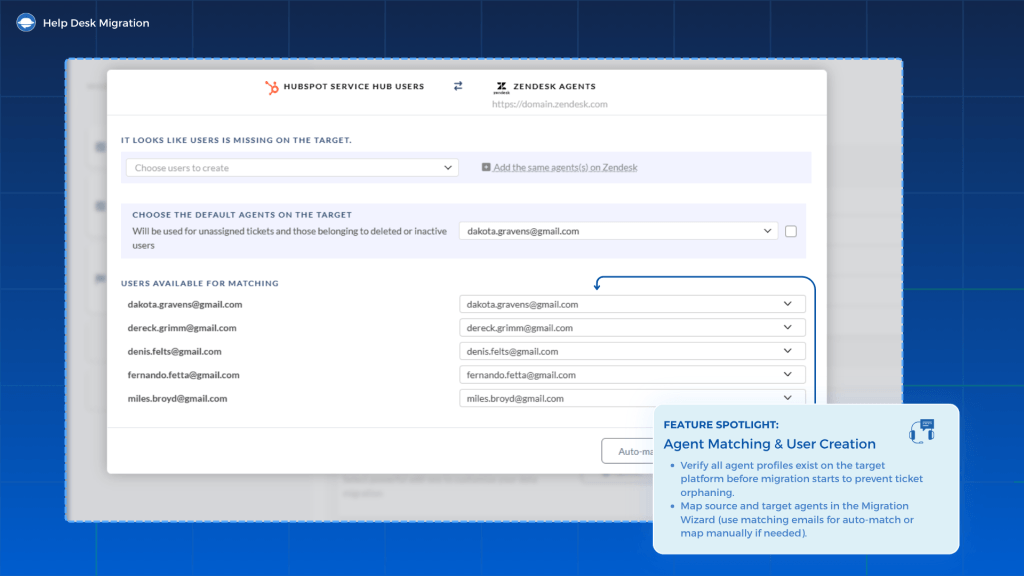
Before triggering Step 1, verify that every active and historical agent profile exists in the target platform. Then, open the mapping in the Migration Wizard to link your source and target identities. The cleanest way to ensure an automatic match is to use identical email addresses across both platforms. If email conventions differ, map those users manually before the data begins to flow.
3. Step 1. Open Tickets Overnight
Goal: Get your team working in the target platform the next morning.
Step 1 is the most time-sensitive part of the process. Every decision about what to include and exclude comes down to a single question: Does the team need this to start working on Monday?
3.1 What to Include in Step 1
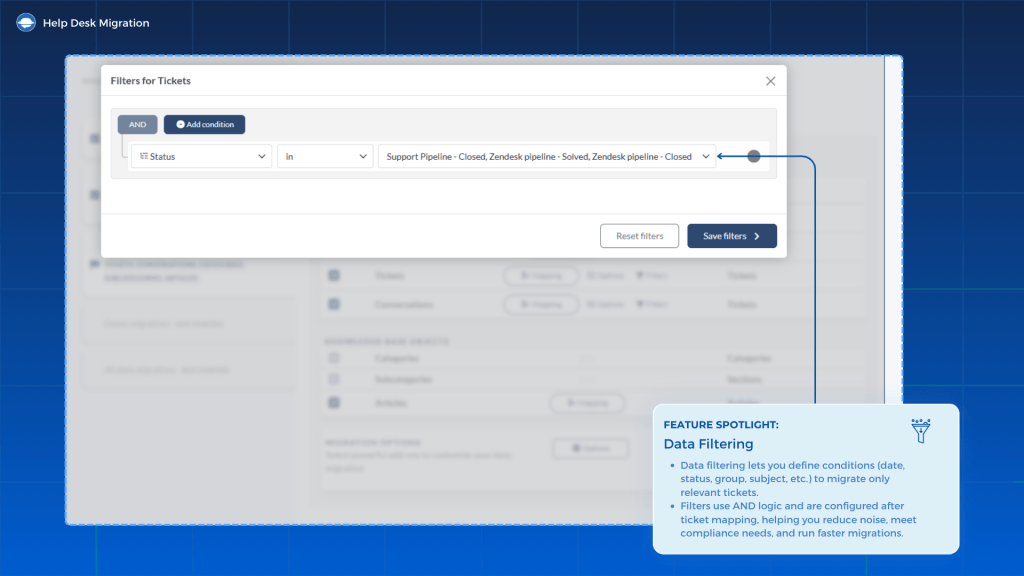
Keep your initial transfer limited to what your agents need to manage live queues to migrate open tickets to new helpdesk environments cleanly:
- Open and pending tickets: This represents your live operational workload and your current active ticket backlog. Everything else waits for Step 2.
- Associated contacts and companies: Context is everything. Importing a ticket without its matching customer profile breaks the conversational thread and slows down your agents.
- KB articles in all language versions: Your knowledge base is a vital operational tool. Agents require instant access to internal documentation, and self-service help centers must remain active for customers from the moment of the cutover.
3.2 What to Exclude from Step 1
- Closed and resolved ticket histories: This belongs entirely in Step 2. Shifting these records into your initial run adds massive data volume, dangerously inflating your overnight window for assets no one will touch on Monday morning.
- Archived record attachments: Attachments introduce bulk that is entirely disproportionate to their immediate operational value during a cutover. Defer them to Step 2. (Attachments tied to active, open tickets can be included if your overnight window allows for the bandwidth.)
- Agent activity history: Historical internal audit trails, performance histories with the closed ticket archive, should stay behind and move alongside the historical archive.
Keeping Step 1 lean is how you keep the overnight window achievable. Every megabyte you prune from the initial run is insurance for your Monday morning launch.
3.3 Using Multithreaded Migration to Hit Your Cutover Window
Target platform API limits are the absolute speed limit of any digital migration. A standard, single-threaded migration engine processes requests sequentially. This leaves a lot of speed on the table, running way slower than the new platform can actually handle.
Executing a multithreaded helpdesk migration changes the math. By running multiple concurrent request threads, it forces the import process to the absolute limit of your target platform’s API capacity.
For example, a 50,000-ticket dataset that takes 8 hours to transfer on a single thread can finish in 3 to 4 hours via a multithreaded transfer. That time savings is often the difference between a successful deployment and leaving your frontline agents without an active system at shift-start.
You get multithreading automatically with our Premium Service Package, and we highly recommend it for Step 1. Just remember that API limits vary a lot depending on your vendor and plan. A Freshdesk Growth plan has much tighter limits than an Enterprise account, and Zendesk scales its speeds strictly by tier. Not sure if your setup can handle an overnight window? Check with our engineering team before locking a cutover date in your schedule.
3.4 Running Step 1: From Friday Launch to Flipping the Switch
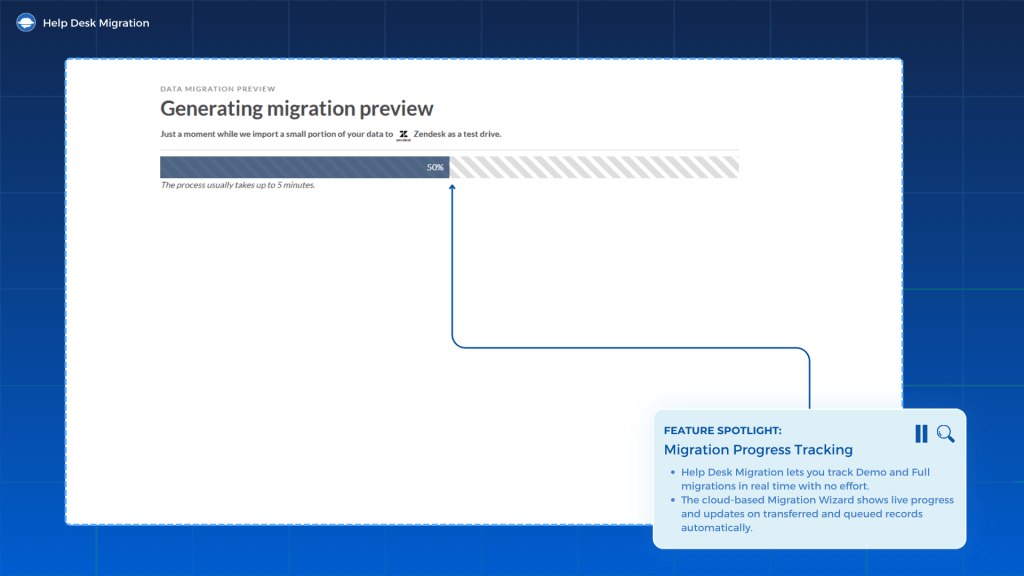
Fire up the migration wizard on Friday evening. Track the data throughput via the live dashboard and do not close the browser tab (updates sent automatically). Don't waste time manually refreshing the page; automated notifications hit your inbox the moment the job finishes.
The moment Step 1 wraps up, jump straight into your cutover steps:
- Switch all communication channels to the target platform immediately. Turn on your email forwarding, swap out your website's live chat widgets, and point your help center links to the new platform. This stops all new customer traffic from hitting your old system.
- Set the source platform to read-only. Remove your team’s editing permissions or add a read-only banner. The old help desk is now just a read-only source, not an active workspace.
This sets your team up perfectly for Monday morning. Your agents log in and work out of the new platform, but the old system cannot receive or generate new conversations.
3.5 What Happens If Step 1 Is Not Complete by Morning
If new tickets arrive or existing conversations are updated during the migration window, Delta Migration acts as a built-in synchronization layer. It automatically transfers newly created and recently updated records after the initial migration pass.
The Delta migration checks your old help desk for any new activity after Step 1 began and syncs it to your new workspace. Because the Delta sync catches these leftover tickets quietly in the background, your agents can start working immediately on Monday morning without any missing data.
You need to run the Delta Migration within 10 days of completing the initial migration phase, and it’s included in our Premium plan. Many teams also keep their previous platform available in read-only mode during the transition period, giving agents access to historical reference data while the new workspace fully stabilizes.
4. Day-One Launch: The Final Cutover Steps
This is your official go-live day workflow. Follow these steps exactly before the team starts on Monday morning.
4.1 Switch All Communication Channels to the Target Platform
Move your customer traffic over to the new system. Route your support email forwarding to the new inbox, update your website's live chat code, and forward your help center URLs. This channel redirect is invisible; your customers won't notice a thing because all their usual contact points stay identical. Do this before agents log in for their first shift.
4.2 Set the Source Platform to Read-Only
Lock down the old system and enforce the read-only status, so agents don’t accidentally use it. Revoke their editing permissions or add a clear banner pointing them to the new desk. If an agent updates a ticket in the read-only source out of habit, it creates a massive data mess that ruins the point of the overnight migration.
Your team can still log in to look up old conversation context, but the old system is closed to new work from cutover onward.
4.3 Run Delta Migration to Catch Any Ticket Updates Missed
Even with a clean Step 1, you still need to grab any tickets that changed hands while the sync was running. Start the Delta migration as part of your cutover right before your team logs in. Note that this feature is available on the Premium plan and must be initiated within 10 days of completion to ensure your new workspace is up to date.
4.4 Run a 10-Minute Team Briefing Before the First Shift Starts
Skip the drawn-out training sessions on launch day. Keep it tactical. On go-live day, your team needs to support customers, not sit through slide decks.
Cover exactly four things:
- New login credentials.
- Where to find open tickets.
- How search and history work.
- Who to contact if something looks missing.
If you have already used a sandbox or run a Demo migration, your agents will know the interface. This stand-up is just a quick alignment check, not a feature tutorial.
5. Step 2: Moving Closed Tickets in Background Chunks
Goal: Transfer your full historical archive without disrupting live operations.
Your agents are already running their queues, so the intense clock-watching of Step 1 is over. Step 2 has no strict time limit. The only focus now is background execution that avoids:
- Impacting live agent performance or workspace speed.
- Overloading your API quota during standard business hours.
5.1 Why Closed Ticket History Still Matters
Do not mistake closed tickets for useless data. They are vital for three primary reasons after go-live:
- Compliance and Regulatory Audits: Depending on your industry, you might be legally required to retain customer conversations for years. Step 2 keeps your data retention fully compliant.
- Agent Context: Customers frequently bring up past issues. When an agent opens a new ticket and sees a blank history, they are flying blind. Keeping your closed ticket history ready preserves past solutions, notes, and preferences.
- Reporting Continuity: To track long-term trends, seasonal volumes, or historical CSAT scores, you need all your data in one place. Fragmented data means messy, broken metrics.
5.2 Phasing Your Archive: How to Split Your Date Ranges
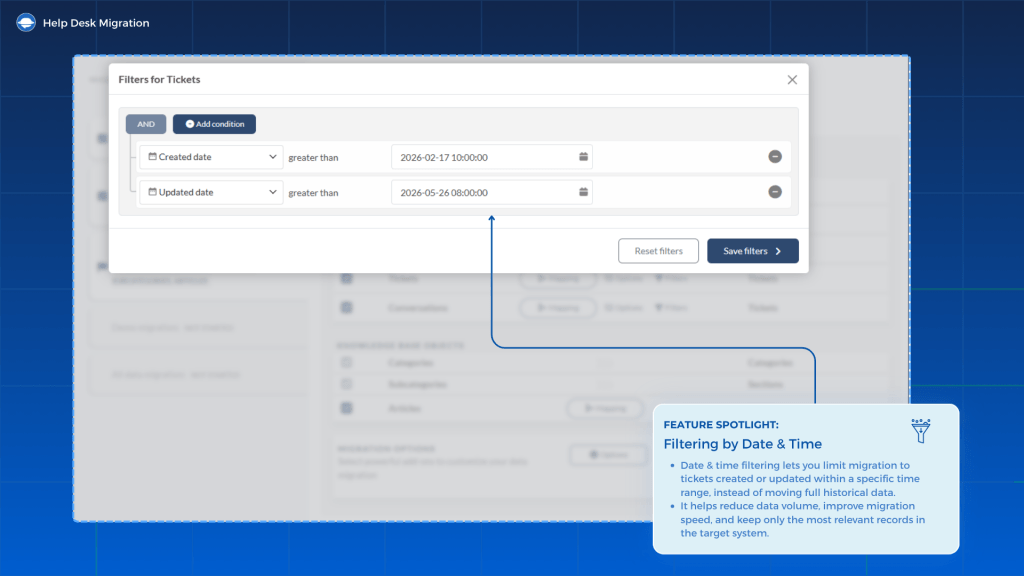
Use date filters to break your massive historical archive into smaller, bite-sized chunks. The smartest strategy is to move backward through time. Start by migrating the most recent data first, since this is what your active agents are most likely to look up.
The Phased Migration Roadmap
| Phase | Scope | Timing/Method | Status |
| Step 1. Go-Live Day | Open and in progress tickets + KB migrated via overnight sync | Overnight sync | Live |
| Step 2. Historical Archive | Older closed tickets and long-term history | Background load | In progress |
Set up each batch as its own separate migration job inside the Migration Wizard. Segmenting your data like this keeps system strain to a minimum. If a vendor API drops mid-transfer, it only impacts that single, isolated chunk rather than forcing you to reload your entire database.
5.3 Using Interval Migration to Pause During Business Hours
Using interval migration support tickets logic lets you pause your data transfer during peak business hours and automatically resume it at night or over weekends.
Instead of running a massive data sync that hogs your API limits and slows down your active workspace, each interval pause breaks the work into smart windows.
This keeps Step 2 invisible to your team:
- No agent slowdown: Your support team won't experience lag or interface delays during peak hours.
- Quiet background building: The history archive fills up while everyone is offline.
- Automated scheduling: You don't have to manually stop and start the tool; it handles the timing for you.
For enterprise teams with high ticket volumes, tight SLAs, interval migration turns a heavy data load into a quiet, background process.
5.4 How Long Does Step 2 Take?
Unlike the time-sensitive push of Step 1, Step 2 has no fixed deadline.
Some companies complete their historical data transfers in just two nights. Others choose a more conservative approach, spreading the work across two to three weeks by running background batches only on weekends.
Ultimately, your ideal migration pace depends on three things:
- your total record volume.
- your target platform API limits.
- how much bandwidth you actually have to monitor the jobs.
Expert tip: If your archive exceeds 200,000 records, or if your team is bound by a tight compliance timeline, you don't have to go it alone. Our Professional Services team can fully scope, chunk, and execute your historical sync end-to-end.
6. Platform-Specific Timing Notes
While the playbook for Step 2 is always the same, your exact background sync timeline depends on the platform pair you are working with.
Every help desk has its own API rate limits, throttling rules, and data structures. For example, moving from Zendesk to Freshdesk requires a different pacing strategy than executing a Freshdesk to Intercom swap or an Intercom to Zendesk migration.
The same principles apply to projects like a Zendesk to Intercom migration, an Intercom to Freshdesk transition, or even a large-scale Zendesk to Zendesk consolidation. Every platform handles data structures, conversations, attachments, and synchronization differently, which can influence migration timing and planning.
At the same time, most modern help desk platforms offer enterprise plans or API add-ons with increased throughput capacity, allowing large migrations to run significantly faster when needed. That’s why successful migrations are less about hard technical limitations and more about smart planning, prioritization, and choosing the right migration strategy for your operational timeline.
Here is a quick look at what to expect for each ecosystem so you can plan your background batches without any surprises.
6.1 Zendesk Express Migration
Zendesk throttles extraction and import speeds based on strict API rate limits. Depending on your contract tier, you can expect anywhere from 400 to 700 requests per minute. A multithreaded helpdesk migration fully maximizes this throughput.
However, you must tweak your configurations beforehand to avoid massive automated email loops. Before running Step 1, log into Zendesk, navigate to Admin > Business Rules > Triggers, and shut down every active trigger. You should also audit active setups under Business Rules > Automations.
Leaving even a single notification live allows the platform to blast accidental updates to legacy customers, which corrupts your historical metadata during the cutover.
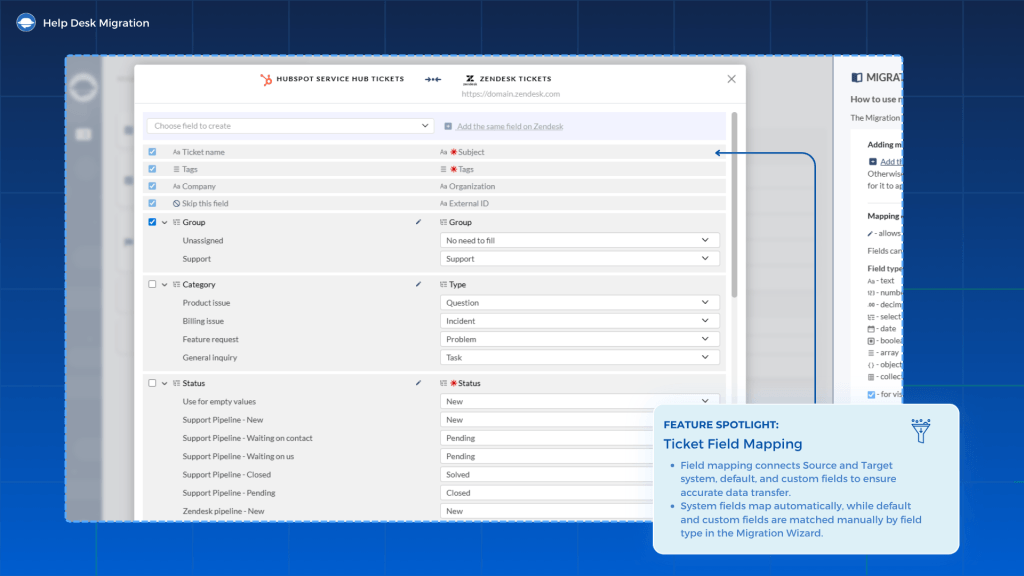
At the same time, migration is also an opportunity to clean up outdated or unnecessary fields. Not every legacy field needs to be transferred, and many teams intentionally leave behind unused custom fields to avoid cluttering the new workspace.
6.2 Freshdesk Express Migration
Freshdesk scales ingestion and import speeds based on strict API rate limits. Depending on your contract tier, you can expect anywhere from around 40 requests per minute on lower-tier plans to approximately 1,000 on Enterprise. If your team operates on a Growth tier, this lower throughput heavily restricts a standard overnight run.
Manage your active data blocks carefully to avoid account-wide integration lockouts. Using interval migration allows you to pause the background transfer during peak daytime hours and resume automatically when traffic drops. This operational choice prevents heavy data loads from throttling your workspace or causing system timeouts for live support agents.
6.3 Intercom Express Migration
Intercom regulates import speeds using a unique daily quota framework rather than per-minute limits. Depending on your contract tier, workspaces receive a fixed API call budget resetting at midnight UTC.
Ensure you front-load Knowledge Base (KB) content directly in Step 1. Moving articles early ensures live agents and Fin AI features have a high-quality database ready for resolutions on day one. For legacy data shapes threatening your daily budget, verify remaining quota within your Intercom Developer Hub before setting your launch date.
7. Express Migration FAQs: Managing the Two-Step Migration Sequence
How long does Express Migration Step 1 take?
For support teams with fewer than 50,000 open and pending tickets, Step 1 generally wraps up overnight within a 4 to 8-hour window. Your exact speed depends on raw record volume, specific platform API rate limits, and multithreading. Running a quick test demo is the easiest way to gauge your platform pair's exact timeline.
Will my customers know we switched platforms?
Not if you point your email channels, chat widgets, and customer portal URLs to the new system before agents log in. Your primary communication lines remain identical; only the backend software managing them changes. Done correctly, the platform switch is invisible to end users.
What happens to tickets created during Step 1?
Delta migration catches every single ticket created or updated in your old platform after Step 1 starts, moving them securely to the new target. This safety net closes any data gaps during the cutover window. Just remember to launch the Delta sync within 10 days of completing Step 1. This option is available in the Premium plan.
Do I need to disable automations before migrating?
Yes. Skipping this step is an incredibly expensive mistake in an Express migration. Keeping triggers or automated workflows active in your new system during an import causes the platform to fire thousands of legacy notifications to old customer contacts. It also permanently warps SLA tracking timers across your entire historical archive.
When should I use professional services instead of self-serve?
We recommend professional services for complex migrations involving over 200,000 records, strict SLA cutover deadlines, or messy custom field mappings. If you are consolidating multiple source platforms into one, our engineering team can scope, map, and execute the full sequence safely on your behalf.
8. Recommended Setup for Express Migration
If your support team is working with a clean database, (meaning under 50,000 active, open tickets), and you have a full weekend ahead, our self-serve wizard can easily handle the load. You just set up Step 1 in your dashboard, check off your pre-migration list, and hit launch.
But when databases are massive or full of legacy clutter, things get complicated. If you want your team logging in without a hitch on Monday morning, your success depends entirely on how you leverage two core engineering features:
- Multithreaded Migration: This protocol forces the target platform's API right up to its performance ceiling to shrink your Step 1 timeline. Available in our Premium Service Package, this is your primary tool for forcing heavy day-one datasets through the pipeline.
- Interval Migration: This feature handles your heavy Step 2 historical archive transfers completely around your live business hours. Because it automatically pauses data loads during the day and resumes them at night, the background sync never slows down your frontline support agents.
If you are staring down a tight software contract termination date, massive archive volumes, or an incredibly restrictive platform combination, a DIY approach might not cut it. Our professional services group is available to map out your specific architecture and project manage your entire cutover from start to finish.
Express Migration: Live by Monday, Archive on Your Schedule
An express migration bridges the gap between speed and data security. Your support agents simply log into the new platform on Monday morning and start working, while your historical archives catch up quietly in the background at a pace that fits your workflow.
The core logic does not change based on your help desk vendor. Pushing essential day-one data first and streaming long-term archives second is a framework that works for every enterprise setup. The only real moving parts are your specific timing metrics:
- Step 1 speeds hinge entirely on your active ticket volume and platform API limits.
- Step 2 timelines scale based on your total archive depth and daily sync windows.
The outcome is predictable. You get zero operational downtime, no agents caught juggling two separate systems, and zero risk of accidental email blasts bothering your customers.
Managing a complex enterprise stack means looking past the initial weekend cutover. Check out our Complete Data Migration Guide to audit your full data pipeline architecture, or read the AI-First Migration Guide to set up your new platform for automated support tools.