
Most help desk migration advice focuses on speed. This guide on complete help desk migration is for the teams who can't trade completeness for convenience. This includes support operations with compliance obligations, years of accumulated ticket history, and the practical reality that agents need full customer context to do their jobs.
Complete help desk data migration is not a one-click event. Industry data from Oracle shows that over 80% of migration projects run over time or exceed budgets. Similarly, USC Data reports that 83% of projects fail to meet initial objectives. Because a migration impacts day-to-day operations and long-term compliance, you must treat it as a strategic project from the beginning.
This guide walks through exactly how to do that without corrupting your data integrity, triggering chaos in your target platform, or creating a gap in your support history that comes back to bite you six months later. To succeed, follow these six phases: audit your data, configure your target platform, select your records, run a demo, execute the full migration, and validate the results.
What "Complete" actually means in a help desk migration
Before starting anything, get clear on the scope. Complete Data Migration is a data transfer operation. It is not a platform configuration service. Another misconception is to think that checking the ticket count match after the transfer does not prove your migration worked.
Relationships break silently. Here are the four dimensions of completeness you need to verify.
- Record completeness. Every request, thread, and ticket-like entity, regardless of status: open, pending, closed, resolved, merged, or spam. Every customer record and organisation, and every team member and team structure, finds a match to their counterparts in the target platform. All KB articles across all language versions.
- Relationship completeness. A ticket connected to a contact connected to a company needs to arrive in the target platform with those connections intact, not as three orphaned records with nothing tying them together. Helpdesk migration record relationships are the most common casualty of a rushed migration.
- Content completeness means your new help desk mirrors your old one. The Migration Wizard transfers attachments and saves inline images so links never break. We map timestamps accurately to keep conversations chronological. Your agents get full context from day one.
- Compliance completeness keeps your data legally sound. The tool preserves historical records to meet strict regulatory retention periods. By migrating original timestamps and system logs, it keeps your audit trail fully intact. This gives you a verifiable history for regulatory reviews.
If you miss any of these four requirements, your migration is incomplete. A 100% complete progress bar means nothing if your data is broken.
What does a complete help desk migration not cover? Data migration tools move your data, not your settings.
Your workflows, SLA policies, and routing logic will not transfer. You must rebuild them manually in your new platform. Do this before you migrate so the system behaves correctly when your records arrive.
Teams sometimes assume that your new help desk will automatically work like your old one. The data moves, but the operational logic stays behind.
If you need help rebuilding that logic, work with one of our implementation partners. Faye handles Zendesk, Freshdesk, Freshservice, and Salesforce Service Cloud. Envoy covers the same platforms plus ServiceNow. GrowthDot specialises in Zendesk, Freshdesk, Intercom Fin, and Jira. Aktie Now focuses on end-to-end Zendesk implementation across North America, Latin America, Europe, and the Middle East. Each partner can scope your configuration needs and get your new platform running the way your old one did.
Phase 1: Audit your source platform first
The migration transfers your data as-is. A complete help desk data migration of a messy source platform produces a complete but messy target platform. Teams that skip discovery and cleansing spend twice as much time troubleshooting errors after going live. While a comprehensive discovery phase requires 5% to 10% of the project budget, USC Data shows it prevents over 50% of common migration failures. This phase is non-negotiable for a full helpdesk migration no data loss outcome.
Inventory your record types and volumes
Count all records before you start the transfer. This count establishes your validation baseline for the final post-migration checks.
Document these items:
- Tickets by status: open, pending, closed
- Contacts and companies
- KB articles by language version
- Attachments
- Custom field types
Export this inventory. You will compare it against your post-migration report in Phase 6.
Identify and clean data quality issues before migrating
Run through the platform-specific pre-migration checklist for your source platform before doing anything else. The most common problems that surface post-migration: duplicate contacts, broken ticket relationships, orphaned records. Clean first, migrate second.
Three things to fix before you run anything:
- Merge duplicate contacts. One customer, one record. Duplicates break relationship completeness and create confusion after cutover.
- Standardise overlapping tags. Combine similar tags, such as billing_issue, billing-problem, and billing into a single label. Inconsistent tags skew your reporting in your target platform.
- Remove orphaned data. Delete disabled automations, empty custom fields, and unused canned responses. These do not need to travel with you.
Data migration exposes data quality issues. If you do not profile and cleanse source data beforehand, you will experience unpredictable errors later. The time spent here is always less than the time spent fixing problems after a full help desk migration has completed.
Map your compliance retention obligations
Establish your legal retention requirements before you decide which records to migrate or archive.
| Regulation | Minimum Retention Period | Compliance Focus |
|---|---|---|
| HIPAA | 6 years from creation or last use | Protected health information |
| SOX | 7 years | Financial and audit records |
| PCI DSS | 1 year accessible (3 months immediate); 3 years total | Cardholder data environments |
| GDPR Art. 20 | Data portability guaranteed, usability is not | Data access and right to erasure |
HIPAA compliant help desk migration requires you to identify which tickets fall under specific obligations before you start the transfer. Helpdesk migration compliance GDPR means purging deletion requests and records that exceed your retention limits before the data import.
Phase 2: Pre-migration configuration
Setting up your target platform correctly protects your entire data migration.
Data cannot exist in a vacuum. Every ticket requires a specific framework (an assigned owner, a valid status, and matching custom fields) to load correctly. If that framework is missing, the API rejects the records.
To protect your transfer, you must complete three configuration steps before running your migration:
Disable Automations and Triggers on the Target Platform
Active help desks use triggers and time-based rules to automate workflows. If you leave these active during an import, the target system treats incoming historical tickets as brand-new events.
The system will fire automated notification emails to customers for tickets closed years ago. It will also instantly breach SLA timers, corrupting your historical reporting metrics.
Some platforms auto-disable during import. Think of this as a built-in switch inside your new help desk. The platform recognizes a massive data import. It automatically silences its own notification system until the import finishes. Verify that yours does before you assume it does.
Check with the migration team whether your platform pair supports request-level notification suppression. If it does, enable it before running.
Create all custom fields on the target platform
Omitting custom fields ranks is a very common setup error. Fields that do not exist in the target system cause data to drop silently without generating error warnings.
To migrate custom fields help desk records correctly:
- Map corresponding field names.
- Create all custom fields in the target before you begin.
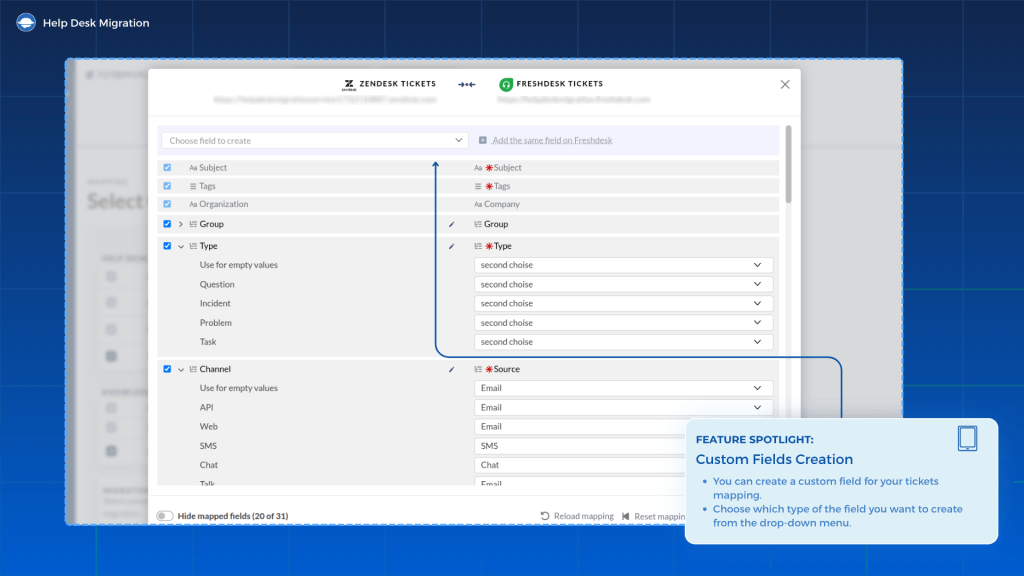
- Use the Migration Wizard to map your source fields to the target fields.
You can create custom fields directly through the Migration Wizard. Do this before the Demo migration, not after.
Match Agents
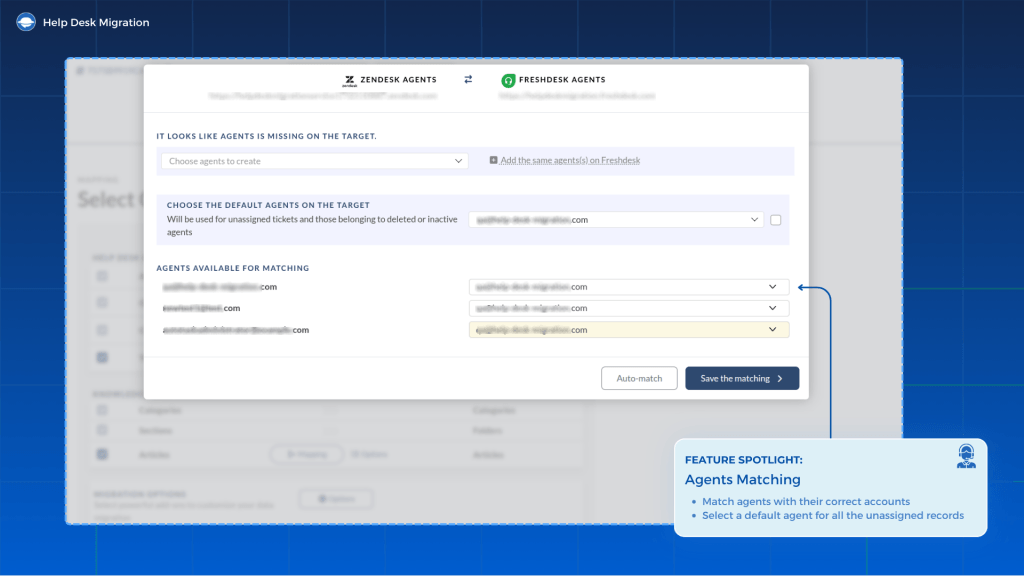
Unmatched agents cause orphaned tickets. If an agent lacks an account in the new system, their tickets arrive without an owner. To avoid this, use identical email addresses on both platforms so the migration tool matches them automatically.
For former employees, map their records to a generic inbox or an active agent instead of leaving them blank. Or select a default agent within the Migration Wizard settings to catch unassigned records
Phase 3: Selecting what to migrate
For a complete help desk data migration, you must select every checkbox on the object selection screen.
Here is what each object represents, why you need it, and what it costs to leave it behind.
All tickets
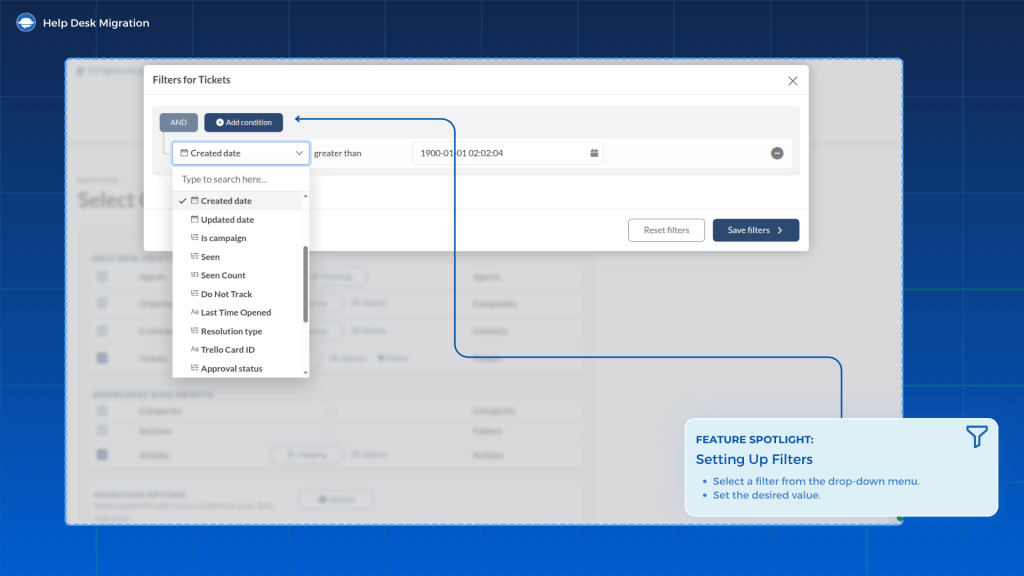
By default, the migration tool transfers all tickets regardless of status — open, pending, closed, resolved, and so on. If you want to limit the transfer to specific statuses, you can apply filters to narrow the scope. However, we strongly recommend migrating all statuses without exception.
Closed tickets contain your historical customer conversations. Agents reference them daily to check past customer interactions, manage escalations, and provide evidence for compliance audits. Excluding any status group does not meaningfully reduce storage, but it destroys your reporting accuracy and search capabilities.
When you migrate all ticket history to your new helpdesk, do not apply status filters unless you have a specific, documented reason to do so.
All contacts and companies with their relationships
Tickets cannot migrate without their associated contacts. Every ticket must be linked to a contact record in the target platform — without it, the ticket arrives with no owner or customer identity.
Companies are linked to contacts, not directly to tickets. The relationship chain runs: company → contact → ticket. Migrating contacts without their company associations breaks account-level context for B2B support teams. Agents lose visibility into which organisation a contact belongs to, which makes account management and escalation handling significantly harder.
Migrate contacts and companies together, with all relationship links intact. A contact list without relationship integrity is an address book, not support history.
Knowledge base articles in all language versions
When you migrate knowledge base all with languages, select all published articles, drafts, categories, and subfolders in a single run. Do not migrate your articles in separate batches by language. Moving all versions together preserves the structural connection between different language options.
Enable the option to update cross links between articles. This feature automatically rewrites internal URLs so every reference points to the correct location in the target platform.
Teams often try to copy and paste articles manually to save time. This mistake requires weeks of tedious work. It also breaks your image paths and internal links, which damages your search engine rankings.
Attachments, inline images, and comments
To migrate helpdesk attachments and comments correctly, check three things before you start.
- Confirm your new platform has enough space to receive every file. Reaching a storage limit mid-migration halts the transfer and triggers system errors.
- Migrate inline images as attachments rather than leaving them as references to the source platform. Inline images are hosted on the source system and use source-based URLs.
- Once you decommission the source platform, those URLs stop resolving and all inline images become broken icons. Migrating them as attachments re-hosts the files on the target platform so they remain accessible after cutover.
- Check your privacy settings before running the full migration. This safeguard keeps internal comments hidden from customers when the records arrive.
When moving attachments, inline images, and comments, teams often cut corners to save storage space or speed up the timeline. Avoid these three common corner-cutting mistakes:
- Do not leave inline images as raw HTML links to avoid broken image icons when you decommission your old platform.
- Do not exclude large or historical attachments to avoid losing the critical context your agents need to solve recurring issues.
- Do not skip testing your comment visibility settings to avoid exposing private internal agent notes directly to your customers.
Custom fields and their values
Every custom field type requires a specific mapping approach.
- Text and numbers: straightforward one-to-one mapping.
- Multiselect and dropdowns: Recreate all options in the target platform before running the tool.
- Dates: Verify format compatibility between both applications.
- Checkboxes: Match true and false values to the corresponding target states.
- Missing data: Assign default values for fields that contain empty records.
Set up the target fields before running the transfer. If the container does not exist, the Migration Wizard cannot move your data. You also need to check that both platforms use the same date layout. Mismatched formats cause the API to reject the entire ticket.
Phase 4: Demo migration and field mapping validation
Every migration must run through a trial sample first. The Demo Migration is a mandatory safety step rather than an optional formality. The tool moves a small representative sample of roughly 20 tickets and knowledge base articles along with their related contacts, agents, and attachments. This test run lets you validate data behavior before running a full volume transfer.
How to run a productive demo Migration
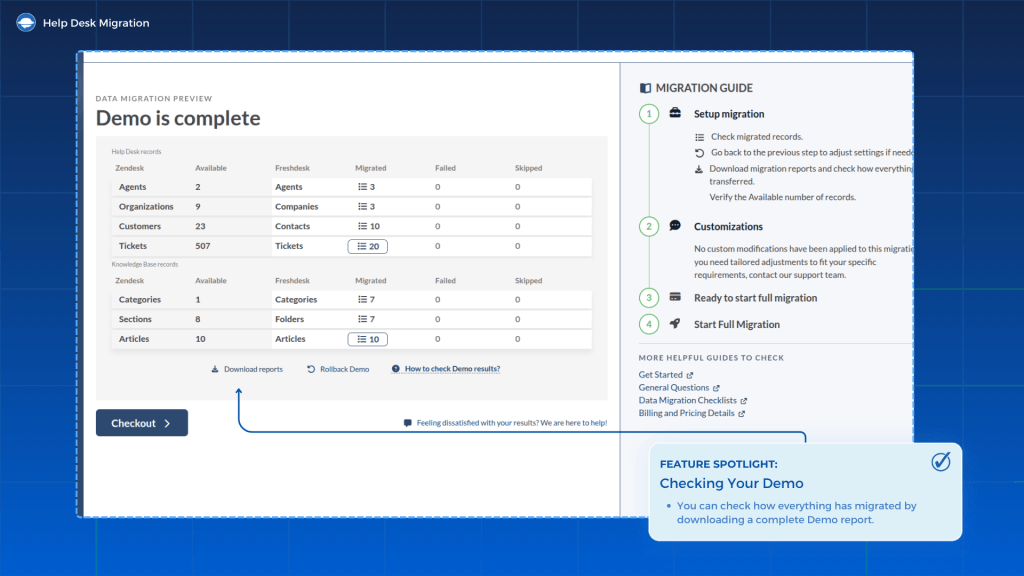
After the migration tool completes the sample run, download the data mapping report and manually spot check the records in your new platform.
Use this helpdesk migration data validation checklist for the demo:
- Conversation order: Look for exact chronological order with no thread gaps.
- Custom field values: Verify all values map to the correct attributes.
- Attachments: Open files to ensure they are accessible and undamaged.
- Internal notes: Confirm private comments remain hidden from customers.
- Contacts: Check that tickets link to the right customer and company profiles.
Do not proceed to the final transfer if your checklist reveals broken data. The tool provides free and unlimited demo runs so you can adjust your mapping and retest until the output is clean.
Phase 5: Full Data Migration
Your team continues working in the source platform throughout the full complete help desk data migration. Keep your team in the legacy system until you complete your post-migration validation.
Start the Full Migration
Before you click the start button, confirm that all five of these statements are true. If any are false, stop and resolve them before proceeding.
- Custom fields exist in the target platform.
- Every agent profile maps to a target account or a designated default user.
- Target system automations, triggers, and notifications are fully disabled.
- The Demo Migration passed every validation check.
- You downloaded a complete data backup from your source help desk.
Advanced scaling for large datasets
If you are moving a massive volume of records, use these two architectural features to manage API limits. Note they are available on the Premium plan only.
- Interval Migration pauses the data transfer during your peak business hours and resumes the process overnight or during weekends. This protects your live operations and prevents API quota exhaustion.
- Multithreaded Migration runs multiple parallel data threads simultaneously to push the target platform API to its maximum throughput limit. Transfer speeds depend heavily on your target platform plan tier. It is the fastest path through a complete help desk data migration against a hard deadline.
Delta Migration capture changes during the cutover
A Delta Migration copies any new or modified records that appeared in your source platform after the Full migration began. Do not move your team into the new help desk before running your Delta Migration. Switching platforms too early leaves behind all the customer conversations created during the Full Migration window.
Two things to know:
- You must run your Delta Migration within 10 days of completing the full data transfer.
- Delta migration is available on the Premium plan only.
Phase 6: Post-migration validation
The progress bar reaching 100% does not mean your migration is complete. Validation confirms that every ticket history and custom field landed in the right place. Keep your legacy system active until you verify every record.
Record count reconciliation
Download your final data reconciliation report. Compare your target numbers directly against the pre migration baseline you built during Phase 1:
- Total migrated tickets vs. source ticket counts
- Total migrated contact and company profiles vs. source counts
- Migrated KB articles per language version vs. source count
Investigate and resolve any statistical discrepancies before you turn off your legacy help desk.
KB article validation
Your helpdesk migration data validation checklist for knowledge base content:
- Every article exists across all language options.
- The target platform recreates your exact folder and category structure.
- All internal hyperlinks work correctly after you update hardcoded URLs to the new platform structure.
- Embedded images render properly within the text.
- Draft articles remain in draft status instead of publishing automatically.
When to use Professional Services
The automated Migration Wizard works perfectly for standard data moves. But large scale projects or messy database setups need a manual touch to avoid data loss and downtime.
Here are four scenarios where self-serve tools fall short, the risks of cutting corners, and how to handle them.
Scenario 1: You are consolidating multiple help desks
Merging two or more platforms after an acquisition creates major data overlaps. You have to deduplicate contact profiles and resolve conflicting custom fields across different systems.
Some managers go for importing databases sequentially without a master mapping layout. This overwrites active user profiles and creates duplicate customer accounts.
Scenario 2: You have complex custom field dependencies
Non-standard data types, bulk migrations across multiple separate projects, and conditional fields bypass standard mapping templates.
Some teams try forcing complex relational data into standard free text fields. This causes silent data loss because the new system cannot interpret the nested data structure.
Scenario 3: You need a regulatory audit trail
Strict compliance frameworks require companies to provide a formal chain of custody for all customer records during an infrastructure change.
Some teams try relying on basic automated tool logs. These rarely pass strict compliance audits.
Conclusion: Data migration is a six stage process, not a single export
A complete help desk data migration runs across six phases for a simple reason. It protects your data from day one, keeps your support team running without interruptions, and gives your agents clean records.
The order is fixed because early steps map your fields and build the foundation. Later steps handle the heavy lifting. When you follow this sequence, you avoid dumping data into an untested system.
Want to see your fields in action? to see how the mapping wizard handles your actual tickets and articles before you commit.
Have a complex setup? Talk to our team about professional services. We will help scope your database volume and compliance needs before you launch.
If a complete help desk migration doesn't match your current schedule, look at other strategies: browse the Express Migration Guide for a faster cutover, or check out the AI-First Migration Guide to focus on automation.
Complete Help Desk Migration Frequently Asked Questions
Your timeline depends on record volume and your platform pair. Small datasets with under 50,000 records usually finish in one to three days. Large databases with 100,000 to 500,000 records can take one to two weeks. Run a free Demo migration to get an exact time estimate for your dataset.
No. Every help desk uses its own internal ID structure so the new platform will generate fresh IDs upon import. The tool still preserves your subject lines, timestamps, and conversation threads perfectly. You can download a post migration report to match your old IDs with the new ones.
Yes, but you need to set up the target environment first. Create all your custom fields in the new help desk before you start the transfer. Review the field mapping in the Migration Wizard and run a Demo to verify that your data lands in the right place.
GDPR Article 20 mandates data portability in a structured format, while Article 17 covers compliance with erasure requests. To protect consumer rights, use a migration tool that maintains your relational data structure. Purge records that exceed your retention rules before the transfer. Make sure you sign a Data Processing Agreement with your migration provider to cover your compliance obligations.
The migration tool moves attachments and inline images alongside their parent tickets so they stay accessible. Spot check 10 to 20 attachments after the transfer to confirm they open properly. Review the file size limits of your new platform before migrating exceptionally large files.
Yes. Automation engines use completely different logic across software vendors so you cannot transfer them automatically. Document your current business rules before you begin. Most teams discover that up to 40% of their old rules are obsolete anyway, which makes migration a perfect opportunity to clean up your workflows.