Missive Migration Guides
TL;DR
This migration guide explains how to connect Missive to the Help Desk Migration Wizard. You’ll learn how to generate a Bearer Token, locate your Account ID, configure your Missive account settings, and securely authorize data migration.
Missive is a team communication platform that combines email, chat, and task management in one place. It allows teams to collaborate on shared inboxes like ‘support’ or 'sales’, handling conversations together. Users can chat internally within email threads, assign messages, and draft replies collaboratively. Missive integrates with services like Gmail and Outlook and supports multiple communication channels.
How to Set Up a Missive Account for Migration?
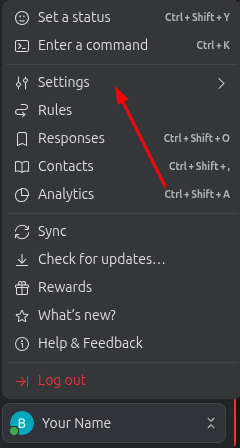
1. Click your Profile icon in the left corner of the Missive interface.

2. From the dropdown menu, select Settings to access your account configuration options.
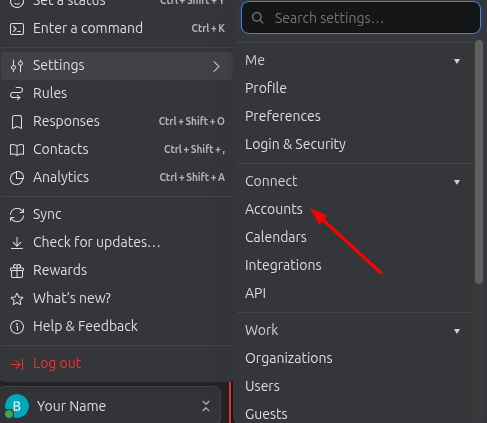
3. In the Settings menu, navigate to the Accounts section.
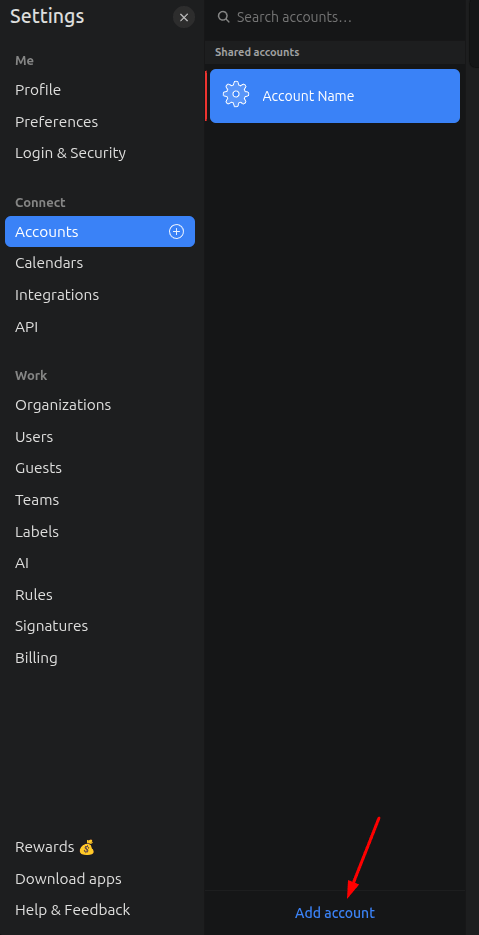
4. Click Add Account to start creating a new account for migration.
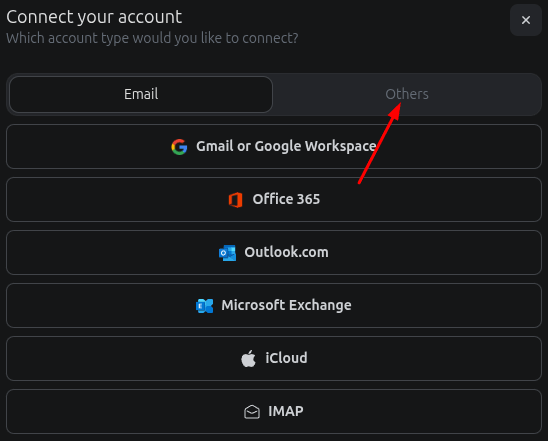
5. Select Others to proceed with a custom setup.
6. Choose Custom.
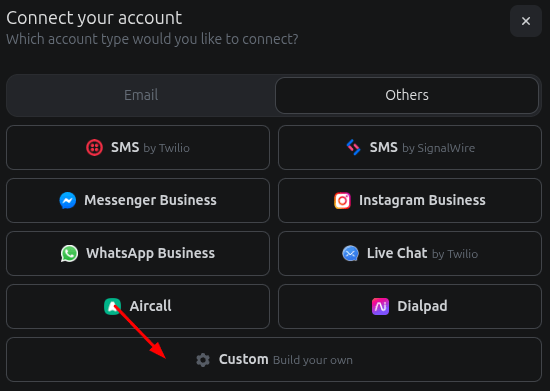
7. Select the appropriate account type depending on your setup (e.g., Shared or Personal account).
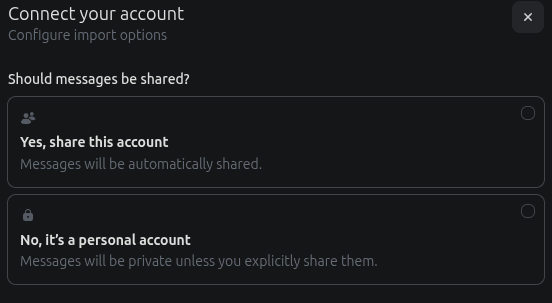
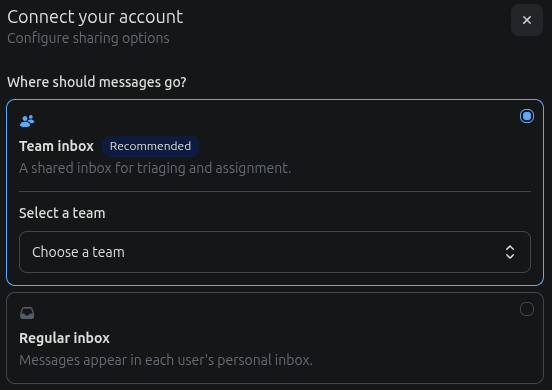
8. If you selected a Shared account, choose the corresponding mailbox. If you are setting up a Personal account, skip this step and continue.
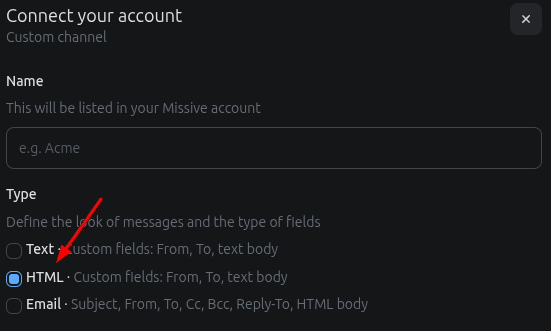
9. Select HTML as the connection type and enter the name.
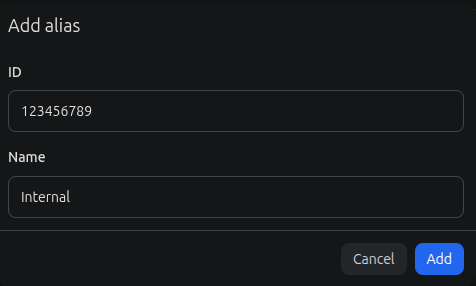
10. Add an alias to your account.
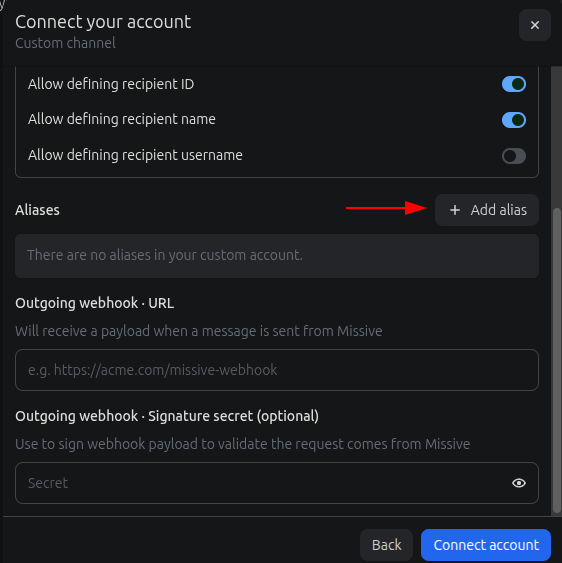
Creating a new alias if needed.
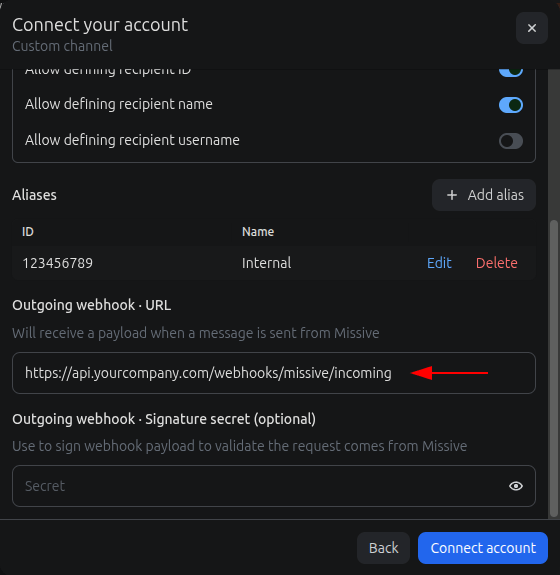
11. Add the Webhook.
How to find Bearer Token and Account ID?
To connect Missive to the , provide credentials. The Wizard uses:
- Bearer Token: to authenticate access to your Missive account via API
- Account ID: to identify which Missive workspace/account to connect to
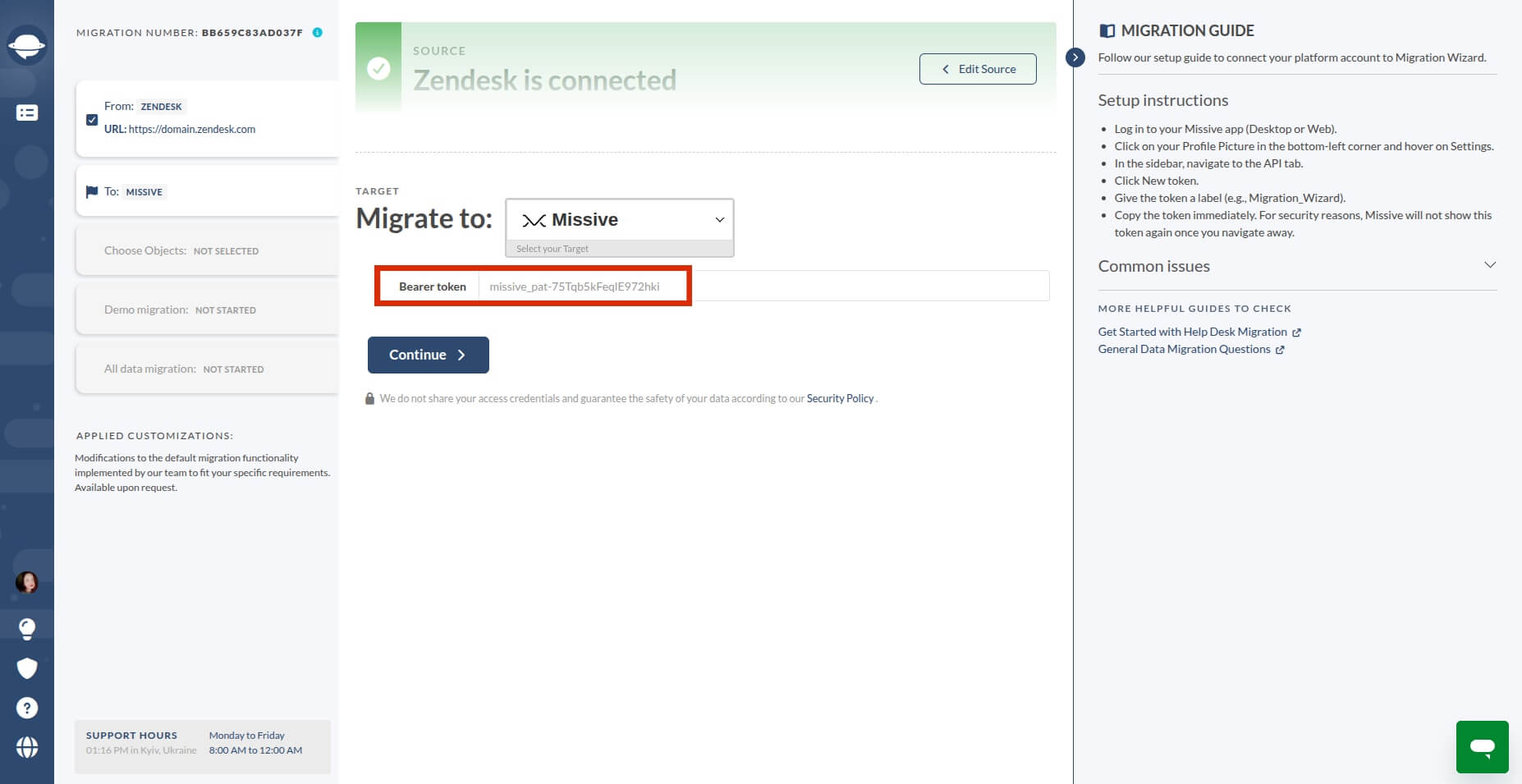
Bearer Token
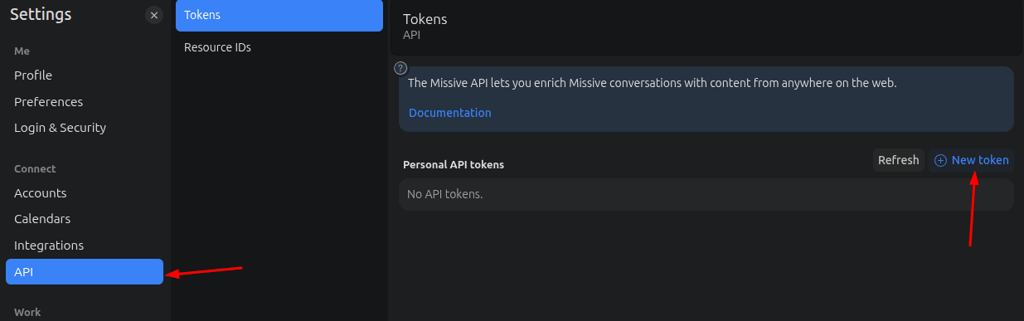
- Go to your Profile icon → Settings → API
- Click New token to generate an API token
- Copy the generated Bearer Token and paste it into the Migration Wizard
Account ID
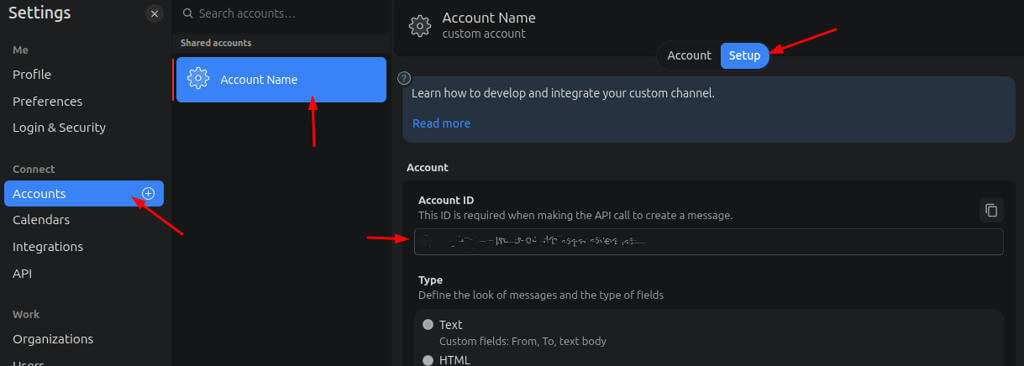
- Go to your Profile icon → Settings → Accounts
- Select your Account name
- Open Setup
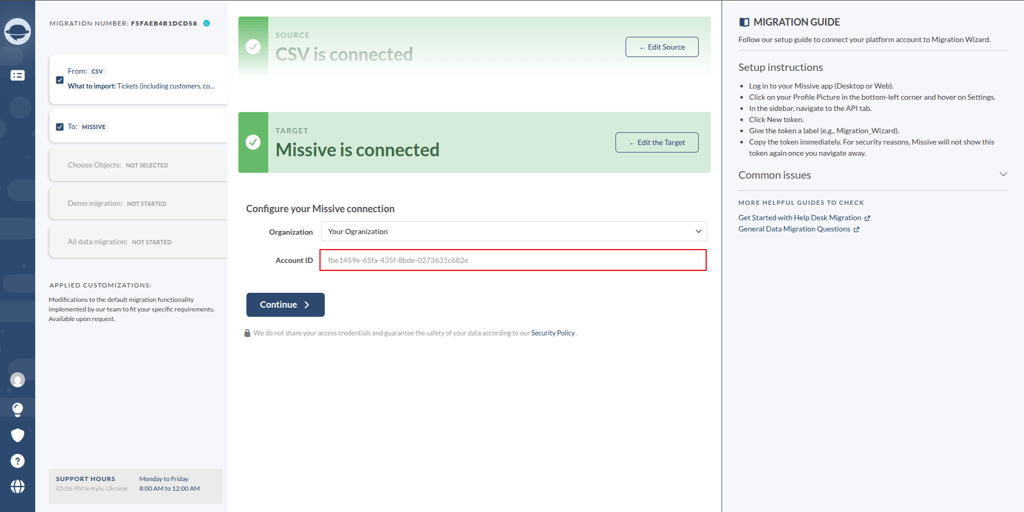
- Find and copy the 'Account ID' field
- Paste it into the Migration Wizard
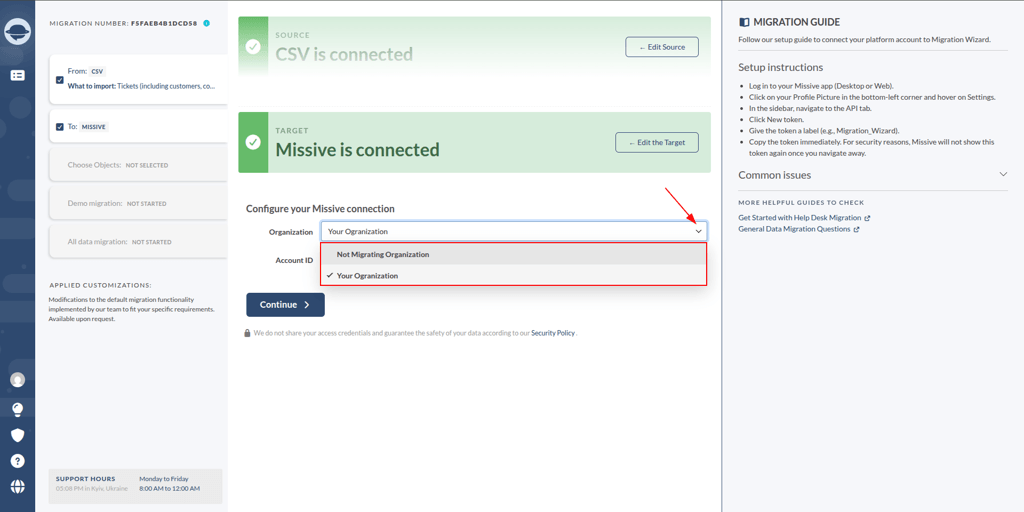
When migrating to Missive, you need to select the organization where the data will be imported.
Looking for more data migration details?