Gorgias Migration Guides
If you’re migrating to Gorgias or moving your data from Gorgias to another platform, Help Desk Migration offers two ways to do this:
- Self-service: Run the migration yourself in the Migration Wizard. You stay in control of the settings, and a free Demo Migration lets you preview results before you commit.
- White-glove service: Our engineers and migration experts handle the entire migration for you, from setup to go-live.
In this guide, we’ll show you how to run your Gorgias transfer with Help Desk Migration.
Help Desk Migration by Relokia migrates data between Gorgias and 100+ help desk platforms, in either direction. Tickets, customers, and their relationships arrive exactly where they belong, with no manual exports and no spreadsheet cleanup.
You can do it this way:
1. From your Gorgias account, head to Settings → App Store → All Apps
2. Find Help Desk Migration on the list.
3. After selecting the app, click on the Authorize button.
4. Log in to the app and click on Start a new migration.
5. To complete the setup, select the Migration Objects.
6. Match agents. Map each source agent to a user in the destination so ticket ownership and comment authors stay correct.
7. Map ticket fields. Match statuses, priorities, and custom fields between the two platforms so your data lands in the right place.
8. Choose options. Add a new tag to tickets, migrate inline images as attachments, skip attachments, transfer call recordings, migrate the newest records first, migrate content translations, update cross-links between articles, select records for Demo Migration, migrate associated contacts and organizations, update existing records on Target, extend data retention period, migrate time entries, migrate linked issues, and retain multi-company contact associations.
After the Demo Migration is complete, open your Gorgias account to review the migrated sample records. You can also download a migration report to see which data was transferred and verify that it matches the records on your old platform before proceeding with the full migration.
9. Choose a package. Pricing packages differ based on the level of expert involvement and migration support:
- Essential: Basic support for straightforward migrations.
- Advanced: More hands-on expert support for time-sensitive migrations.
- Premium: Expert-led support for complex, staged migrations.
- Enterprise: Fully managed migrations with a dedicated team and customized solutions.
10. Pay. Review the price breakdown, enter billing details, and click Submit order.
11. Start the Full Migration now or schedule it. Avoid last-minute source changes. Expect about 2,000 tickets per hour.
Gorgias Import
Gorgias Import is the process of transferring customer support data from another help desk platform to Gorgias using the Help Desk Migration Wizard. It automates data migration, helping you preserve valuable support history and customer information without manual exports, complex coding, or downtime.
Which Platforms Can You Import Data into Gorgias?
You can migrate data into Gorgias from supported help desk and customer service platforms, including Zendesk, Freshdesk, Help Scout, and other available systems. Connect your source platform and Gorgias in the Migration Wizard and configure your transfer.
Available source platforms include:
- Zendesk
- Freshdesk
- Help Scout
- Intercom
- Front
- Zoho Desk
- HubSpot Service Hub
- Re:amaze
- Other platforms listed in the Migration Wizard
What Data Can You Import into Gorgias?
Depending on your source platform, you can migrate tickets and message history, customers, agents, tags, attachments, and other supported data. Help center or knowledge base articles may also be available for certain migration paths.
Help Desk Migration supports importing the following entities into Gorgias:
- Tickets
- Contacts (Customers)
- Staff (Agents)
- Macros (Business Rules)
1. Supported Ticket Fields
When migrating tickets to Gorgias, the tool supports transferring the following fields and data:
- Requester
- Assignee
- Attachments
- Comments, including the comment creation date and author
- Tags
- Timestamps, including Created Date, Updated Date, and Closed Date
2. Supported Contact Fields
When importing customer profiles into Gorgias, Help Desk Migration supports the following contact attributes:
- Name
- Phone number
3. Available Migration Options and Custom Features
You can customize your migration to Gorgias using the following options and specialized workflows:
- Add a new tag to tickets: Automatically apply a specified tag to all imported tickets.
- Attachment handling: Choose to skip ticket attachments or configure how inline images in tickets are processed.
- Migrate snoozed tickets: A custom migration can import tickets in the Snoozed state when a future reopening date is provided.
- Migrate tickets with a high volume of comments: Tickets containing more than 30–40 comments can be fully migrated through a custom workflow.
These options help you tailor the migration to your requirements while transferring supported ticket and customer data to Gorgias.
Which Platforms Can You Migrate Gorgias Data To?
Help Desk Migration supports data transfers between Gorgias and 100+ help desk and customer service platforms. You can use the Migration Wizard to check the available target systems and configure your migration.
What Data Can You Migrate from Gorgias?
When using Help Desk Migration to transfer data from Gorgiasto another platform, you can export core help desk records, supported ticket and contact fields, and use source-specific options to customize the migration. Some fields and filtering methods have limitations.
1. Supported Entities
Help Desk Migration supports exporting the following entities from Gorgias:
- Tickets
- Contacts (Customers)
- Staff (Agents)
- Macros (Business Rules)
Note: Knowledge Base entities, including Articles, Categories, and Folders, are not supported for export from Gorgias.
2. Supported Ticket Fields
When exporting tickets from Gorgias, the tool supports the following fields and data:
- Requester
- Assignee
- Group
- Attachments
- Comments
- Tags
- Timestamps, including Created Date, Updated Date, and Closed Date
The following ticket fields are not supported when migrating from Gorgias:
- Company
- Custom fields
- CC recipients
- First Response Time
3. Supported Contact Fields
When exporting customer profiles from Gorgias, the tool supports the following fields:
- Phone number
- Notes
The following contact fields are not supported:
- Tags
- Custom fields
4. Gorgias-Specific Migration Options and Limitations
Help Desk Migration offers several options and workarounds for handling Gorgias data:
- Attachment handling: Choose to skip ticket attachments or configure how inline images in tickets are processed.
- Select tickets for a Demo Migration: Include specific ticket records in a Demo Migration by extracting their IDs from Gorgias ticket URLs.
- Preserve snoozed ticket status: By default, Gorgias exports snoozed tickets as Closed through its API because it classifies them as closed with a future snooze date. A custom migration can be configured to preserve the Snoozed status during data mapping.
- Filter data using Saved Views: The Migration Wizard does not natively support filtering Gorgias data by date, status, agent, or tag. To migrate a specific subset of records, create and use a Saved View in Gorgias to define the data you want to transfer.
These capabilities help you prepare your Gorgias data for migration while accounting for source-specific limitations and customization requirements.
CSV Migration to Gorgias
CSV migration lets you import supported data from CSV files into Gorgias without connecting a source help desk directly. This option can be useful when your data is stored in spreadsheets or exported from a system that doesn't have a direct migration path. The data must follow the required file format and field structure, and the available record types depend on the CSV migration capabilities supported for Gorgias. Before importing, review your files and map their columns to the corresponding Gorgias fields.
How to Filter Data for a More Accurate Migration Estimate
By default, Help Desk Migration migrates all data supported by the source and target platforms. However, if clients want to migrate only specific records, they should filter the data in their source system first. This helps them provide us with the relevant ticket IDs or data details, allowing us to prepare a more accurate migration estimate or develop a tailored solution.
For example, if a client wants to migrate only tickets tagged as ‘Important clients’ and estimate the cost, they can filter these tickets in Gorgias, check the total number of matching records, and then use our migration estimator or contact our sales team for a more accurate quote.
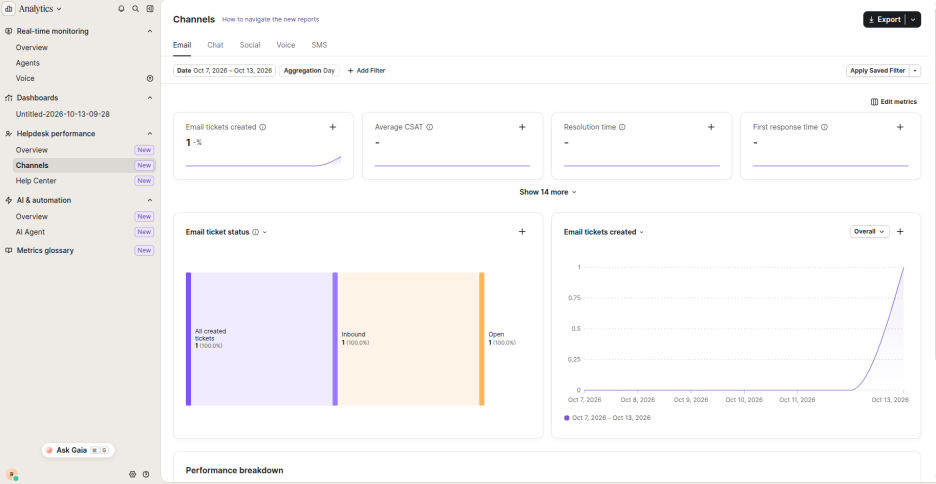
Similarly, if a client wants to migrate only tickets created via email, they can filter tickets by the ‘Channels’ field in Gorgias and share the requirements with our support engineers. The team can then assess the request and configure a custom migration solution if needed.
Common questions
How to get the Gorgias API key
You’ll need Gorgias API credentials to connect your account. They take about two minutes to generate: in Gorgias, go to Settings → REST API, where you’ll find your base URL, the email used as the username, and your API key.
How to check the result of Demo Migration in Gorgias?
After the demo completes, open your Gorgias account and review the migrated sample records (tickets, customers, and any articles) before committing to a full migration. Check that statuses, tags, assignees, and message history match your source.
Gorgias Data Residency – Private Cloud Migration
If your help desk data must stay within a specific jurisdiction, a standard migration may not meet legal requirements. Private Cloud Migration runs the entire transfer on a dedicated AWS server in the region you choose (EU, US, or APAC), so tickets, customers, and attachments never cross that border in transit. See how Private Cloud Migration works.
Keep your help desk data within your required jurisdiction. Private Cloud Migration runs your transfer on a dedicated AWS server in the EU, US, or APAC.
How to find out Gorgias migration pricing?
Your quote is calculated from your own data, and four factors set it:
- Record volume on the source platform (tickets, customers, agents, articles, and so on)
- Out-of-the-box options you select in the Migration Wizard
- Support package: Essential (free), Advanced, Premium, or Enterprise
- Custom modifications for non-standard data structures
Pricing doesn’t grow linearly with data volume, and notes, attachments, ticket custom fields, and replies transfer free of charge. Custom work by our development team (data filtering, restructuring records, transforming field types) is quoted and billed separately. The most accurate way to find your price is to run a free Demo Migration. The Migration Wizard counts every record in your source account, applies your options and support plan, and returns a tailored quote before you commit. See how the data migration price is calculated.
How long does a Gorgias migration take?
Most migrations complete within a few hours to a few days, depending on your data volume (tickets, customers, help center articles) and the options you select. You’ll see live progress in the Migration Wizard dashboard, and most teams switch over in a single scheduled window with no downtime for support operations. A free demo gives you a time estimate based on your own data.
Looking for more data migration details?