How to check the result of Demo Migration in Freshdesk?
To check the result of your Demo Migration in Freshdesk, follow these steps:
1. Once your Free Migration to Freshdesk is complete, you'll see a table with the test portion of migrated data. Each record type includes migrated, failed, or skipped data reports. Additionally, every report contains the exact IDs of transferred entities.
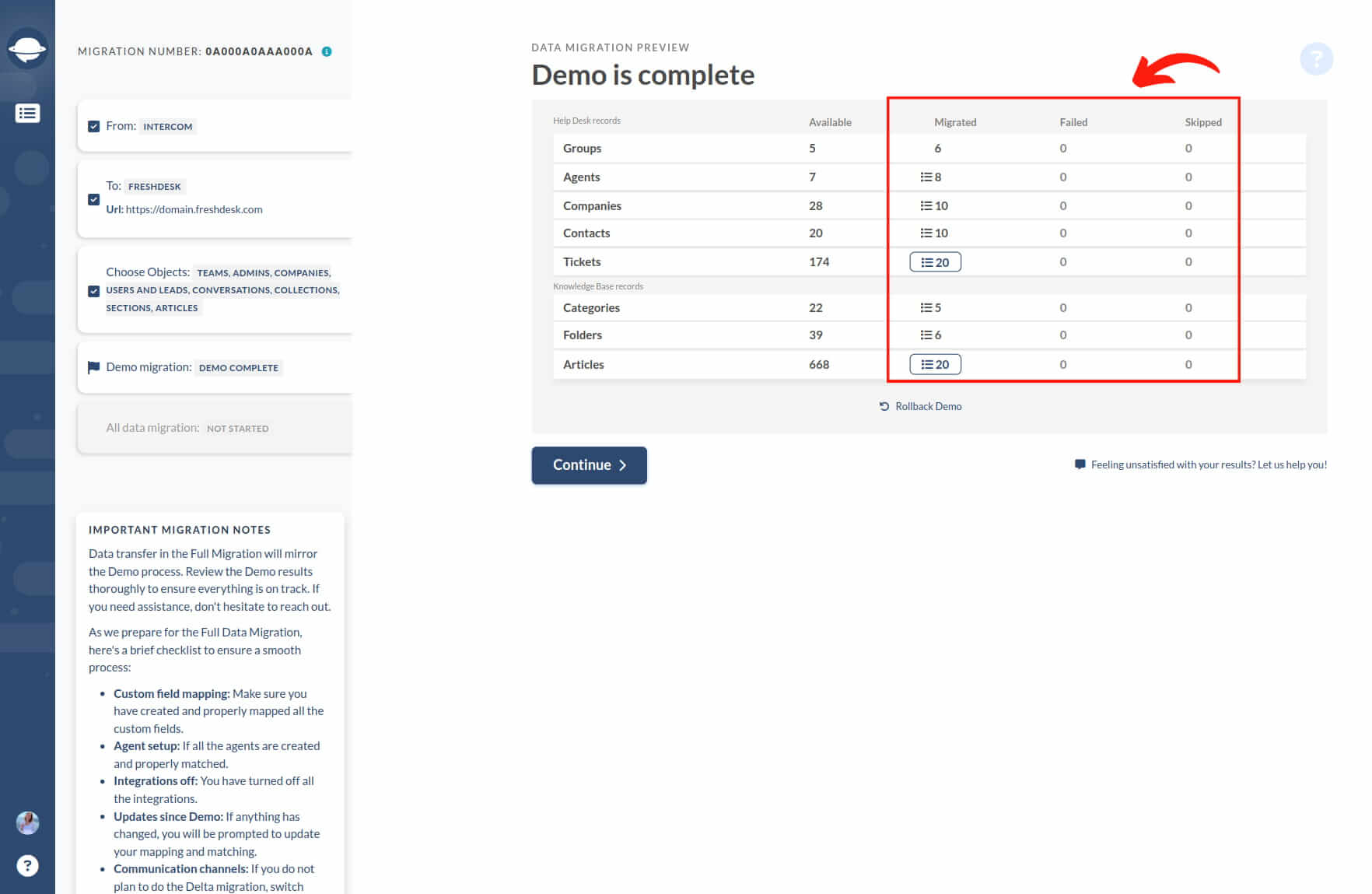
2. Click the "View records" button to open a list of records IDs in the source and respective new IDs in Freshdesk. Locate and check every record. The report should look like this:
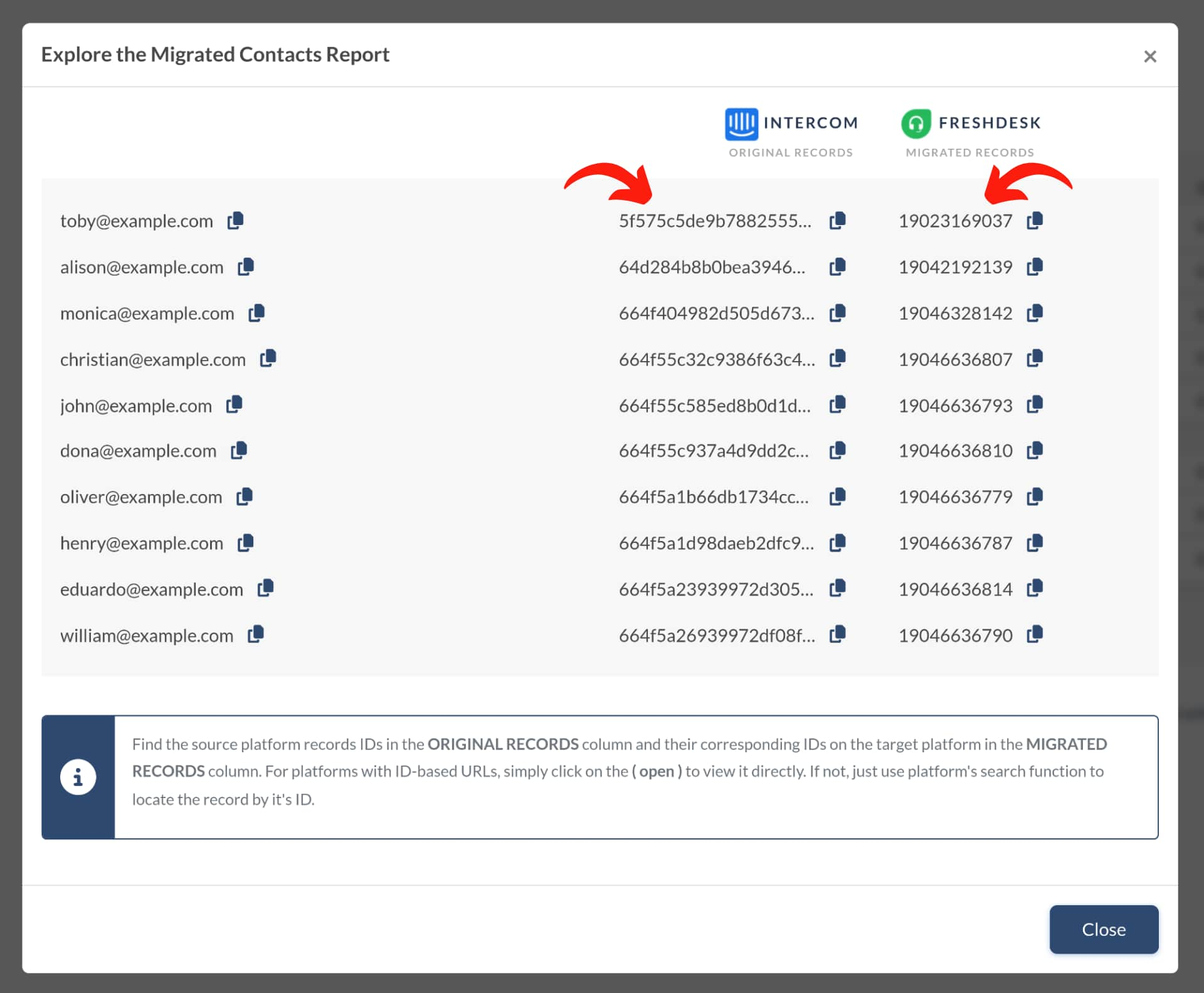
3. During the Demo Migration and Full Data Migration, tickets and related data migrate the same way. Therefore, if some ticket data weren't migrated or transferred incorrectly during the Demo Migration, it won't be relocated in the Full Data Migration.
Ensure you check if all tickets migrated along with their Type, Status, Priority, Source and Custom Fields, Requester, Agent, and Tags.
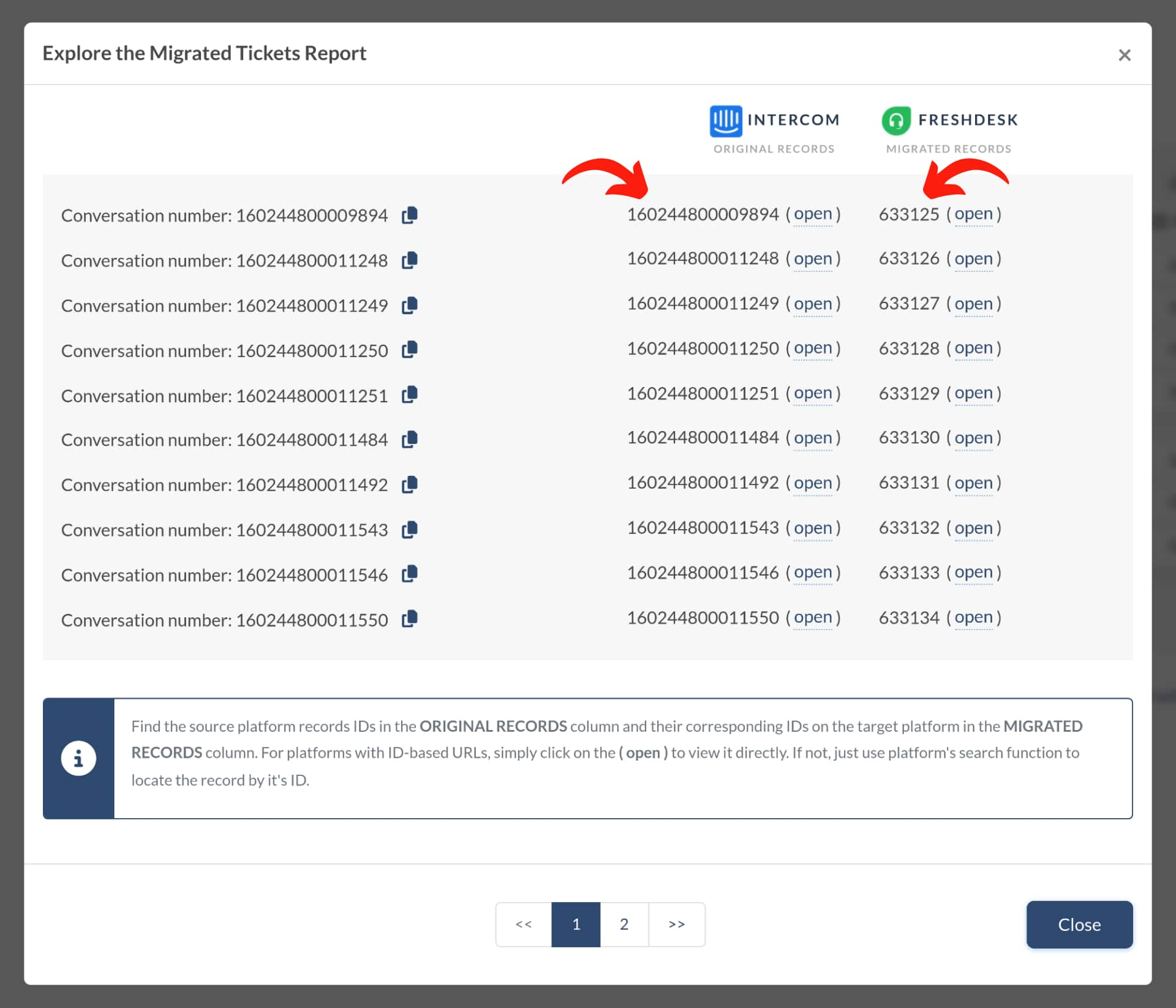
4. Moreover, if you import the knowledge base data too, ensure every article has a correct status and location.
Similar "Migration Results" reports will also appear after the Full Data Migration—make sure to check each one.
Looking for more data migration details?