How to export Freshdesk tickets to CSV?
How to calculate the number of tickets in Freshdesk?
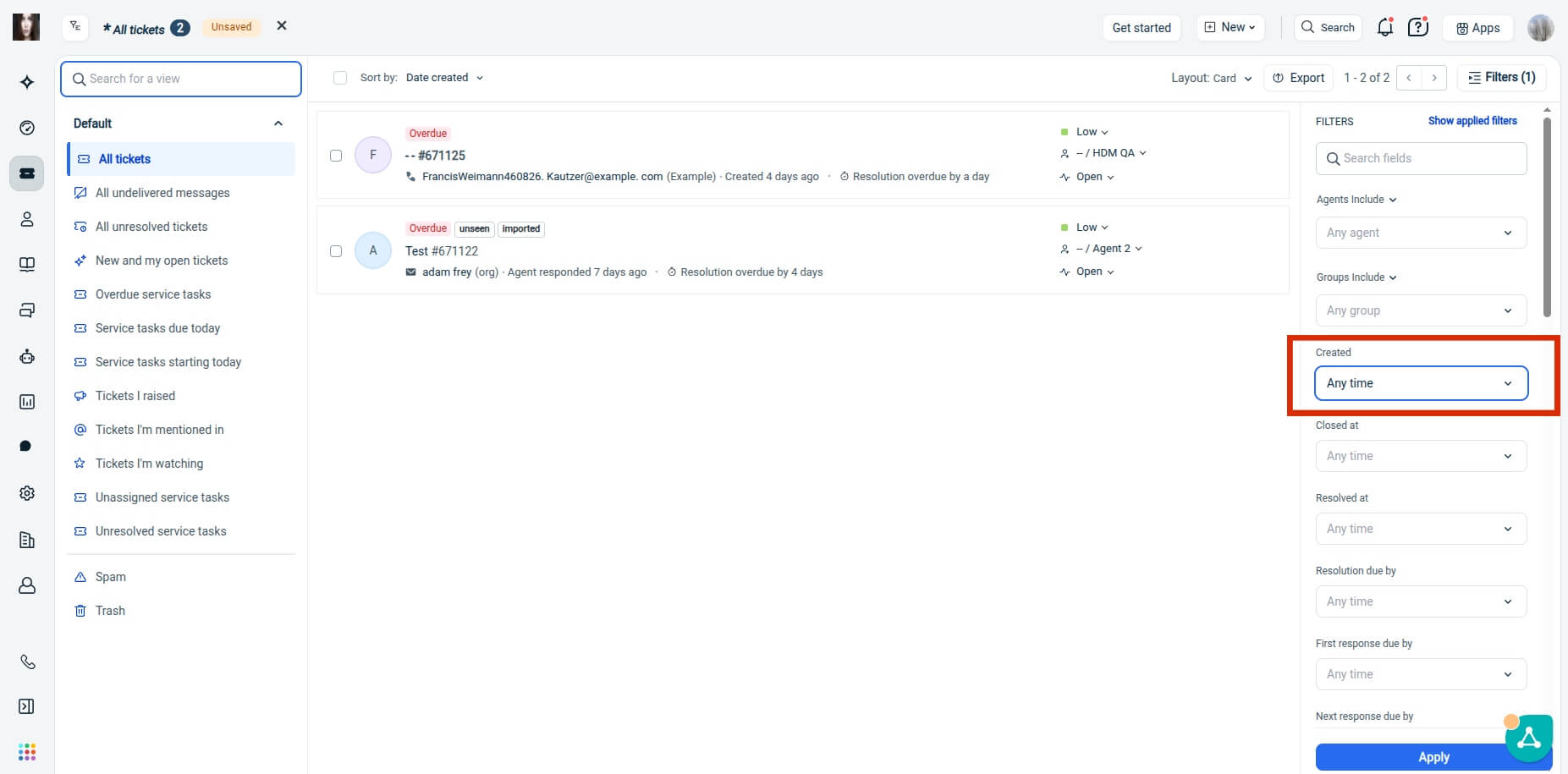
To count tickets in Freshdesk, open the Tickets tab, sort tickets by Date Created, and set the time filter to Any time. The total ticket count appears in the top-right corner. Knowing your ticket volume helps estimate migration costs, plan your project, and prepare for a Free Demo Migration or export Freshdesk tickets to CSV.
Go to the Tickets tab:
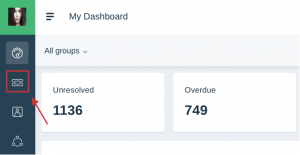
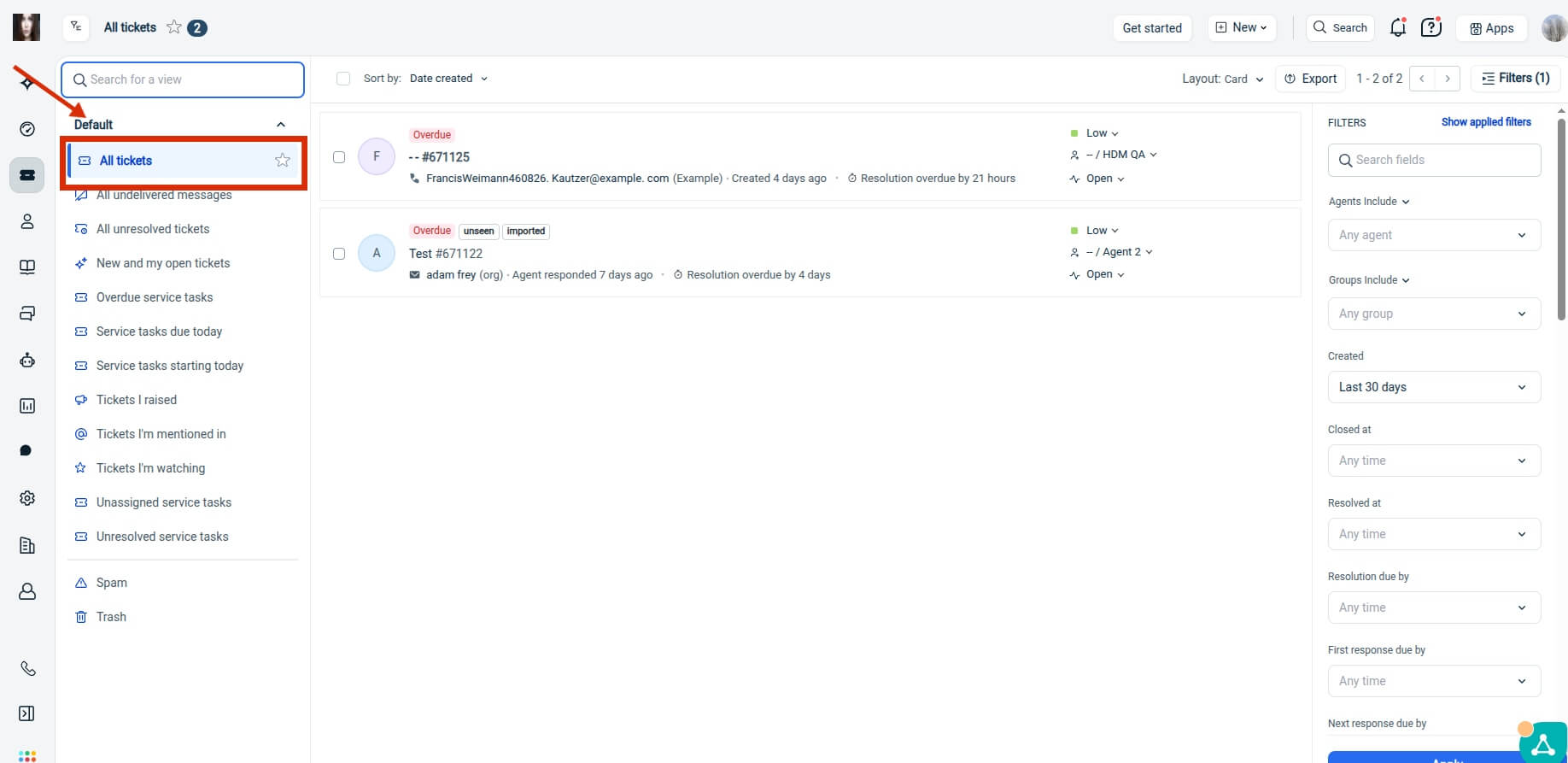
To access the default views:
- Click the View Switcher dropdown in the upper-left corner of the ticket list.
- Open the Default folder to view all predefined system ticket views.
- Select All Tickets.
To include all tickets, open the Created date filter and change its value to Any time.
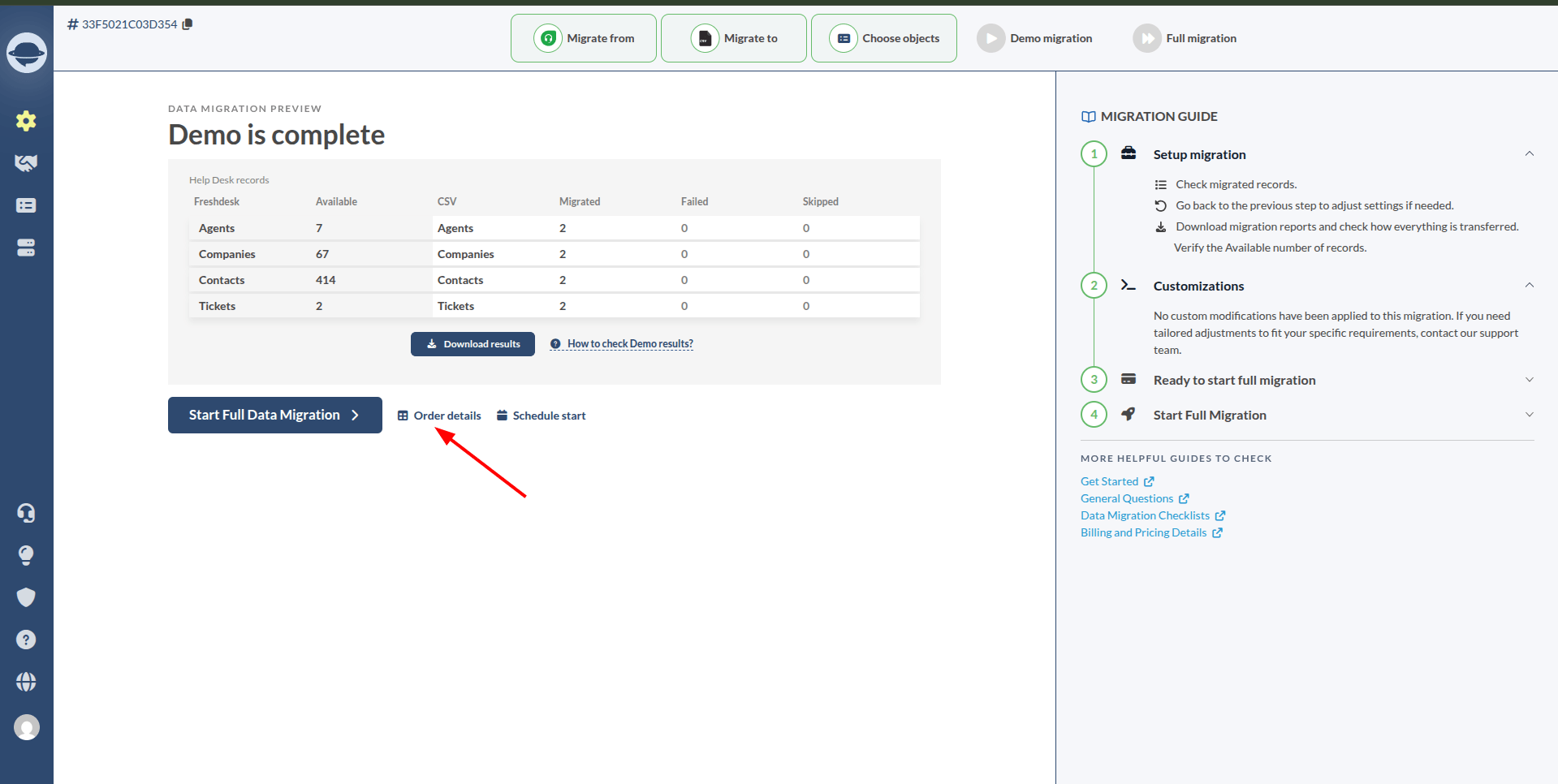
Note: You can view the migration cost based on the current number of records in Order Details, or use Estimates to calculate the cost for a different number of records using .
How to calculate contacts in Freshdesk?
To count contacts in Freshdesk, open Contacts from the sidebar, then apply filters if you want to calculate a specific customer group. The total number of matching contacts appears in the top-right corner. Counting your contacts before migration helps estimate project scope, validate records, and plan your Freshdesk export or data migration more accurately.
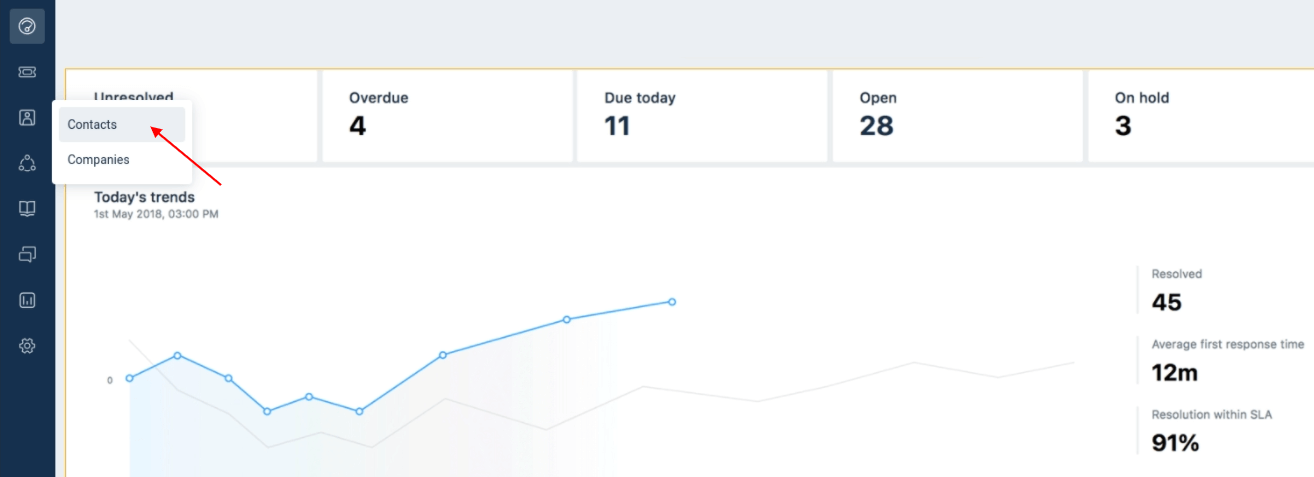
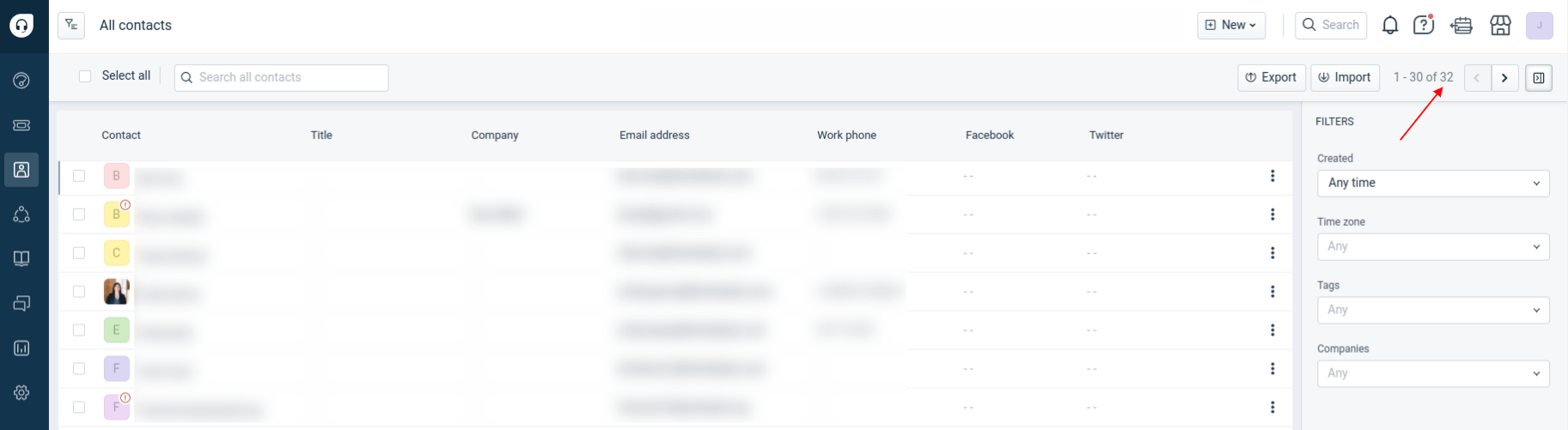
1. Hover over the Contacts icon on the Freshdesk sidebar and select Contacts.
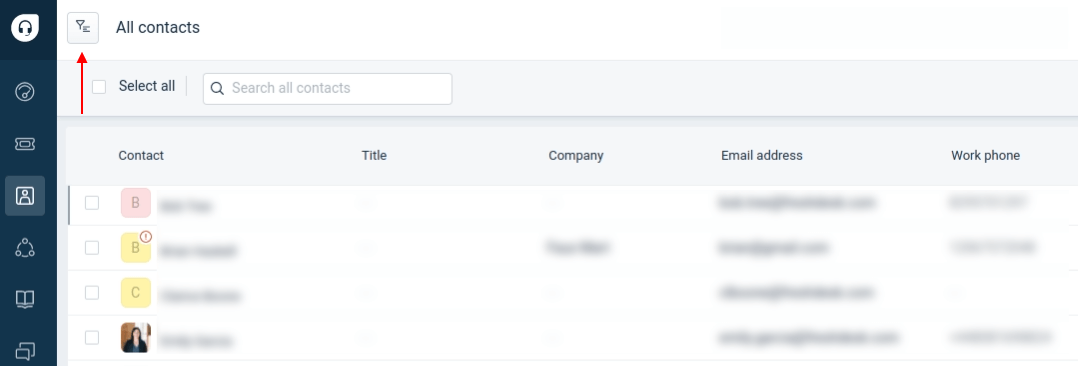
2. Click the filter icon to calculate a specific customer type.
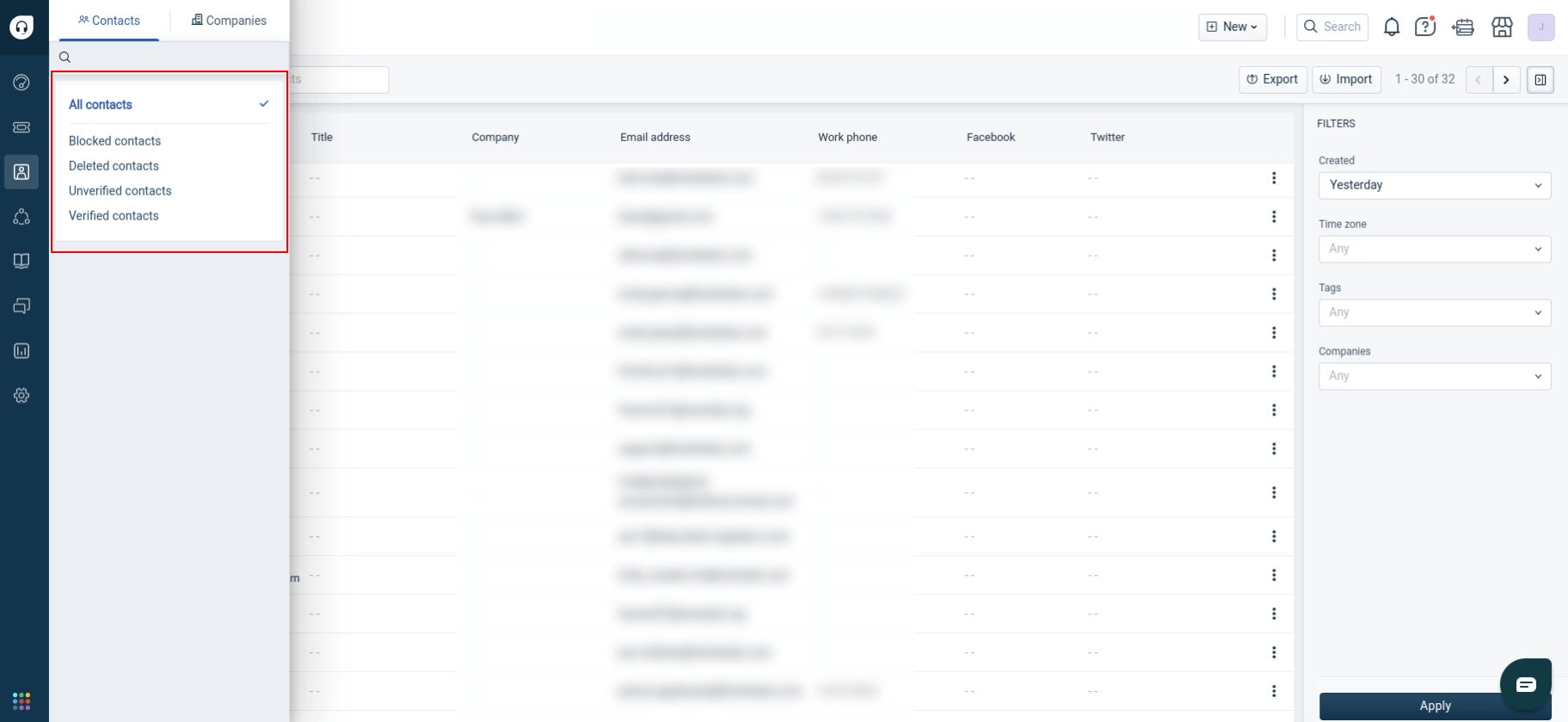
3. Or apply the filters on the right.
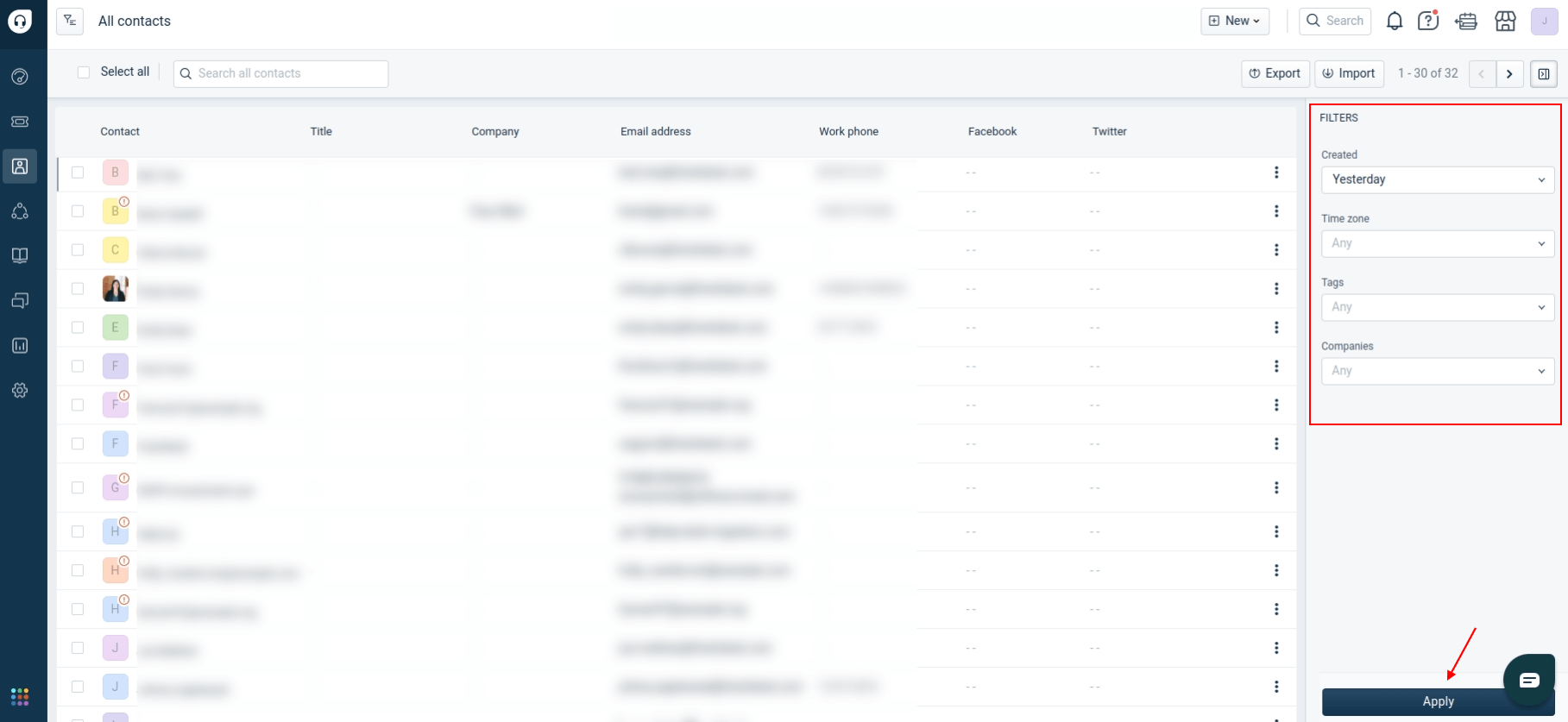
4. Find the number of filtered contacts on the top right.
How to calculate knowledge base articles in Freshdesk?
To count knowledge base articles in Freshdesk, open the Solutions tab from the sidebar. Freshdesk displays the total number of articles next to each category. Use the Filter option to view counts for specific groups, such as Drafts or Approved articles. This helps estimate migration scope and verify your knowledge base before exporting Freshdesk tickets or migrating data.
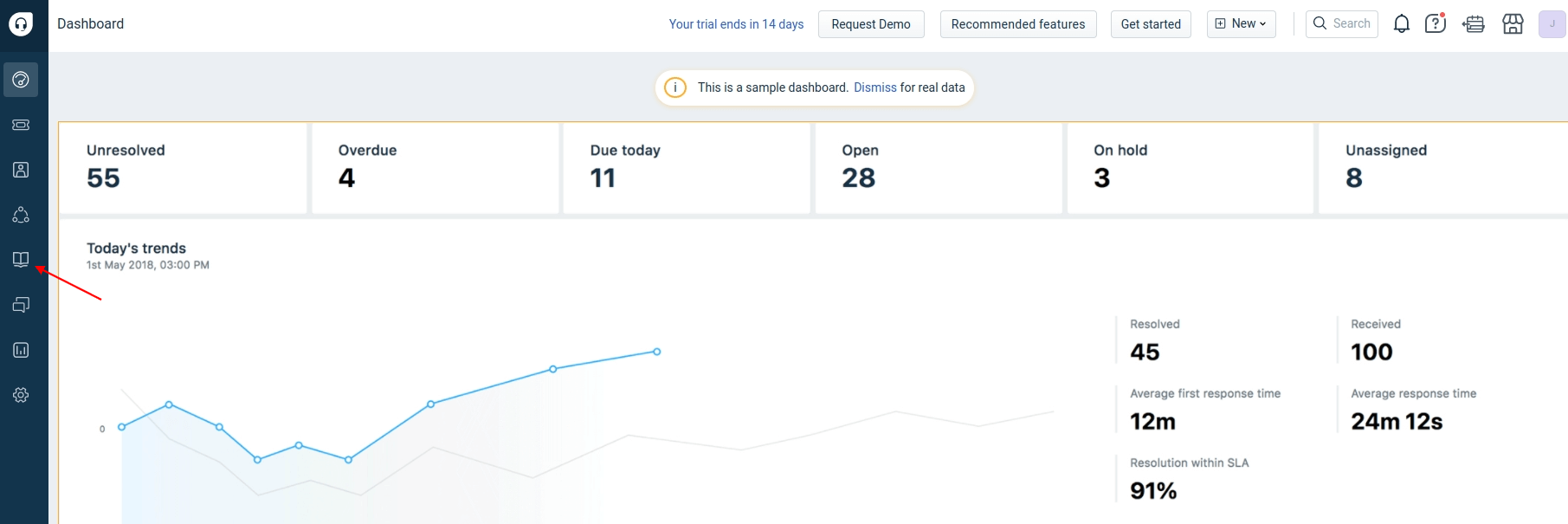
1. Open the Solutions tab on the sidebar.
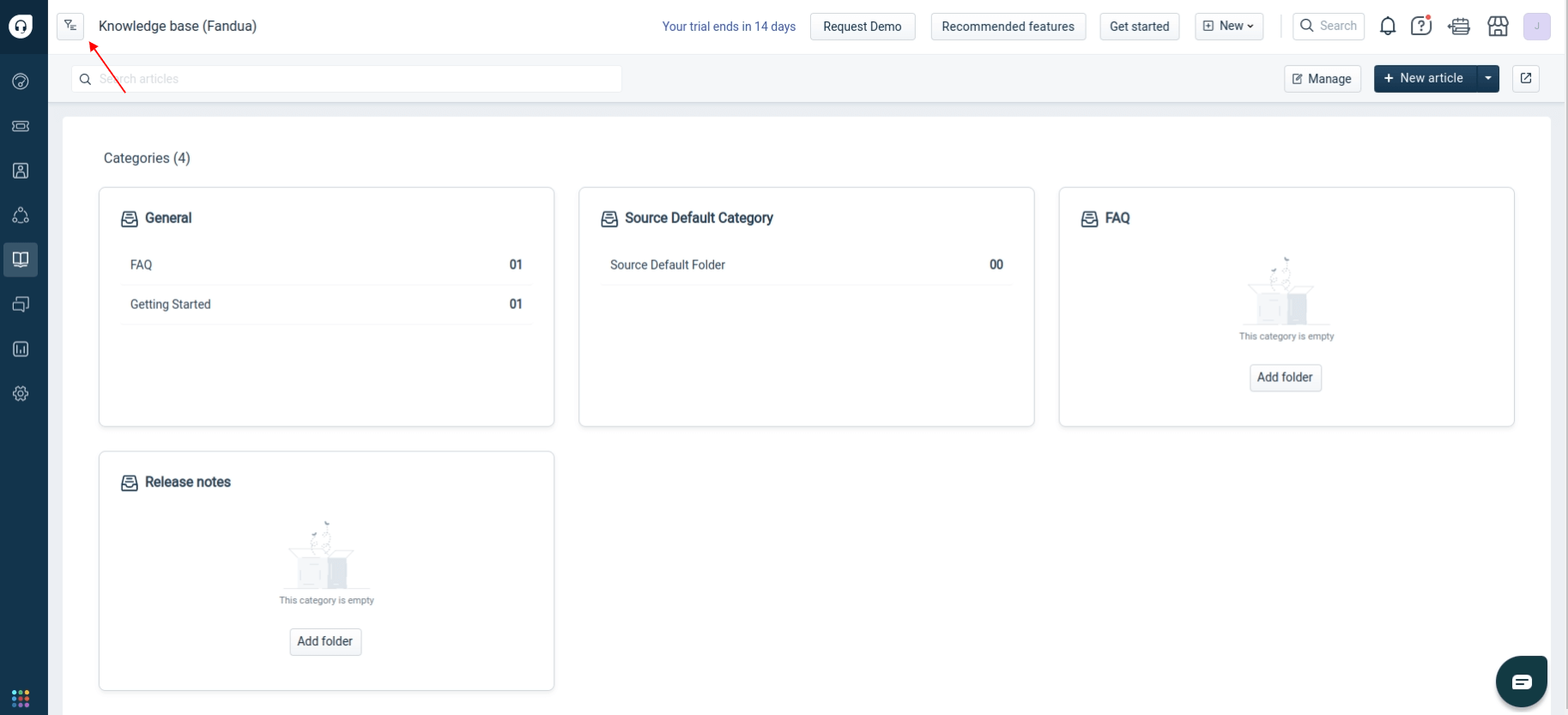
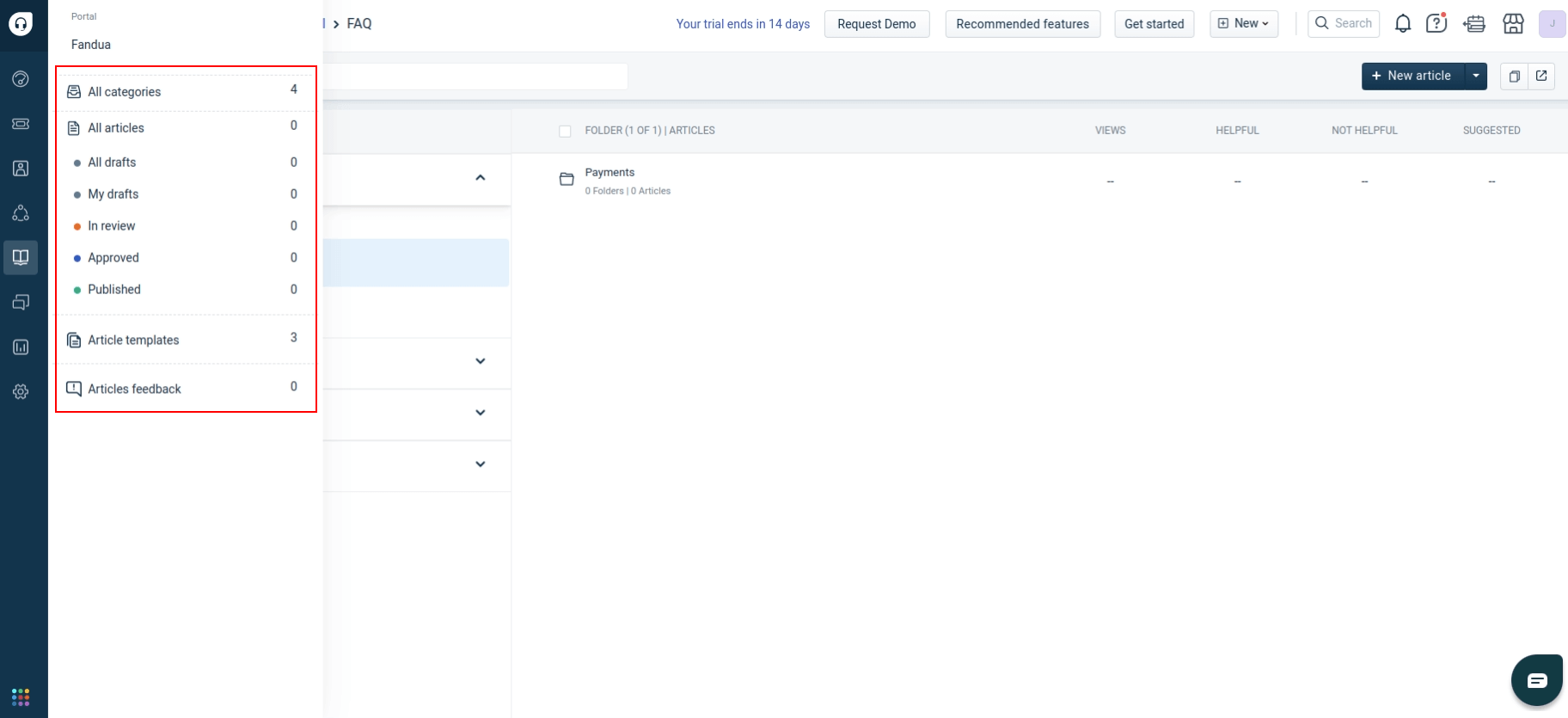
2. Check the number of articles in each knowledge base category. Click the filter button to view the number of articles related to specific groups, such as Drafts or Approved.
3. The number of articles will be displayed next to each group.
How to create custom filtering reports in Freshdesk?
Create a custom Freshdesk report to export tickets using filters such as status or date. Since Freshdesk API limitations prevent advanced filtering during migration, export Freshdesk tickets to CSV that are filtered, including the Ticket ID and relevant fields, then email the file to our migration experts. We'll handle the filtering and migration from there. Contact support if you need assistance.
1. Go to your Freshdesk account.
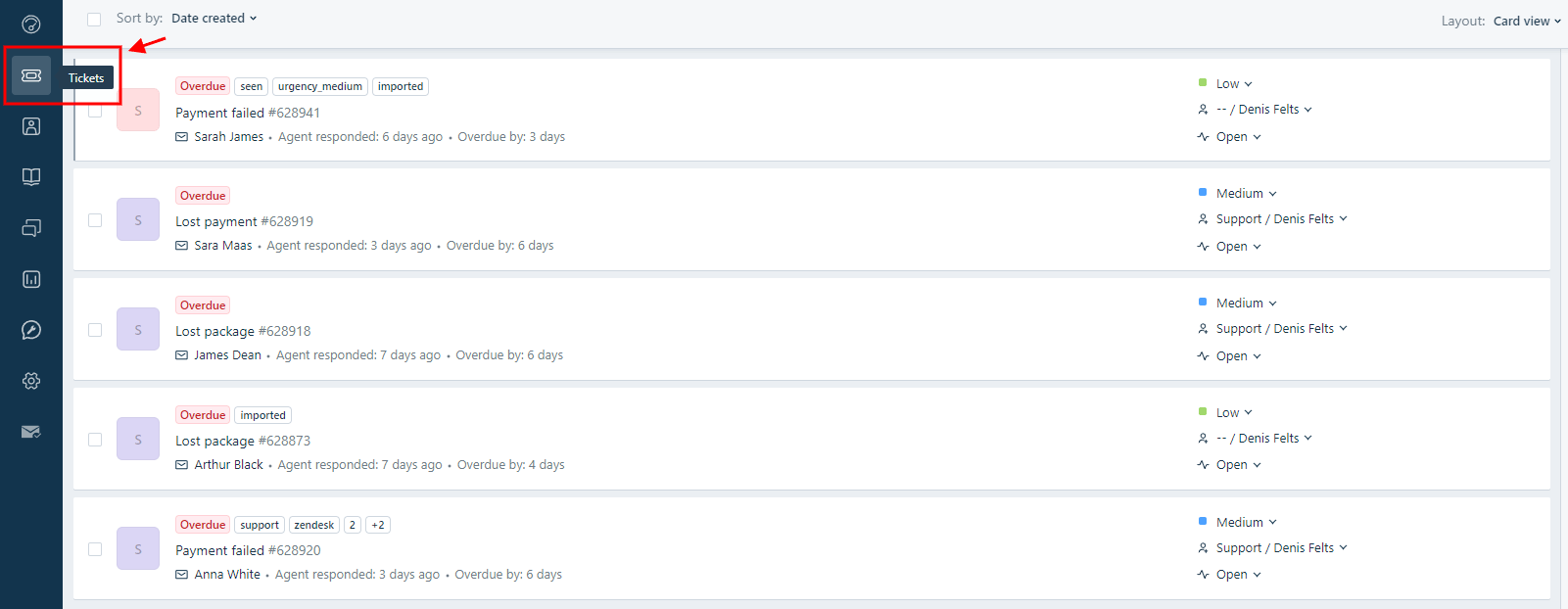
2. Select “Tickets” in the left navigation.
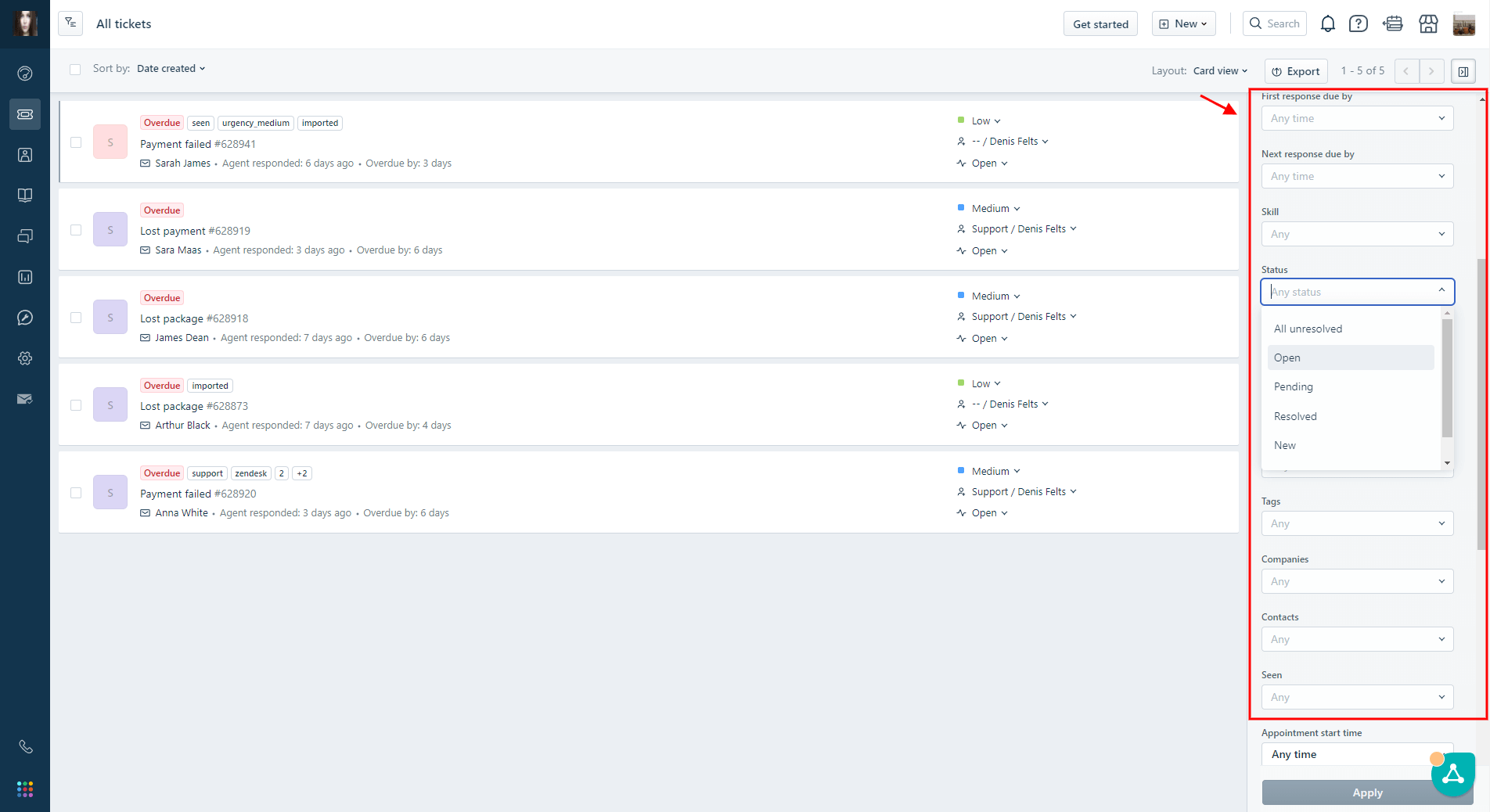
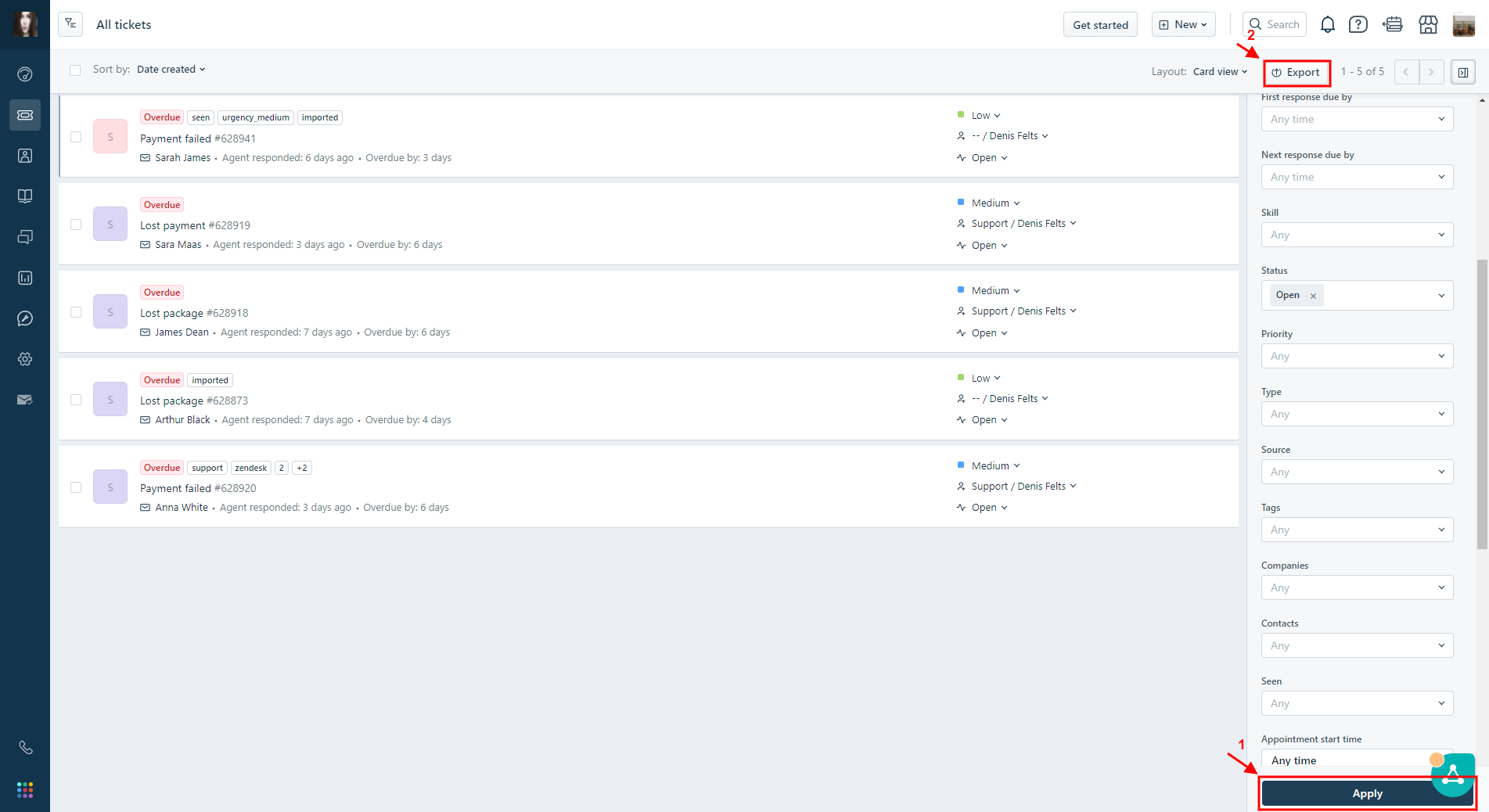
3. On the right-hand side, navigate to the "Filters" menu, choose the desired parameter you want to use as a filter, and then click “Apply.”
4. After applying the filter, click the "Export" button.
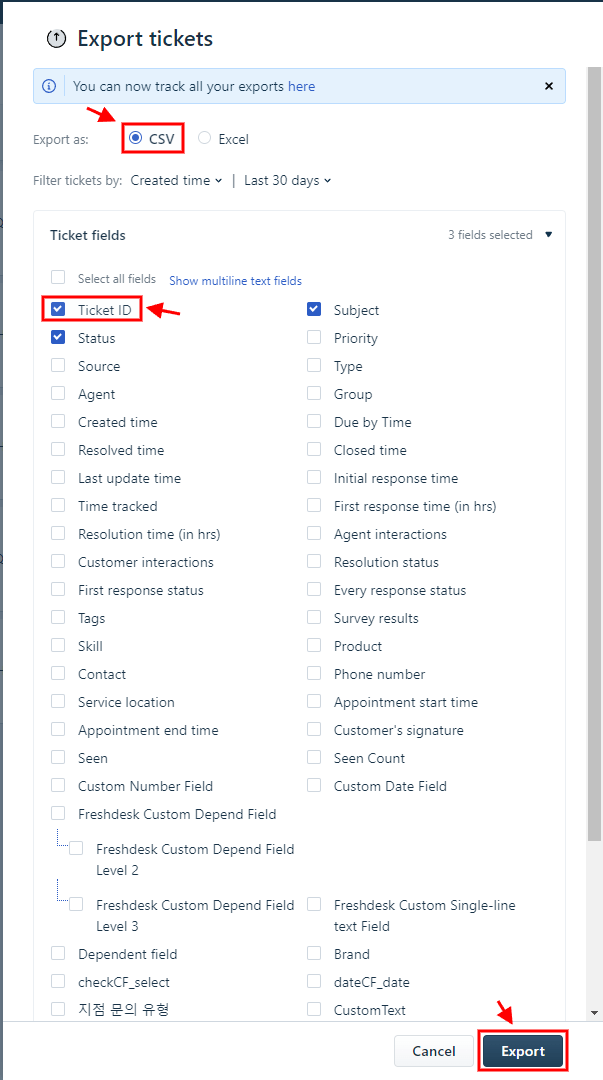
5. In the export menu, choose "CSV."
6. Select the required ticket fields, like "Ticket ID" and your filter criteria.
7. Click "Export," and the file will be sent to your email.
8. Forward the exported CSV file to our migration experts.
How to filter tickets during Freshdesk export?
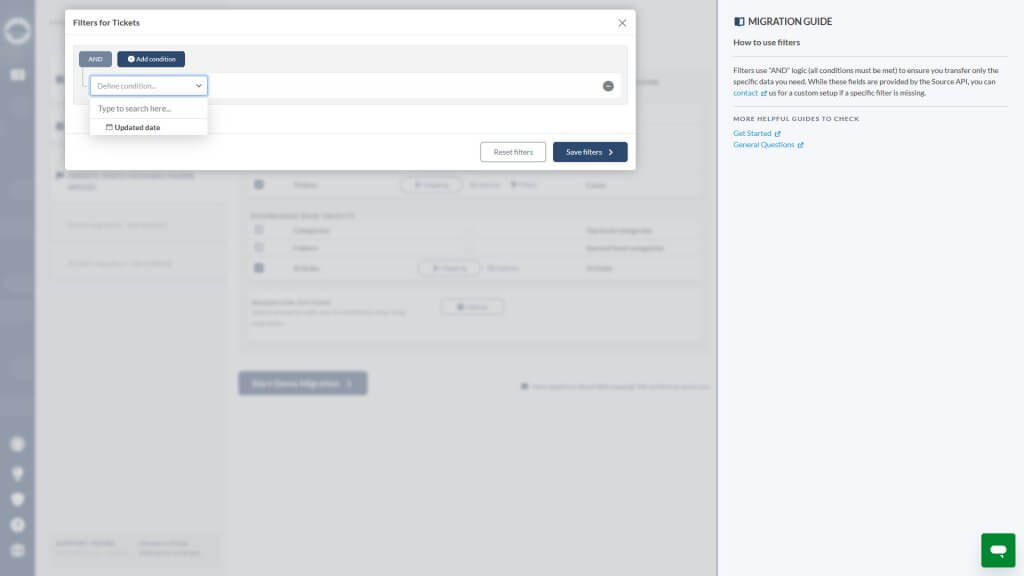
When you export Freshdesk tickets to CSV or migrate data, complete ticket field mapping before accessing filters. The Migration Wizard supports filtering by Updated Date, transferring only tickets modified after the cutoff you select. This helps meet retention policies and exclude outdated records. If you need filtering by status, group, subject, or other fields, contact us for a custom migration setup.
- Complete ticket field mapping in the Migration Wizard.
- Proceed to the Filters step.
- Set the Updated date filter by selecting a cutoff date with the greater-than operator.
Why can’t I see attachments in unpublished articles in my Freshdesk?
Freshdesk unpublished article attachments aren't accessible through the API until the related knowledge base article is published. Freshdesk stores attachments on AWS only after publication, while unpublished articles keep their attachments unavailable via the API. As a result, Freshdesk unpublished article attachments cannot be migrated or accessed until the corresponding articles are published.
Looking for more data migration details?