Why turn off Automations for Freshdesk migration?
Yes, turning off all Automation rules, Scenario Automations, and Email Notifications in your Freshdesk account is crucial before migrating to this platform.
Freshdesk offers powerful Automations to streamline tasks and boost productivity. However, migrating to Freshdesk with active automation rules can result in clients and agents receiving updates during the ticket import. To avoid this, disable all Automation rules before beginning the migration process.
Here's how:
1. Log in to Freshdesk and navigate to the Admin panel.
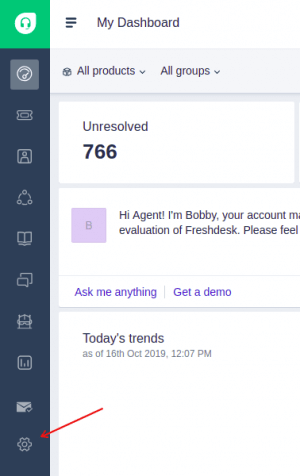
2. Go to Automations and disable all active automation rules by clicking the green slider button.
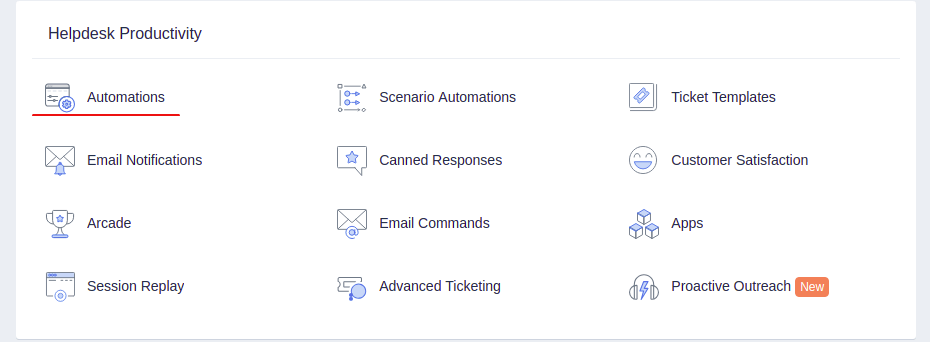
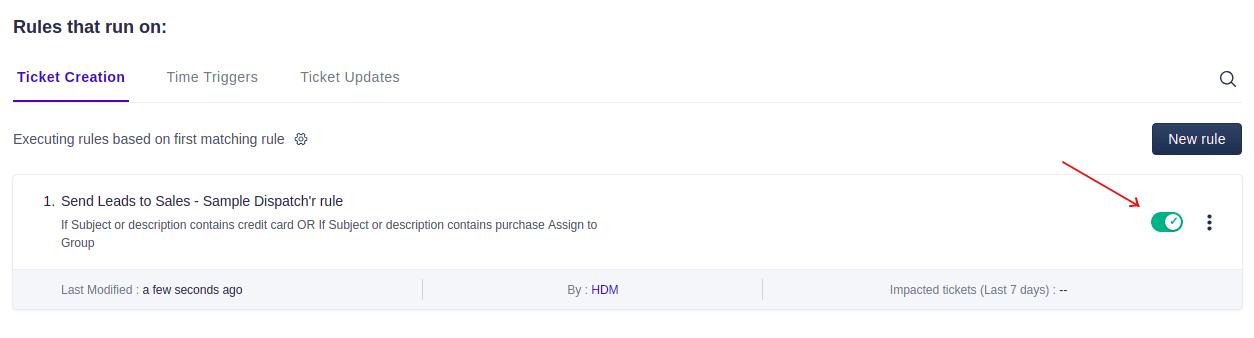
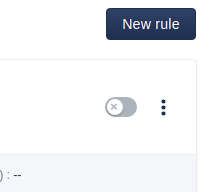
The button will become grey if the rule is turned off.
3. Similarly, go to Scenario Automations.
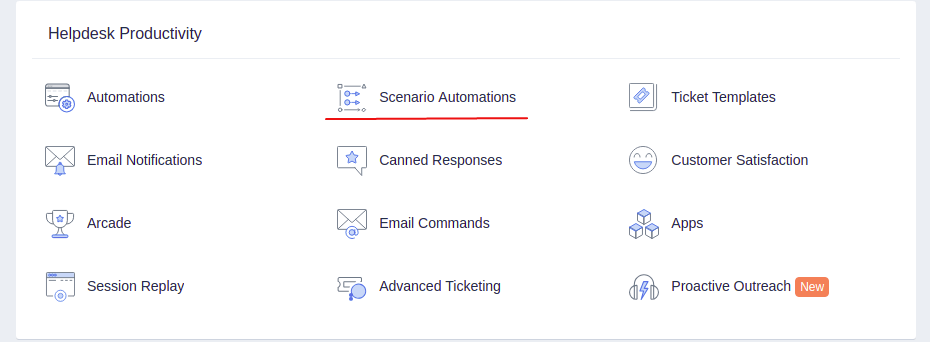
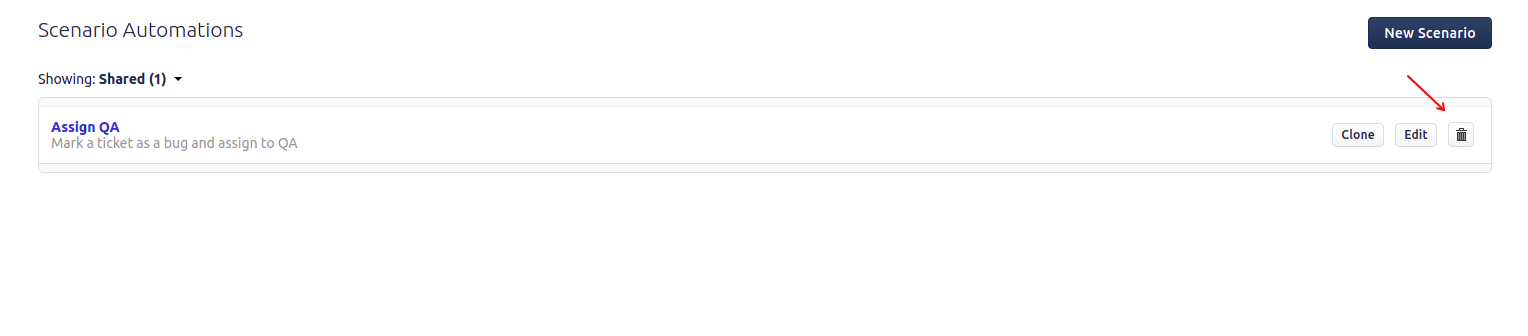
Document all scenarios and delete them afterward.
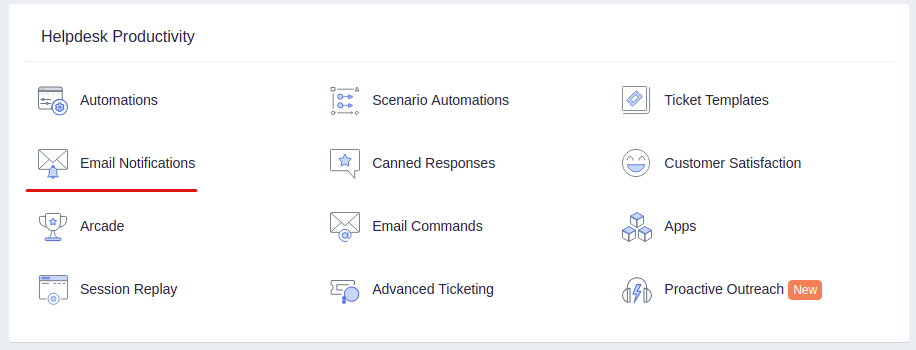
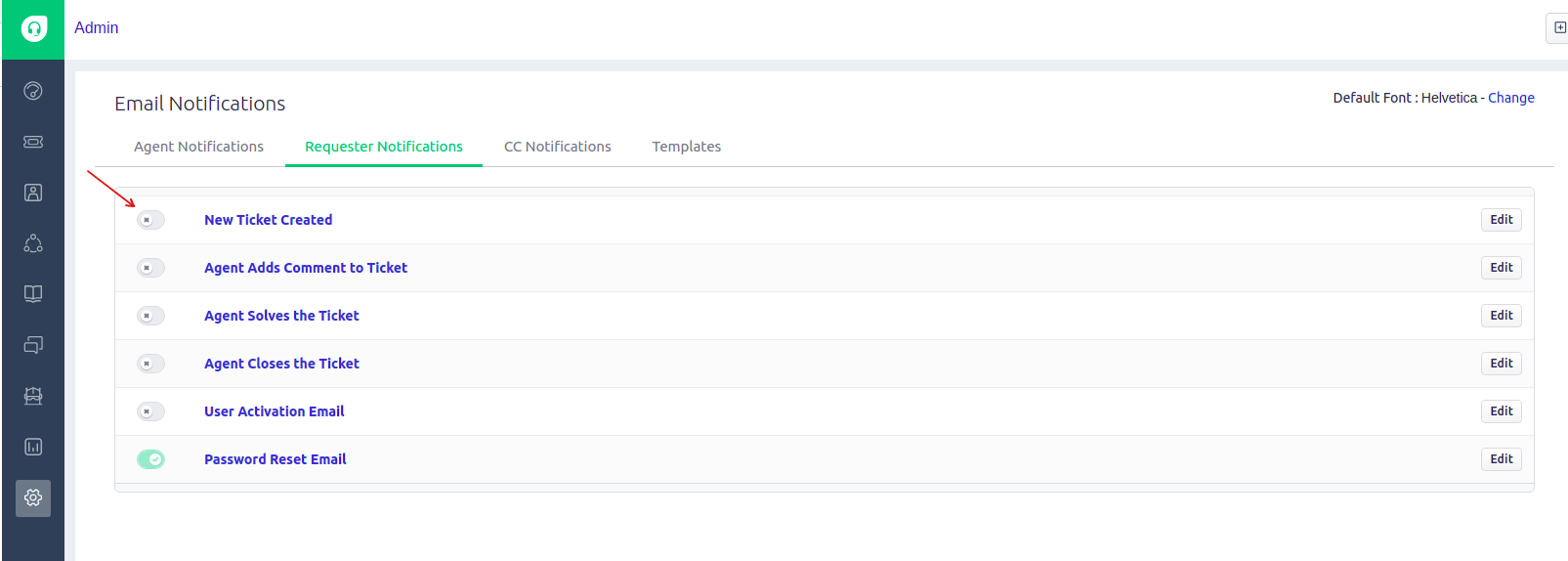
4. Lastly, in the Email Notifications tab, disable Agent and Requester Notifications by clicking on the green slider buttons next to each notification.
Disable all notifications by following the same steps as you did for Automation rules. Click on the green slider button next to each notification, and if it turns grey, it's disabled.
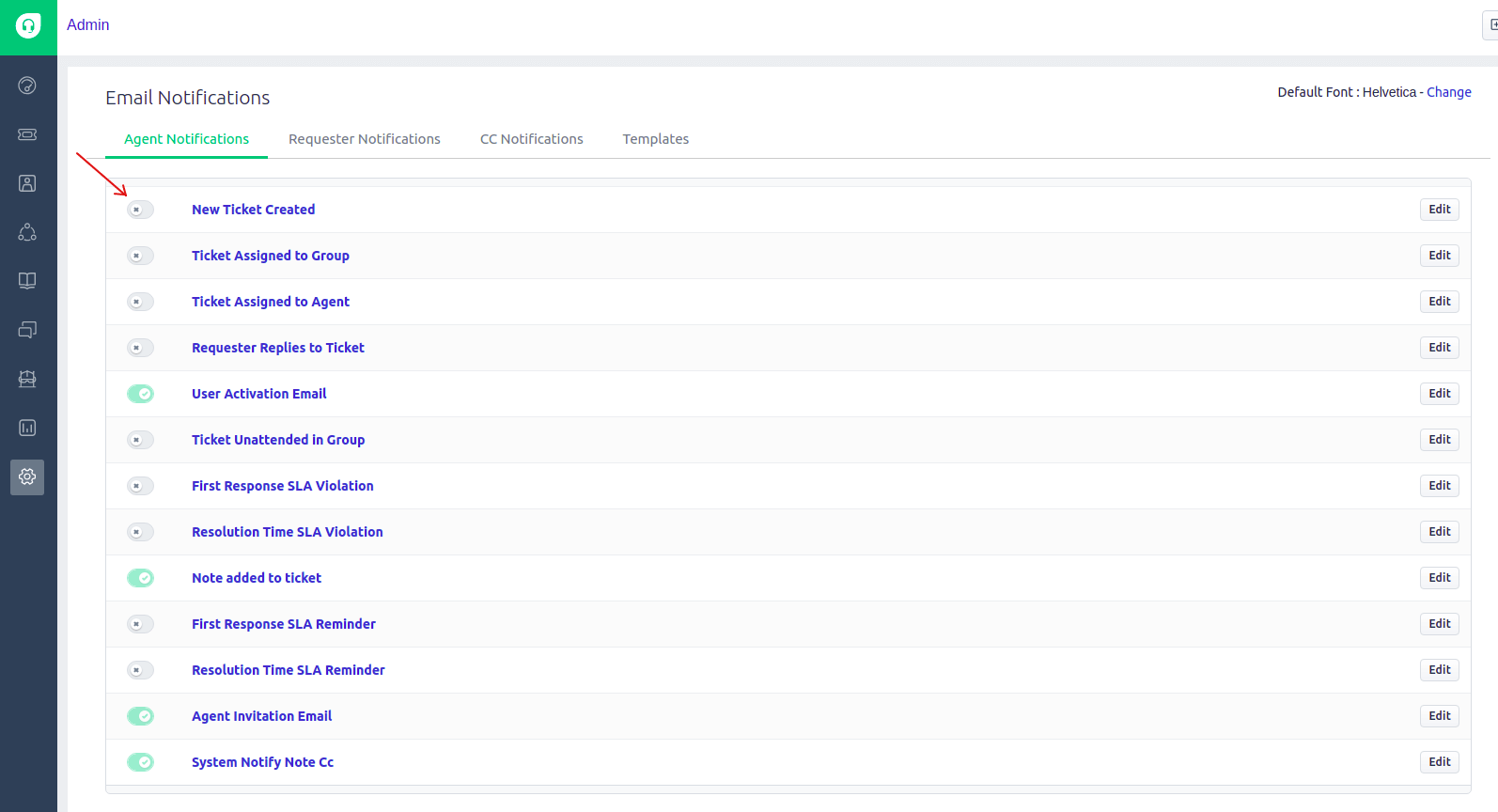
Now, go to the Requester Notifications section and do the exact same actions.
Looking for more data migration details?