

Help Desk Migration follows strict security standards, including SOC 2 Type II and SOC 3 compliance. Migration Wizard is fully GDPR-compliant, supports HIPAA with a signed BAA, and processes payments through PayPro Global, a PCI Level 1 provider. The platform runs on secure AWS infrastructure aligned with major standards such as ISO 27001 and PCI DSS.
Security measures include end-to-end encryption, HTTPS-only connections, OAuth 2.0 authorization, AWS KMS key management, Cloudflare WAF protection, and isolated, monitored AWS environments. Each migration runs in a segregated space, and employees follow strict access controls. Users benefit from real-time dashboards, proactive monitoring, SLA-backed support, and a public status page.
Data is automatically deleted after 30 days of inactivity, with certificates available upon request.
Help Desk Migration is Google-verified for seamless data transfers, and the Migration Wizard provides a reliable way to export Gmail contacts to CSV.
Considering exporting Gmail emails to CSV? This guide will help you do it easily.
Exporting Gmail Data Using Help Desk Migration Service
Replicate your Gmail emails to CSV or other supported platforms. How does it work? It is quite simple. Head over to our Migration Wizard and connect Gmail as your Source platform.
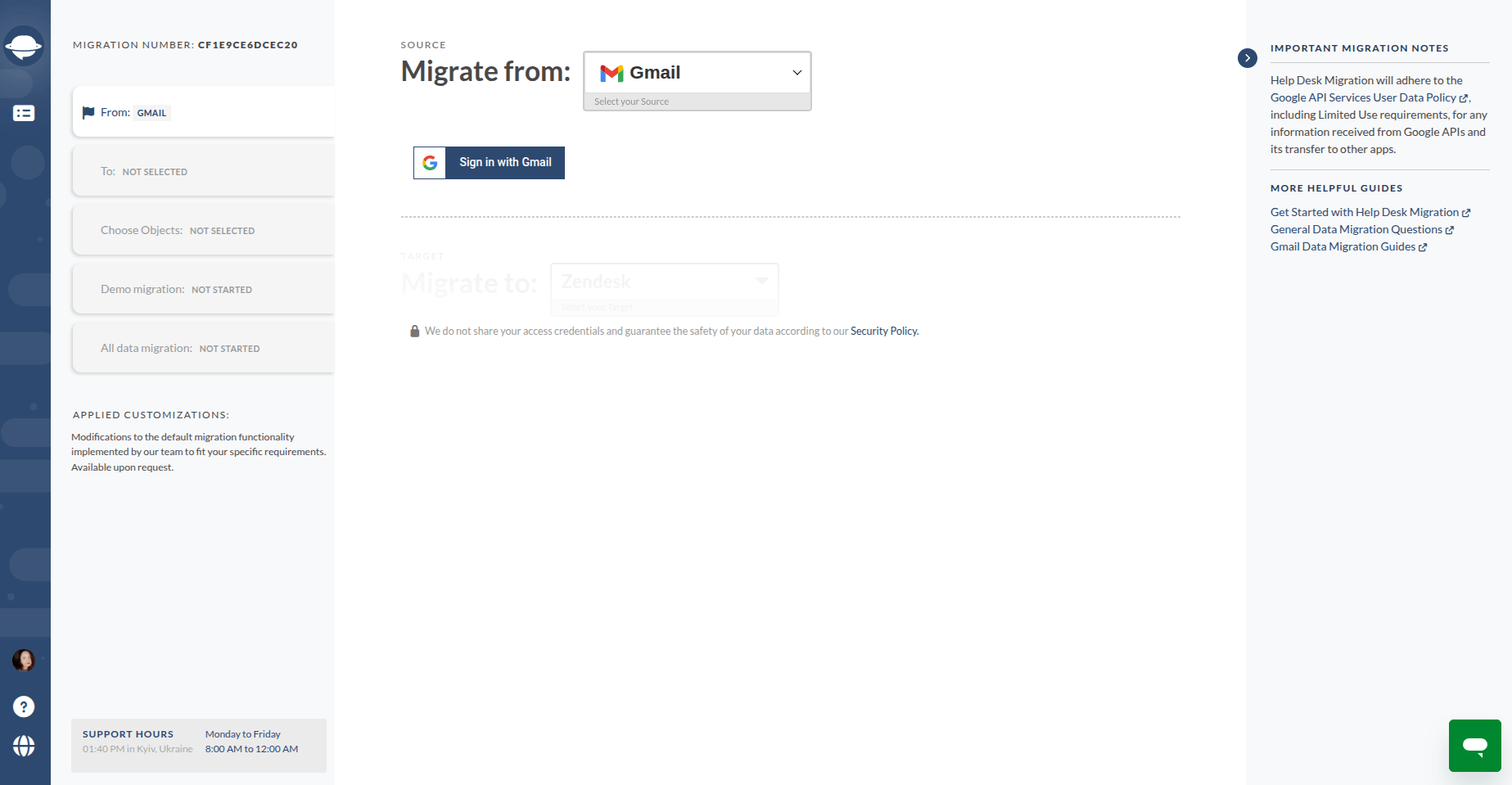
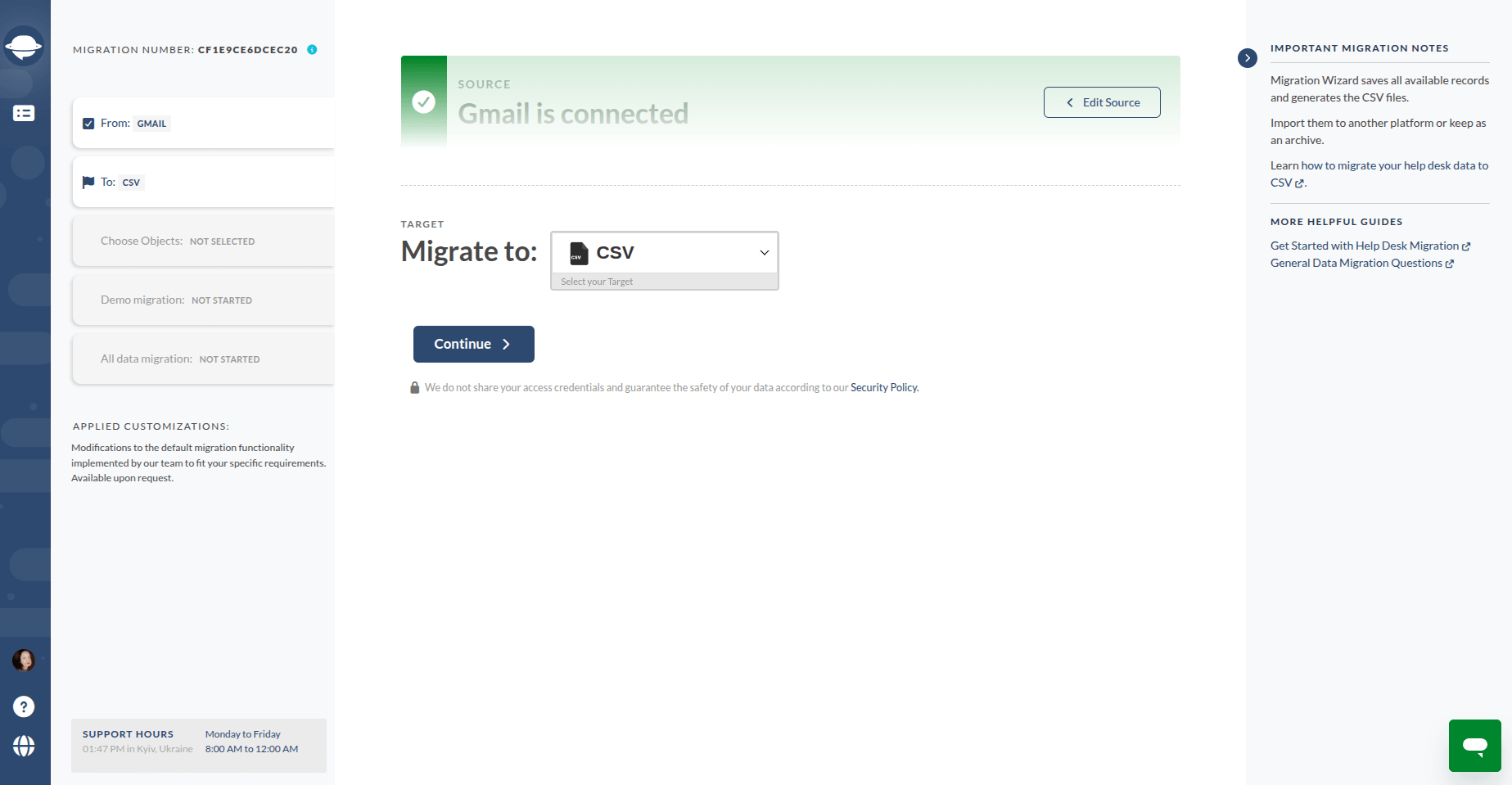
Choose CSV as your target platform . Your ultimate goal is to migrate Gmail emails to CSV format.
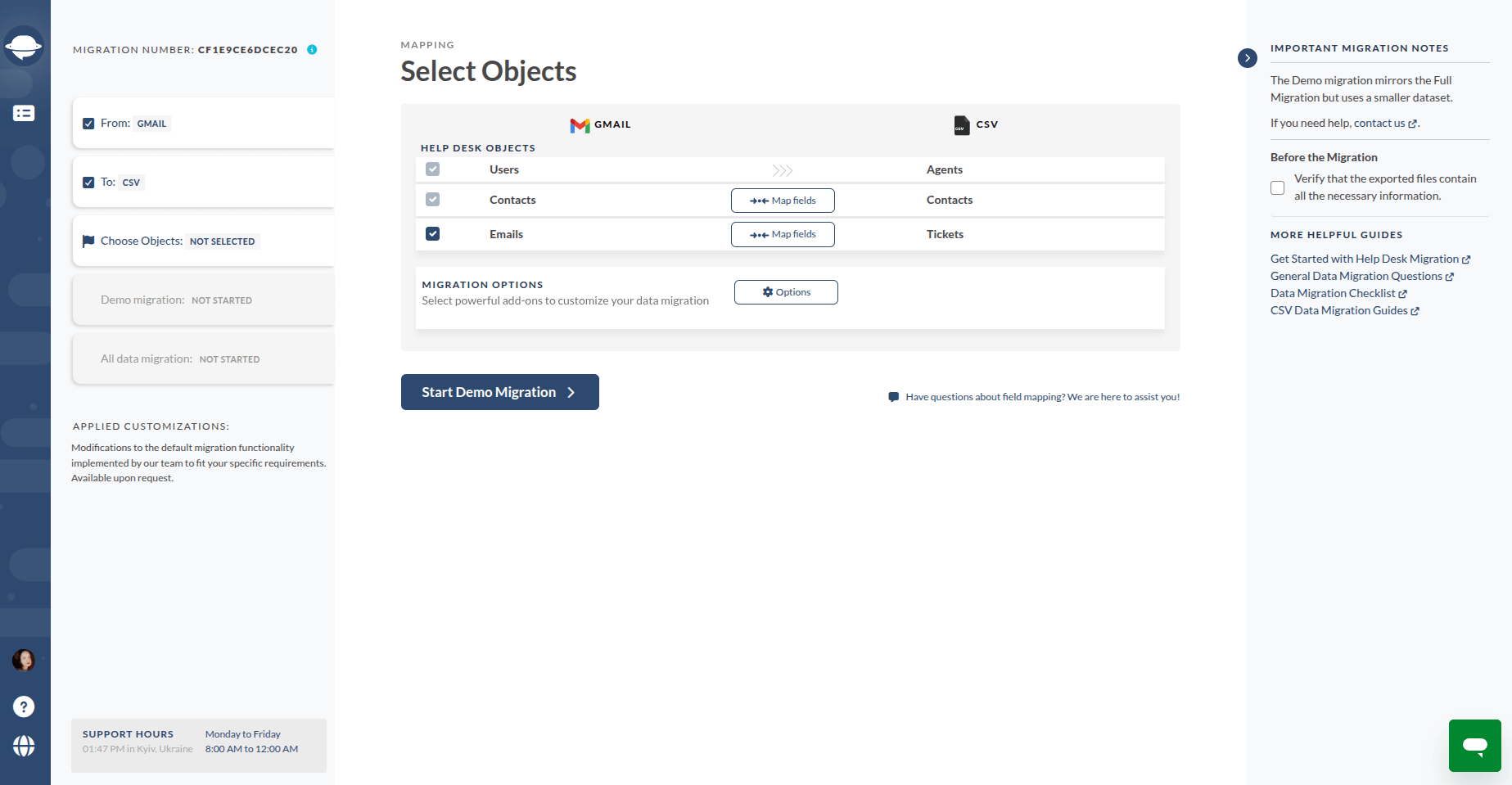
Select what Gmail data to move . Keep in mind that if Gmail messages are moving to CSV, users and contacts will come along for the journey.
Map your email fields . Mapping out your email fields ensures that your data aligns smoothly during the transition. Afterward, hit the "Continue" button to initiate a Demo Migration .
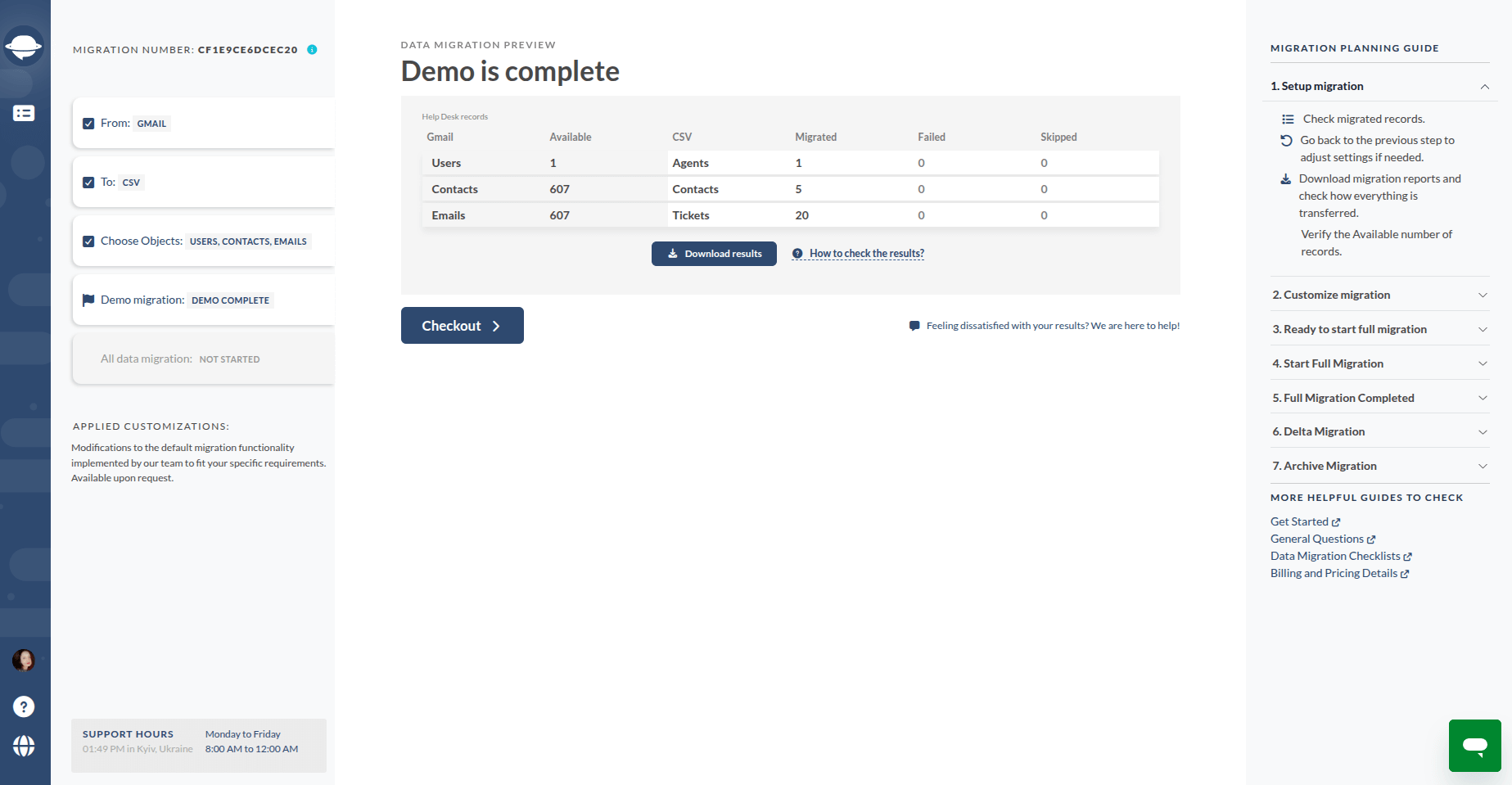
The duration of the migration process varies based on your mailbox's size. Be patient, and soon your Gmail emails will be transformed and ready to roll.
With our Migration Wizard, the Gmail export process may take some time, but it's well worth the wait. Your Gmail data is securely packed and ready to go.
Email clients are no longer the primary tool for business communication. Modern help desk solutions now offer advanced features that often surpass traditional email for managing customer support, making them essential across industries. To fully unlock these capabilities, migrating your legacy Gmail data is crucial.
CSV is the universal format that ensures smooth integration with most help desk platforms. With Migration Wizard, you can effortlessly export Gmail contacts to CSV, automating the transfer of your Gmail emails, contacts, and users into any help desk or service desk of your choice.
Why Export Gmail Emails to CSV
Converting emails to CSV isn’t just a trick — it’s a practical data strategy. Essentially, it extracts your Gmail messages into a structured, machine-readable format, making them easily accessible for analysis, reporting, or migration.
- Secure Data Backup: Consider it your email insurance policy. Gmail export mailbox to CSV files ensures a secure backup of your messages, guarding against potential data loss. Plus, accessing these CSV files is a breeze whenever the need arises.
- Optimize Storage: Say goodbye to squeezing in those 15 GB! By exporting, you're freeing up your storage space provided by Google. The result? A faster and smoother Gmail experience without the lag.
- Data Insight Superhighway: The structured layout of CSV files makes data analysis a breeze. Dive into your email conversations, uncover valuable insights, and spot patterns you might have otherwise missed. It's like having a data microscope at your disposal.
- Create an Archive: Imagine having an organized vault of your email history. Exporting to CSV builds exactly that – a reference point for the future. No more hunting for old emails; they're all there at your fingertips.
- Excel Compatibility: CSV files and Excel? They are a perfect match. These files seamlessly integrate into Excel as spreadsheets, ready for your data wizardry. And as a bonus, you can access them offline when Gmail is unavailable.
- Data Migration: CSV isn't just a static format; it's your ticket to smooth transitions between different support platforms. Migrating email data becomes effortless, elevating your support game.
Why Should You Choose Automated Migration Service?
Help Desk Migration: Google Verified and Trusted
First, Help Desk Migration has gained Google's verification for its smooth data migration capabilities; Migration Wizard is a reliable solution for exporting Gmail to CSV. And here's the icing on the cake: your mail integrity stays untouched. We're all about making copies and sending those copies to a file – your precious emails remain pristine.
Unrestricted Platform and Format Options
Our data migration solution doesn't lock you into a corner with limited platforms or file formats. Whether you want to migrate to a help desk or need a CSV file to perform a Google Sheets analysis, our solution will move your entities with no problem.
Tailored to Your Needs
Need options? We've got them. You've got the reins when it comes to moving specific content, entire emails, or just addresses. Your migration, your way.
Pricing That Makes Sense
And here's the grand finale: a pricing system that keeps it simple. Pay based on the number of email messages you're transferring—no surprises, no sneaky extra costs, and definitely no mysterious data requirements. It's all about your records, no strings attached.
Which Is the Best Way to Export Your Data from Gmail
Don’t worry, data exporting is sure to go smoothly with the right tool. Here are some options to consider.
Short Google Takeout Review
This tool is often used to move large image collections, free up space on Google Drive, export bookmarks, transfer archives to other cloud services, or migrate blog posts to a new platform.
Second, extra-large files might be downloaded only partially. Third, if you lose internet access, any progress you made will be gone, and you’ll have to start over.
Verdict
There is a number of limitations that would prevent you from getting all the records related to customer service.
Quick Data Export Overview
The admins may also ask individual users to download their own data. But there’s a catch: this will only work if each user has their Google Takeout switched on.
And you’ll have to seek the assistance of Google Cloud Support if you’re dealing with more than 1,000 users. Should you lose your super admin privileges, any export process will automatically be canceled.
Verdict
The tool requires you to get every user to switch on Google Takeout, and the number of your users will make the process complicated.
Help Desk Migration Overview
Although you can successfully export or download the files using a Google Data export tool, you still have data mapping to worry about. Gmail data migration is often a lengthy process riddled with issues, including incompatible formats, mismapped data, and missing records.
With the Migration Wizard, you can export from Gmail users, contacts, emails, IDs, subjects, tags. Also you can add a new tag to emails so it will be easier to analyze them or find them in your help desk software after importing.
The Help Desk Migration app has undergone a rigorous review and received approval from the Google team. All you need to do is connect your Google account to the Migration Wizard, and you can seamlessly set up the export of your Gmail data.
Help Desk Migration offers filtering emails by Gmail folders only in a custom migration. (Check out the success story of how such a customization was provided.)
Verdict
Automated Gmail export straightly to a help desk platform along with mapping. The migration service supports many platforms, including the most popular ones like Zendesk, Freshdesk, and Jira Service Management.
Things to Remember When Moving Email Messages
Relocating your email messages, whether through CSV files or the one-by-one forwarding method, requires patience. Transferring data from your Google Account isn't a quick task, so here's what you should keep in mind:
- It's a Marathon, Not a Sprint. Moving data takes time, so be prepared for a journey. To stay organized, consider using a Google spreadsheet. While it might not be the perfect solution, it helps you manage the process and allows you to pause your email migration and resume from where you left off.
- Your Gmail Account is Diverse. our Gmail account contains a wide variety of contact records, message details, and more. This is valuable data that you shouldn't abandon. If your operations heavily rely on your email address pre-migration, make sure to preserve this data. It's crucial for the efficiency of your customer support team.
- Avoid Future Headaches.Think about potential scenarios. Imagine a situation where GDPR compliance is essential, and you need to retrieve specific files or data types. If your data transfer had hiccups, you could find yourself in a time-consuming predicament - sifting through old emails, downloading, and delivering. Not an enjoyable experience.
That's why downloading your Gmail account in its entirety is essential. Moving your complete email history will save you time and preserve your service level. Email data migration is a deliberate process, so take your time, utilize tracking tools like spreadsheets, and ensure your Gmail account transitions smoothly. Your email history is an asset, not something to leave behind. Think strategically, save time, and enhance your service.
Let’s Move Your Gmail Messages Together
Our journey concludes for today. As you've witnessed, Gmail's export capabilities have their limits – and rightly so, considering their platform's growth focus. But fret not, because our solution sweeps those limitations aside. If you're on the hunt for a rock-solid way to export Gmail messages to CSV, search no more.
Got questions? Don't hesitate to leave us a message. We're here to clear up any confusion, provide guidance, and offer solutions.
Frequently Asked Questions
- Click on the menu at the top-right corner.
- As you land in Gmail Contacts, you'll spot a bunch of contacts up for export. Pick your VIPs, those contacts you want in the transfer lineup. Spot the "More" button (look for the trio of dots)—give it a click. And there it is, the "Export" option, waiting for your signal. Multiple export choices await you – Selected Contacts, Groups, and All Contacts. Since you've done the selection dance earlier, go with "Selected Contacts" and keep the momentum.
- Select file format.Let's break the available options down:
- Google CSV: The go-to for your help desk system needs. It's like a backstage pass for support superheroes.
- Outlook CSV: As the name suggests, Outlook's special buddy. If you're in an Outlook world, this is your format match.
- vCard Format: A versatile choice—works on iPhones, Android gadgets, and even smart wearables. Versatility at its best.
Remember, Google CSV takes the Unicode route for international characters. Outlook sticks with its default character encoding, which leaves those international characters out in the cold.
- Step 1. Go to your Gmail account through your desktop browser.
- Step 2. Find the email or thread that's worthy of export.
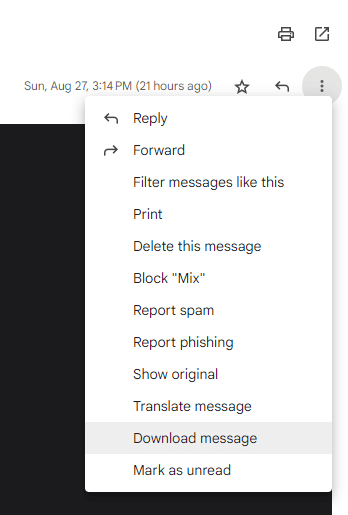
- Step 3. Click on the three dots "⋮”. They're hanging out on the email's right side.
- Step 4. Opt for "Download message" to get the .eml file output.
Alternatively, you can click on the print symbol, "🖨️" on the email's right side. Go for "Print all" → Make a pit stop at "Save as PDF" in the destination → Seal the deal with "Save."