
CSV to Zendesk® Migration Made Simpler
A well-prepared Zendesk® CSV import ensures a smooth, efficient, and predictable data migration every time. Tickets, users, contacts, and knowledge base articles transfer accurately with Help Desk Migration, giving you complete control over your Zendesk® import. This approach avoids manual uploads, dependency issues, and workflow interruptions, guaranteeing your data lands exactly where it should.
Your team stays productive, your support operations remain flawless, and your customers don’t notice any changes.
Trusted by 60,000+ companies


What Data Can You Move from CSV to Zendesk®
A CSV to Zendesk® import preserves what matters most: tickets, contacts, users, knowledge base articles, attachments, and historical data. With Help Desk Migration, the process is automated, keeping structure, formatting, and relationships intact. Whether it’s daily support activity or archived records, your CSV files deliver a complete, accurate transfer to Zendesk®, ensuring a smooth, reliable migration without disrupting your workflow.
Yes. Inline images can be imported from a CSV as long as the image URL is publicly accessible.
Private or permission-locked links cannot be fetched by Zendesk®, so the image will not appear. Public URLs allow the Help Desk Migration tool to download and insert the image properly.
With a CSV to Zendesk® migration, your team can bring over the records that matter most, including:
Agents Migration
With Help Desk Migration, you can map agents from your source platform to agents in Zendesk® and vice versa to control how tickets are assigned after migration. You can map multiple agents to a single one.
Missing agents
No problem — you can automatically create Zendesk® agents during the setup process.
Deleted and inactive agents
You can reassign tickets from deleted or inactive agents to an active agent on the target platform.
Customer Fields:
- ID
- Name
- Phone
- Company
- Details
- Language
- Time zone
-
- String custom fields
- Boolean custom fields
- Dates custom fields
- Number custom fields
Organization Fields:
- ID
- Name
- Description
- Domains
-
- String custom fields
- Boolean custom fields
- Dates custom fields
- Number custom fields
Ticket Fields:
- ID
- Subject
- Tags
- Company
- External ID
- Group
- Source
- Status
- CC
- Staff
- Contact
-
- Comment author
- Comment privacy
- Comment publicity
- Comment body
- Comment attachments
- Comment recording
- Comment created date
-
- Conversation subject
- Conversation external IDs
- Conversation status
- Conversation created date
- Conversation updated date
- Created date
- Updated date
- Closed date
- Brand
- Form
- Custom status
- Type
- Priority
- Due date
-
- String custom fields
- Boolean custom fields
- Dates custom fields
- Number custom fields
Macros Fields:
-
- Name
- Status
- Dynamic action fields
-
- Name
- Status
- Dynamic action fields
-
- Name
- Status
- Dynamic action fields
-
- Name
- Status
- Dynamic action fields
Trigger Fields:
-
- Name
- Status
- Dynamic action fields
-
- Name
- Status
- Dynamic action fields
-
- Name
- Status
- Dynamic action fields
-
- Name
- Status
- Dynamic action fields
Category Fields:
- Name
- Description
- Position
- Translations
Section Fields:
- Name
- Description
- Position
- Category
- Translations
Article Fields:
- Title
- Body
- Position
- Author
- Folder
- Status
- Tags
- Redirects
- Translations
- Attachments
- User segments
- Permission groups
How a Camera Manufacturer Company Imported CSV Data to Zendesk® using Help Desk Migration Tool
Red Digital Cinema & Help Desk Migration
Project:
Driving innovation and efficiency with automated Zendesk® migration to deliver measurable results for Red Digital Cinema.
Challenge:
Help Desk Migration partnered with Red Digital Cinema to migrate customer support data from CSV files into Zendesk®. The project focused on importing historical tickets, contacts, companies, agents, and custom fields using an automated migration wizard.
The project involved the migration of:
- ~7,000 tickets
- ~3,000 contacts
- Ticket comments, agents, companies, and custom fields
Results:
- Successful migration of ~7,000 support tickets and ~3,000 customer records into Zendesk®, including all comments and metadata.
- Eliminated the need for in-house development, saving time and implementation costs.
- Delivered a fast, accurate, and automated Zendesk® migration with no business downtime.
"I couldn't be happier with the support I received, the ease of use with the tool, and the results of the final product."
Brad Harris
Senior Manager and Global Product Support

Common CSV to Zendesk® Issues and Questions, Answered
Ticket duplication
Duplicates usually come from repeated ticket IDs or mismatched requester information in the CSV.
You can fix this by:
Confirm that each ticket has a unique ID and that the requester fields line up.
How Help Desk Migration prevents it:
Help Desk Migration scans IDs and timestamps to catch duplicates early. If a record looks like a duplicate, it is flagged and skipped to keep your Zendesk® data clean.
Attachments mismatch
Attachments can end up under the wrong ticket or fail to import when URLs are broken, private, or not linked correctly in the CSV.
You can fix this by:
Check that each URL works, is publicly accessible, and is linked to the right ticket.
How Help Desk Migration prevents it:
Help Desk Migration service validates every file link before import, checks that the file can be accessed, and ensures correct mapping so attachments stay with the ticket they belong to.
User collision
Collisions appear when users share the same email, when IDs conflict, or when the CSV contains mixed identity data.
You can fix this by:
Make sure emails and user IDs are unique and consistent across your CSV.
How Help Desk Migration prevents it:
Help Desk Migration detects existing users and prevents unwanted merges so each ticket stays tied to the right person.
Missing comments
Internal notes or public replies may not appear in Zendesk® when comment fields are incomplete, misformatted, or missing the required linking information.
You can fix this by:
Format comment dates, authors, and text fields follows the proper format in your CSV.
How Help Desk Migration prevents it:
Help Desk Migration verifies each comment and keeps the full sequence intact, so nothing is lost along the way.
How CSV to Zendesk® Migration Works
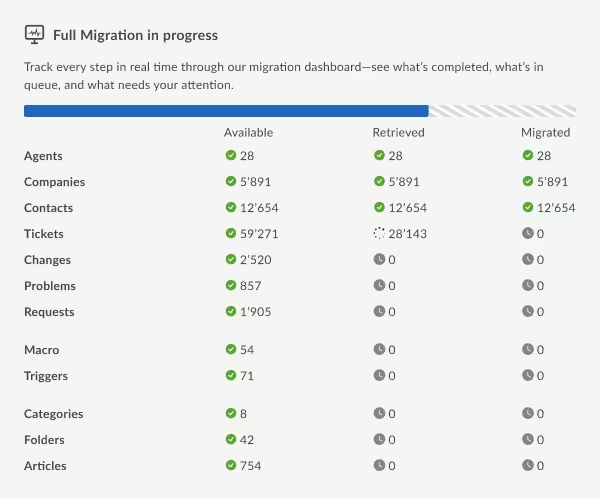
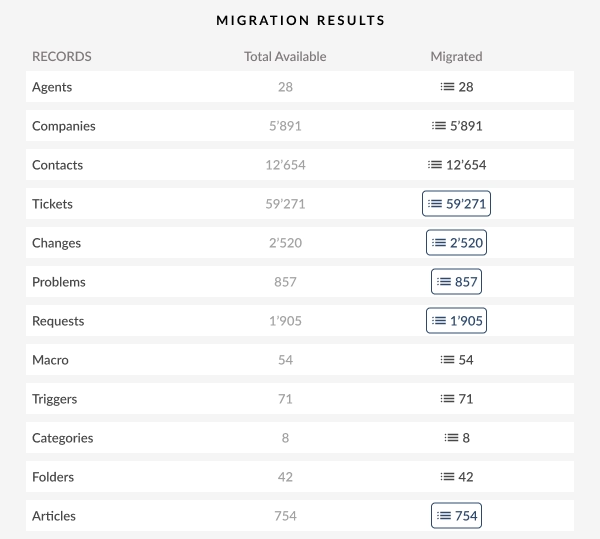
A structured migration process makes importing your data predictable and error-free. Help Desk Migration guides you through each step, so no technical skills are needed.
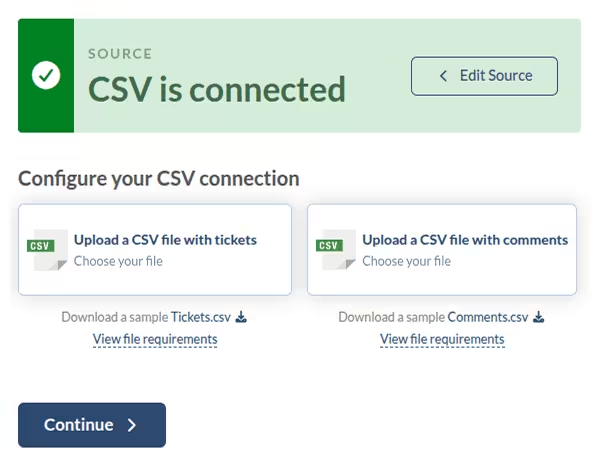
Upload your CSV files
Connect Zendesk®
Set filters and options
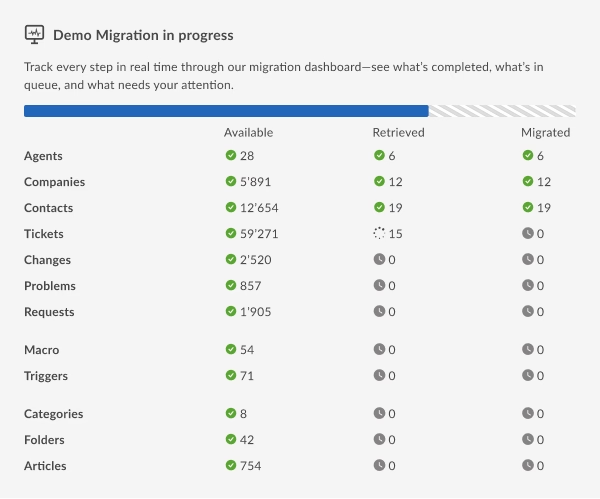
Run a free Demo migration
Launch the Full Migration
Review and go live
Flexible Import Options for CSV to Zendesk®
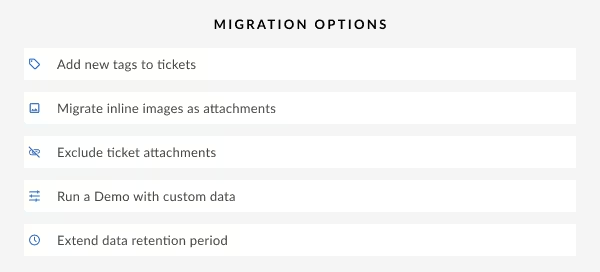
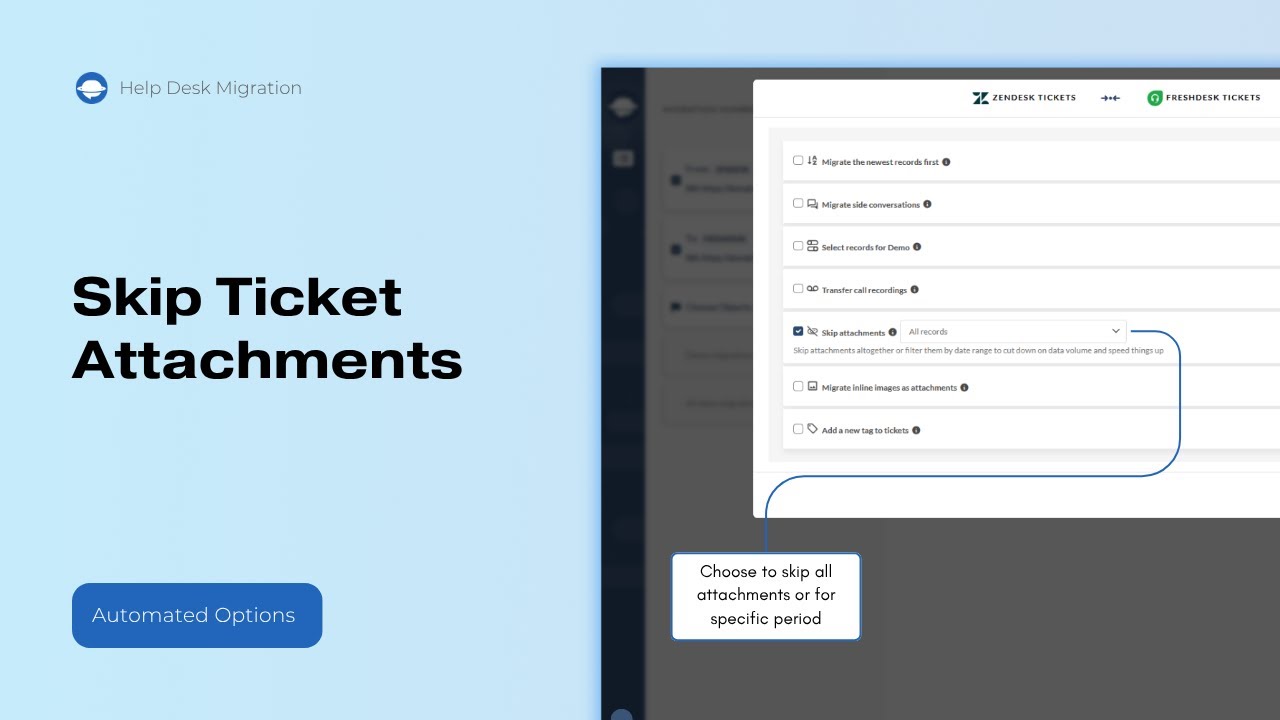
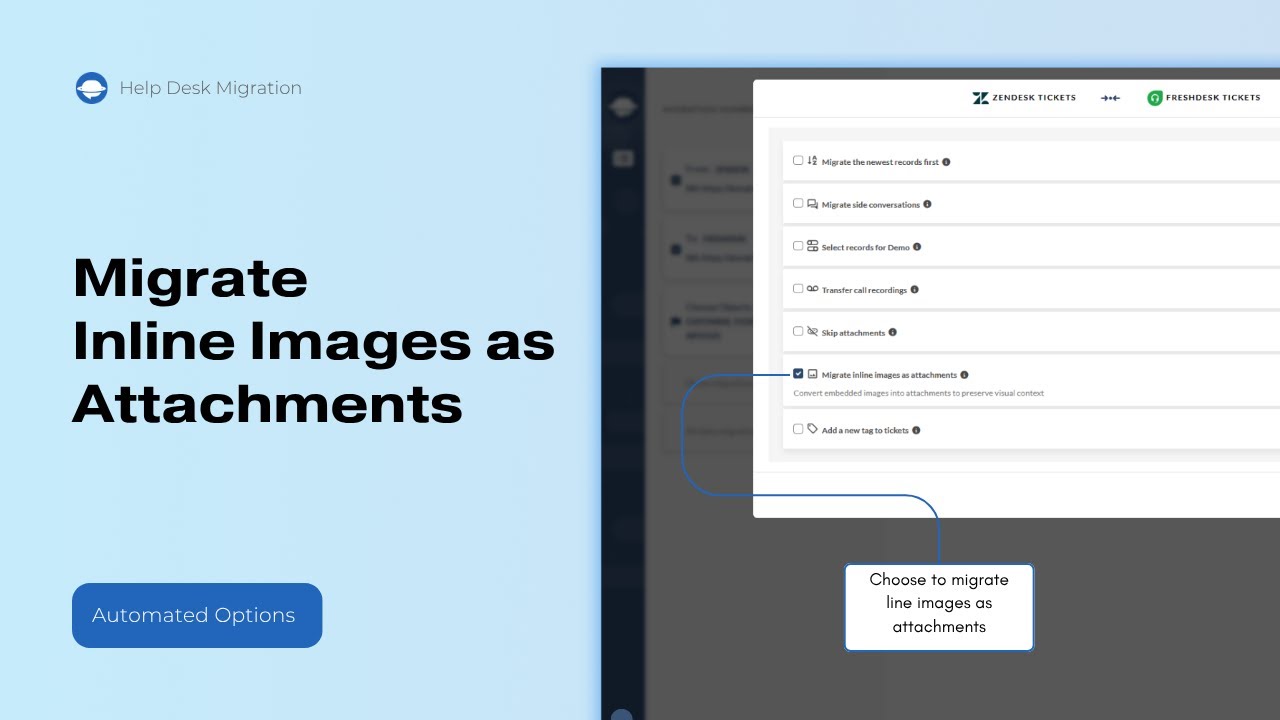
Help Desk Migration gives you control when importing CSV files to Zendesk®. You can fine-tune your migration with these options:
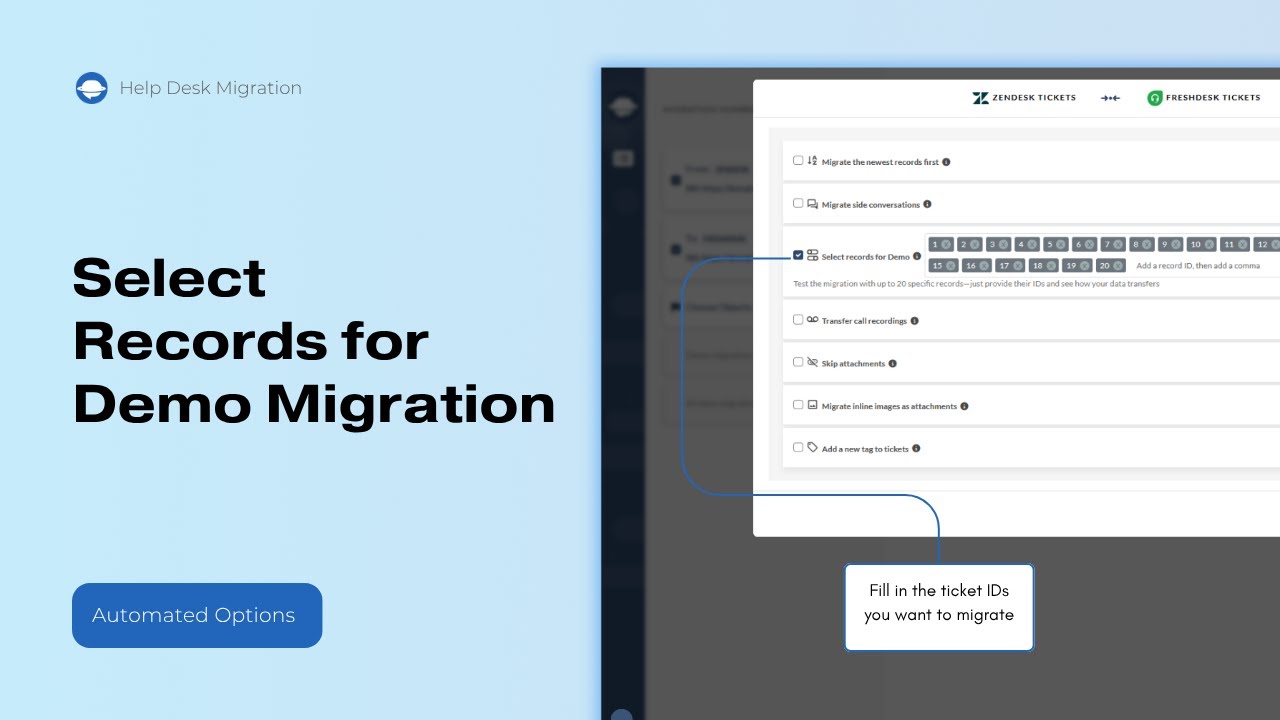
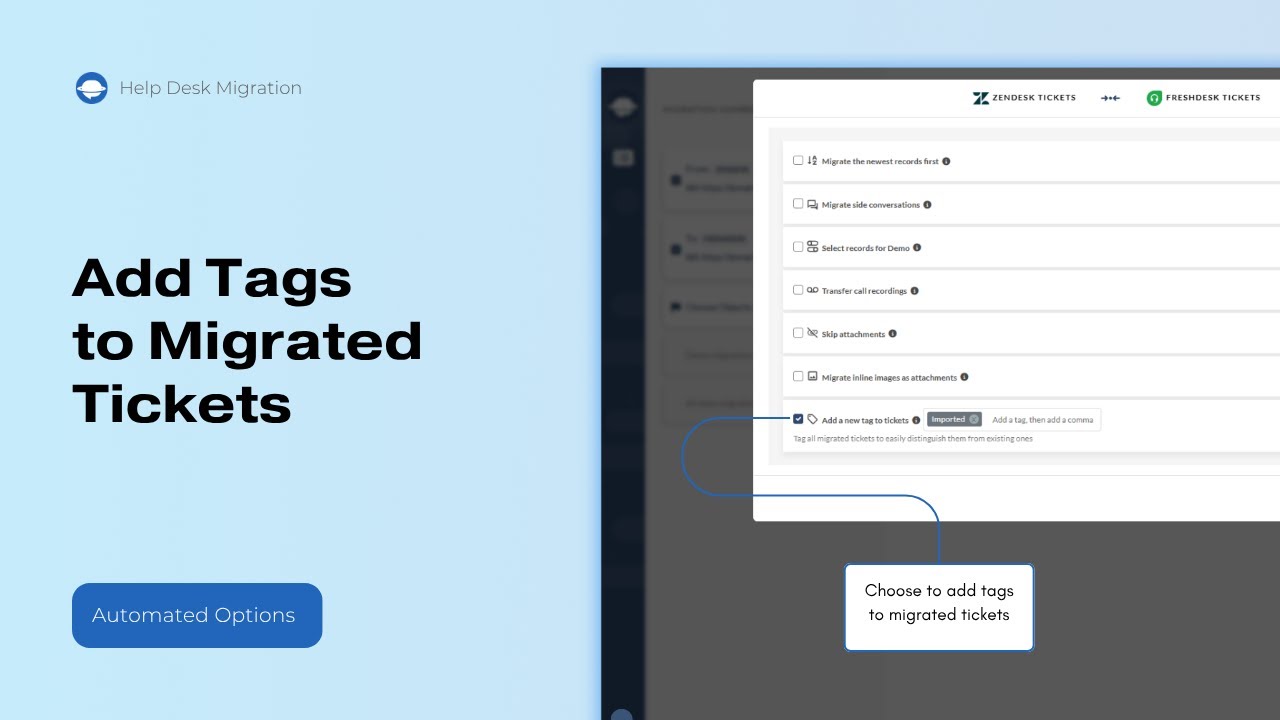
Test a small subset of your data first to see exactly how it will appear in Zendesk®.
Important: Admins and clients cannot run a custom demo directly from a full CSV file. To test a specific subset, create a separate CSV with the exact tickets you want to preview and run it as its own Demo.
Affordable and Flexible CSV to Zendesk® Migration
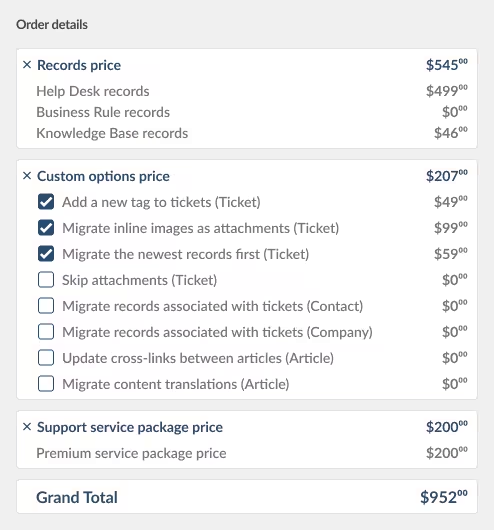
Pricing is tailored to your migration. It depends on how many records you move, the complexity of your data, and any additional options. You only pay for the data you import. Bigger migrations benefit from lower per-record costs, making the process efficient and cost-effective.
No credit card required Fast setup

Take Control of Your CSV to Zendesk® Migration
Import all your tickets, contacts, and knowledge base content from CSV to Zendesk®. Enjoy smooth imports, minimal downtime, and total control.

Elvira Azymova
Elvira has been working in the data migration industry since 2018. She has deep knowledge and experience running core sales and service processes including performance management, succession planning, career pathing, and total rewards education. Good people instincts, strategic, curious, analytical, and action-oriented.