Default and custom data fields are the backbone of any help desk. They determine how tickets are structured, how workflows run, how reports are built, and how teams measure performance. When you migrate to a new system, proper help desk field mapping is just as important as moving the data itself.
In other words, Help Desk Migration makes the process of data mapping and migration much safer and easier — as long as you follow the rules.
In this practical guide, we’ll walk you through the key principles.
Default vs. Custom Fields in Help Desk Migration
Every help desk is built around fields. Some of them come with the system; others are created by you.
Default fields
For example, in Zendesk, default ticket fields include Requester, Assignee, CCs, Subject, Description, Status, Type, Priority, Tags.
These form the structural foundation of every ticket.
Custom fields
These can be Order ID, Subscription plan, Product type, SLA tier, etc.
They capture information specific to your workflow and power tailored automation and reporting.
Help Desk Migration migrates both field types.
Since these fields are the skeleton of your data, it's critical to match them correctly when migrating to a new platform. And that's where our clients’ concerns begin.
Why Data Mapping Is the Biggest Source of Migration Anxiety
When customers use Help Desk Migration, most help desk migration risks come up during field mapping.
Users may experience:
- Loss of field granularity (for example, a multi-select field lands as a single-select field and keeps only one value)
- Changed or distorted ticket statuses
- Missing tickets
- Duplicate users or organizations
- Unwanted automation triggers
The good news? All of these risks, whether unwanted triggers or data loss during migration, can be controlled with correct configuration and pre-migration preparation, which requires understanding what the migration tool can and can't do.
Let's start with the basics. What objects does Help Desk Migration migrate?
What Objects Can Be Mapped in Help Desk Migration?
Help Desk Migration supports the transfer of both default and custom fields within tickets, problems, changes, contacts, companies, articles, and PM tasks across platforms.
Field Types Supported in Help Desk Migration
The tool migrates all major field types:
- Fields with predefined options, including dropdown, checkbox, and multi-select
(e.g., Issue Type, Region, SLA Tier). In the Migration Wizard, they’re shown as dropdown fields. - Text / string. Free-form input fields for short or long text.
- Numeric. Fields that store numbers such as IDs, quantities, or internal references.
- Date. Fields that store calendar dates (e.g., renewal date, contract start, custom deadline).
- Regex fields. Fields validated by a pattern-based rule. For example, a field that only accepts a correctly formatted Order ID like ORD-12345. These fields are displayed for mapping across platforms, but their data is migrated only for Zendesk and Pylon, where pattern logic is fully supported.
- Formula fields. Fields whose values are calculated automatically based on other fields. For example, a field that calculates Total Cost from Quantity × Price, or a priority score derived from multiple inputs. In some platforms, formula fields are available for mapping as a field type. Whether the actual calculated value migrates depends on how the platform stores that data.
The first step to properly mapping these help desk field types starts with an important rule.
Core Rule: Map Default and Custom Fields by Type
Accurate migration starts with field type consistency. When mapping fields, default and custom, make sure field types match between the source and target systems.
- A text field can only be mapped to a text field.
- A numeric field must be mapped to a numeric field.
- A dropdown field must connect to a dropdown field with corresponding values.
- A numeric field or a date field can also be mapped to a text field on the target side.
- And so on.
If the types don’t align, data may fail to migrate correctly or lose structure.
Select-Type Fields: Mapping Dropdown (Single-Select), Multi-Select, and Checkbox Fields
Dropdown field mapping in Help Desk Migration requires aligning individual option values, not just the field name. This rule applies to all select-type fields.
In other words, it’s not enough to connect “Issue Type” to “Category.” Each option inside the field must be mapped to its exact counterpart (for example, “Incident” to “Incident” or “Problem” to “Problem”).
Also, take care when migrating Select fields (where only one option can be chosen) and Multi-Select fields (where you can choose several options) when mapping data in the Migration Wizard. Select > Select and Select > Multi-Select fields migrate as expected, but when mapping Multi-Select > Select, only the first selected value migrates.
Handling Unmapped Select Field Options During Checkbox, Multi-Select, and Dropdown Values Migration
Sometimes, field values fail to migrate because they don’t exactly match between the source and target systems.

If needed, our team will tweak configurations to ensure every value lands where it should.
Fields That Don't Migrate
Dropdown fields without any options won’t appear in the mapping interface at all, and this is another common dropdown field issue.
Additionally, deleted dropdown values are not displayed in the mapping interface. For example, a ticket may still contain a historical dropdown value, but if that value has been removed from the current dropdown options list, it will not appear during mapping. In such cases, the system automatically maps those records to the default dropdown value on the target side.
Since there are no values to align, the system automatically excludes them from the mapping UI.
Creating Custom Fields Before Migration
Custom fields must exist in the target system before they can be mapped.
If a field doesn’t exist on the target side, there’s nothing to connect it to, and the data won’t transfer correctly. That’s why preparing custom fields early in the process is a critical step in any migration.
But there are a few exceptions.
Platform-Specific Custom Field Creation Logic
In most cases, clients need to create fields before migration, directly in the target help desk.
Make sure you follow these platform-specific field mapping rules:
Freshdesk
Select fields are created as custom_dropdown.
Zendesk
The system checks whether the field should be a tagger (single-select) or multi-select, and creates one accordingly.
Intercom
Select fields are created with the type list.
Jira Service Management
The system determines whether the field should be select- or multi-select-type based on the source structure.
In addition, if a dropdown contains hundreds or thousands of options, creating it via the Wizard may return an error. In some cases, the field is created but not automatically added to the project, requiring an engineer to verify and adjust it.
Intercom
The API limits dropdown fields to 250 values, but the interface can support fields with more.
Important limitations for any platform
A client cannot create duplicate fields through the Wizard, and dropdown fields retain the same options as in the source system.
Contact and Company Field Mapping Limitations
Help Desk Migration supports the transfer of custom fields for contacts and companies in selected migration pairs.
To check whether the company and contact field migration is supported in your case, navigate Entity → Data.
If you see “Describe - 1” next to contact or company custom fields, it means they can be migrated within the standard automated flow.
If not, those fields won’t transfer automatically, even if identical fields already exist in the target platform. In such cases, our technical team provides custom handling.
From the customer’s side, if custom contact and company field migration is not supported for their specific platform pair, they will only see the default fields available for mapping (such as Name, Email, etc.).
Multi-Level Dependent Field Migration
A multi-level field (also called a nested or dependent field) contains several layers of options. The choice made at the first level determines which options become available at the next.
A simple example is an Address field:
Level 1 → Country
Level 2 → City (filtered by country)
Level 3 → Street (filtered by city)
Each selection narrows the next set of choices.
Why Multi-Level Fields Cause Mapping Issues
Multi-level fields often create migration challenges when the structure isn’t replicated correctly in the target system.
How Help Desk Migration Handles Multi-Level Fields When the Target Lacks Support
If the source system contains a multi-level field but the target platform doesn’t support dependent fields, practical workarounds are available.
Option 1: Split a Multi-Level Field into Separate Dropdown Fields
If the source system has a multi-level field but the target doesn't, the client can create separate dropdown fields in the target — one for each level.
For example:
- Country (dropdown)
- City (dropdown)
- Street (dropdown)
Within this setup, options from the same source field are mapped to multiple target fields, aligned according to their respective levels.
Option 2: Mapping Multiple Fields into One Multi-Level Field
If the source system has separate dropdown fields (e.g., Country, City, Street), but the target system supports a single multi-level field, custom mapping is possible.
In this case, our team can configure the mapping.
The client must provide a structured mapping file guiding how the levels should be combined.
Multi-level fields require extra attention because they store not just values, but structured relationships between them. Proper preparation ensures that this structure isn’t lost during migration.
Skip Rules, Required Fields, and Default Value Migration
Field mapping isn’t just about matching fields. It’s also about controlling what data appears in the target system — consistently and at scale.
Skip This Field
Available only for non-required fields.
This option leaves the target field empty in all migrated tickets regardless of the source value.
Use Skip This Field in migrations when:
- The field exists in the target but is no longer relevant.
- The field is optional and safe to leave blank.
Default Value
This option sets a fixed value for a dropdown field in all migrated tickets.
For example, if you set Type → Problem, every migrated ticket will have “Problem” selected in the Type field, no matter the original value.
The default field value option is useful when:
- Standardizing historical data.
- Moving to a simplified field structure.
- Applying a new categorization model.
Use for Default or Empty Values
Available only when mapping required fields.
This option fills a required target field by default only if the mapped source field is empty in a specific ticket.
This means:
- If the source value exists → it migrates normally.
- If the source value is empty → the selected fallback value is applied.
This prevents migration errors while preserving real data where it exists.

No Need to Fill
Available for optional field mapping.
If certain mapped values are selected in the source, this option leaves the target field empty.
It’s useful when:
- Some source values are no longer relevant.
- You want to intentionally exclude specific categories from migration.
- The field is optional and must remain blank under certain conditions.
These controls give you the flexibility to refine and standardize data during the move.
Common Field Mapping Errors and How to Fix Them
Most field mapping issues happen for two reasons: duplicate fields in the target system or required field conditions that block ticket creation or closure.
Duplicate of Name
The duplicate field error appears when the target system already contains a field with the same name.
Even if you don’t see it immediately, the field may:
- Exist but be inactive
- Belong to a different project (in project-based systems)
- Be hidden by configuration settings
How to fix it:
- Check whether the field already exists in the target.
- Activate or reuse the existing field instead of creating a new one.
- In project-based platforms, ensure the field is added to the correct project.
Required = Missing Field
This error occurs when a required field in the target system receives no value during migration.
A field may be required:
- For ticket creation
- For ticket closure
- Due to specific rules or conditions
For example, a system might prevent closing a ticket if a required field (e.g., Resolution Type) is empty. These requirements can be configured directly in field settings or controlled by workflow conditions.
Sometimes, a field may not appear as required during mapping because conditional rules apply only in certain scenarios. However, once migration runs, those rules can block ticket updates if the field is empty.
How to fix the required field error:
- Ensure all required fields are mapped.
- Use “Default Value” or “Use for Default or Empty Values” to prevent empty required fields.
- Review field conditions and workflow rules before launching Full Migration.
Awareness of these two error types helps avoid interruptions and keeps migration smooth from start to finish.
Demo Migration as Validation (Not Theory)
A Demo Migration lets you see how your mapping rules behave before running the Full Migration.
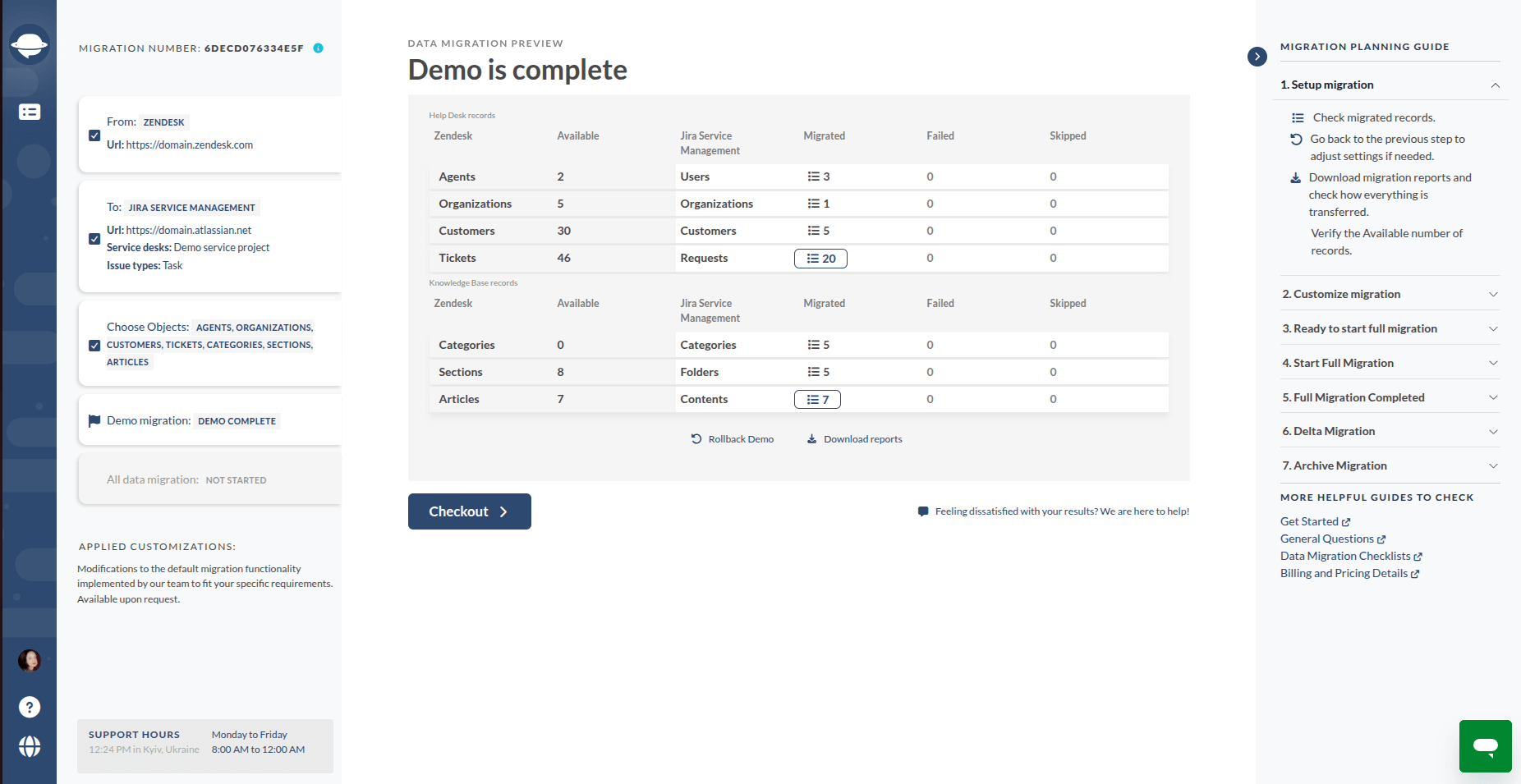
Limitless Free Demo
The migrates 20 random tickets with all related records, along with 20 knowledge base articles. It then returns a report detailing which records were migrated successfully and which failed to migrate.
You can run the Demo unlimited times until everything looks correct.
One-Time Custom Demo
Instead of migrating random records, a Custom Demo option lets you select specific tickets and test how they migrate. This helps you validate edge cases before committing to the Full Migration.
Field Mapping Checklist
Before launching the Full Migration, review the essentials:
- Field types match (text → text, dropdown → dropdown, etc.).
- All required target fields are mapped or have fallback values.
- Custom fields exist in the target (or are created via the Wizard, where supported).
- Single- and multi-select options are aligned, with no Unassigned values remaining.
- Contact and company custom field support is verified (Entity → Data).
- Multi-level fields are properly structured or adjusted.
- No duplicate fields or blocking workflow conditions in the target.
- A Free Demo (and Custom Demo, if needed) has been run and validated.
Field mapping is not merely a technical step. It safeguards automation logic, reporting accuracy, and daily workflows after migration. A careful checklist today prevents structural fixes tomorrow.
FAQs About Mapping Default and Custom Fields
Help Desk Migration maps fields by matching compatible field types between the source and target systems. Default and custom fields are aligned based on type (text, dropdown, numeric, date, etc.), and dropdown values are mapped option by option. You can validate everything with a Free Demo before running the Full Migration.
Yes, in most cases custom fields must exist in the target system before they can be mapped. However, for many platforms, custom fields can be created directly within the Migration Wizard during setup.
The tool supports text, numeric, date, dropdown (single-select), multi-select, checkbox, regex, and formula fields. Some advanced types like regex and formula fields may have platform-specific limitations.
If field types don’t align (for example, mapping a dropdown to a text field incorrectly), data may fail to migrate properly or lose structure. Following the rule “map by type” ensures safe and accurate data transfer.
Each option inside a dropdown, checkbox, or multi-select field must be mapped individually to its exact counterpart in the target system. If a multi-select field is mapped to a single-select field, only the first selected value will migrate.
“Unassigned” appears when dropdown values in the source system don’t match any option in the target system. These values are highlighted before Full Migration so you can fix them in advance and avoid data gaps.
Custom contact and company field migration is supported only for specific platform pairs. You can check availability in Entity → Data. If unsupported, the technical team can provide custom handling options.
If both platforms support dependent fields, they must have identical structures. If the target system doesn’t support multi-level fields, the data can be split into separate dropdown fields or configured through custom mapping.
The most common issues are duplicate field names in the target system and required fields without values. These can be resolved by reusing existing fields, mapping all required fields, or applying fallback default values.
A Demo Migration validates your field mapping configuration using real records. You can run unlimited Free Demos or use a Custom Demo to test specific tickets. This ensures your default and custom field mapping works correctly before transferring all data.