| Intercom object | Migrated Fields and Information | HubSpot object |
| Admins | Agent records (i.e., full names, email addresses, and agent group roles) map to HubSpot users so ticket ownership stays intact. You can reassign tickets from deleted or inactive admins to an active HubSpot user during setup. | Users |
| Companies | Name, domains, tags, and custom fields move, including select and multi-select fields HubSpot supports that Intercom structures differently. | Companies |
| Users and leads | Name, email, phone, company link, and custom fields (text, boolean, date, number) land on HubSpot contact records. | Contacts |
| Tickets | Subject, status, priority, group, assignee, custom fields, tags, comments (with author and privacy settings preserved), plus creation, update, and close timestamps. Each ticket lands in a HubSpot ticket pipeline and stage. Standard statuses convert automatically; you map custom ones during setup. | Tickets |
| Conversations | Message threads, internal notes, tags, status, and timestamps migrate into HubSpot tickets, since HubSpot has no separate Conversations object. Tags and priority carry over as custom fields on the ticket. | Tickets |

HubSpot Service Hub migration services
Automated (Fin AI) Intercom to HubSpot Migration
Intercom to HubSpot migration searches spiked while many teams are searching for Fin AI alternatives. If you run support on Intercom, now rebranded as Fin, your pricing, your product roadmap, and your customer data are now inside the world's largest CRM vendor. That changes the calculus for a lot of teams.
Help Desk Migration moves your records from Fin AI to HubSpot. Swap a manual CSV export for a proper API-based Intercom migration. From contacts and knowledge bases to deep conversational threads, every single record moves over perfectly intact, backed by industry-standard SOC 2 security.
G2 Leader
60k+ Migrations
SOC 2 Certified
HubSpot Ecosystem
No credit card required Fast setup
Intercom
HubSpot Service Hub
Interactive Migration Calculator
Adjust sliders to estimate your migration time and cost savings
2,000
1K
500K
10-15 mins
Estimated Migration Time
85%
Time Savings vs Alternatives
$3,777
Savings vs In-house Development
Estimates based on 60,000+ successful migrations. Actual results may vary.
Why Teams Are Leaving Intercom (Now Fin) in 2026
Support leaders aren’t leaving Intercom because the chat product stopped working. They're leaving because two things happened at once: the company behind it changed hands, and the pricing model, which was already hard to defend, got more uncertain overnight. They want an alternative Intercom tool that puts the customer experience first.
The Salesforce Acquisition and Fin Rebrand: What Changed
In May 2026, Intercom rebrands the whole company as "Fin", the name of its AI agent, signaling a complete pivot away from its roots as a messaging platform. The new brand lasted about a month as an independent identity.
On June 15, 2026, Salesforce announced a signed agreement to acquire Fin for approximately $3.6 billion, with the deal expected to close in Q4 of Salesforce's fiscal year 2027. So now, your support data, your pricing, and your roadmap sit inside Salesforce's ecosystem. If that wasn't your plan, it's a reasonable time to reconsider.
Salesforce cites a 76% autonomous resolution rate for Fin's AI agent. Intercom's own published case studies, from customers like Linktree and Robin, report real-world rates closer to 42% to 50%. That gap matters when you're forecasting your bill. That is exactly why Intercom alternative and Intercom to HubSpot migration searches are climbing.
The Real Cost of Fin AI’s Per-Resolution Pricing
Fin charges $0.99 per outcome. Every confirmed resolution, assumed resolution, procedure handoff, or disqualification is a billable event. Qualifications cost $9.99 each. That’s before your Intercom seat cost, which runs from $29 per seat per month on Essential up to $132 on Expert.
Run the math on a real team:
- 5000 conversations a month
- 45% resolved by Fin (the midpoint of Intercom’s own case studies)
- That’s 2250 billable resolutions = $2227.50 in outcome fees alone
- Add 5 agent seats on Advanced: another $425 to $495
Total: roughly $2650 to $2700 a month before a single add-on.
The part that breaks every budget forecast: your bill grows every time Fin gets better. The more your customers self-serve, the more you pay. That’s not predictable pricing. It’s a moving target. It’s why so many support and ops teams start searching for a free Intercom alternative or a cheaper alternative to Intercom.
What Support Teams Are Actually Looking for Instead
Four things come up in every migration conversation:
- A platform that talks to your CRM natively instead of syncing through a side door
- Pricing tied to seats you control instead of resolutions you can't predict
- Real ownership of your support history instead of data locked inside someone else's AI roadmap
- Omnichannel coverage: one inbox for chat, email, and everything in between
HubSpot checks all four.
How to Migrate from Intercom to HubSpot (Step by Step)
A full Intercom migration runs through six stages. You stay in control of timing at every one.
Connect Intercom and HubSpot
Enter your account credentials to link both platforms. Nothing moves yet. This step only gives the Migration Wizard the access it needs to read and write data.
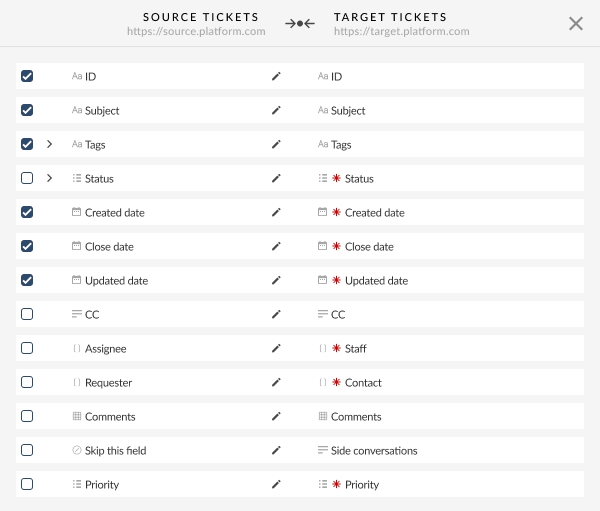
Map fields and choose what to migrate
Match your Intercom fields, tags, and custom properties to their HubSpot equivalents. Decide what comes over: everything, or a filtered subset by status, date, or tag.
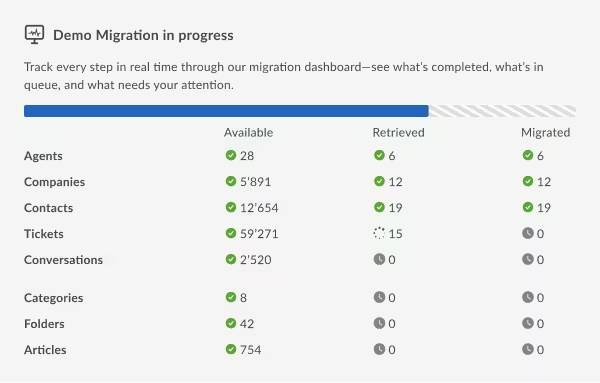
Run a free Demo migration (20 records)
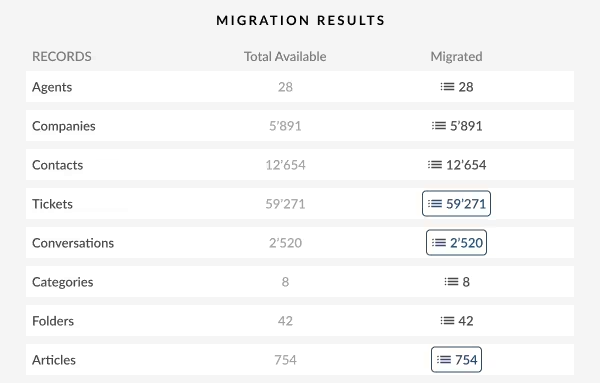
Help Desk Migration transfers 20 sample tickets so you can check exactly how your data looks in HubSpot before paying anything. Run it as many times as you need; the Demo is free and unlimited.
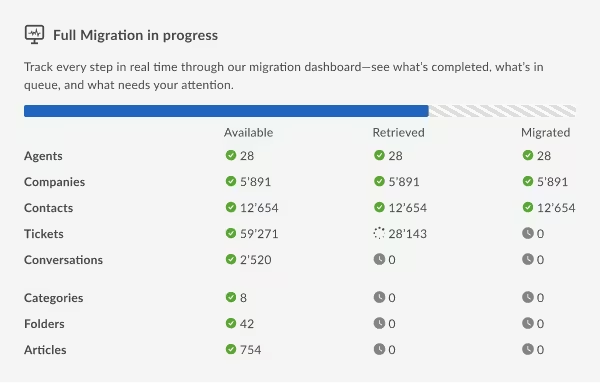
Launch the Full Migration
Once the Demo Migration output looks right, schedule the Full Migration — your Intercom workspace keeps running throughout the transfer, so agents stay productive with zero downtime. After it completes, validate the migrated records against your source, then run a Delta Migration to catch anything created or updated in Intercom after the Full Migration started.
Post-migration checklist
- Confirm tags exist in HubSpot before the migration runs; tags only migrate if already set up in the target account.
- Verify pipeline and status mapping.
- Reassign tickets from deleted Intercom admins to active HubSpot users.
- Disable Intercom automations and triggers your team no longer needs.

Try It on Your Real Data, Not a Sandbox.
Move first 20 tickets.
Intercom to HubSpot Migration: What Data Can You Move?
Help Desk Migration moves every core object Intercom holds, not just the contacts that already sync natively. Here is how source objects line up with their HubSpot destination.
Delta, Interval, and Private Cloud Migration Modes for Complex Support Data
Large or sensitive accounts rarely fit a single overnight transfer. Three modes cover the edge cases.
Delta migration
Catches every ticket, conversation, and article created or updated in Intercom after your Full Migration finished. Keep working in Intercom right up until cutover, nothing falls through the gap.
Interval migration
Splits a large transfer into scheduled batches. Pauses during business hours, resumes overnight or on weekends. Intercom stays fully usable the whole time.
Private Cloud Migration
For teams with strict data residency or compliance requirements, the migration runs inside a dedicated, region-specific environment instead of shared infrastructure. The option healthcare, finance, and other GDPR or HIPAA-regulated teams choose when data sovereignty rules dictate exactly where support data can sit, even during transit.
Pricing for Intercom to HubSpot Service Hub Migration
One-time fee. No subscription. No recurring cost once the migration is done.
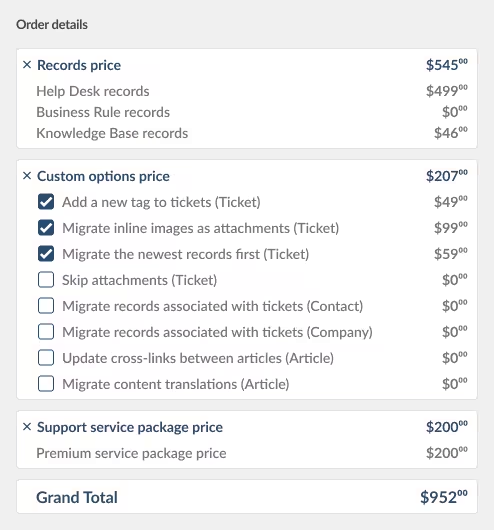
Pricing scales down as your record count goes up. A basic migration on the Essential support plan runs about $100 for 1,000 records, and roughly $514 for 10,000. Attachments, comments, and internal notes don’t count as separate records, so a ticket with 40 attachments costs the same to migrate as a ticket with one.
To fully tailor the data import to your operations, a few specialized features and configurations are priced separately from your core record count:
- Pre-Built Migration Options: One-click toggles to skip heavy attachments, convert inline images, prioritize the newest records, and others.
- Premium Support Tiers: Upgrade from our complimentary Essential plan to Advanced (weekend coverage), Premium (zero-downtime, multi-thread processing), or Enterprise (custom SLAs).
- Custom Scripting & Routing: Tailored solutions for multi-workspace migrations, field-to-tag conversions, specific agent data routing, late-night Delta cycles, and custom Interval scheduling to navigate API speed limits.
- Private Cloud Environments: Dedicated single-tenant hosting environments optimized for compliance-heavy teams.
Because every support ecosystem features a unique configuration, the best way to calculate your exact investment is to launch a free Demo Migration. The Migration Wizard automatically inspects your live data stream and returns an accurate quote.
— Intercom alternatives
Why HubSpot Is the Best Intercom Alternative for CRM-Connected Teams
If your team already runs sales or marketing on HubSpot, adding support closes the loop on every customer conversation. Your support agent sees the deal stage, the email history, and the last marketing touch on the same record, without asking a sales rep. That’s the core reason HubSpot keeps topping every best Intercom alternative list for B2B SaaS teams.
Those who are researching a Intercom to HubSpot integration usually run into the same wall: the native sync logs activity, it doesn't unify records. A proper migration solves that gap instead of working around it.
01
Native CRM Integration, not a Bolt-on Sync
Intercom syncs with HubSpot today. But it only logs conversations as activity entries on contact records. Support, sales, and marketing still work from different views of the same customer. HubSpot stores tickets, contacts, companies, and deals as natively connected objects from day one. No sync job sitting between your teams.
02
Predictable, Seat-Based Pricing
HubSpot Service Hub is free for up to 2 users with basic ticketing, shared inbox, and live chat, no time limit. Starter runs $15 to $20 per seat per month. Professional runs $90 to $100. Enterprise starts at $150 with a 10-seat minimum. No per-resolution fees. You can answer “How does HubSpot cost compare with Intercom?” with a flat number, not a forecast model.
03
A Single Collaborative Inbox and Knowledge Base
Emails, live chats, and internal notes share one view. Your knowledge base sits right next to the ticket queue. Fewer tabs. Fewer handoffs. Less falling through the gaps.
04
Automation and Breeze AI Built on the Same CRM Record
HubSpot AI runs through Breeze, which draws on the same contact, deal, and conversation history your sales team already uses. It’s not working from a siloed help center. It knows the whole story.
05
Real-time Reporting That Ties Support to Revenue
Ticket volume, response time, and CSAT appear alongside deal and revenue data. Support stops looking like a cost center and starts showing up as what it actually is: a retention driver.
What Doesn't Migrate from Intercom to HubSpot Directly
Not everything moves in a standard migration. Knowing that now saves you from an unpleasant surprise аfom the very beginning.
A few things fall outside the default scope:
Groups stay behind. Intercom groups have no direct HubSpot equivalent.
CC recipients don't transfer as a relationship. You can move those email addresses into a custom field, but the CC link to the original ticket won't follow.
Knowledge base articles need a different path. Help Desk Migration recommends HubSpot's own built-in importer instead of the automated transfer.
A few other things do migrate, but land a little differently than you'd expect:
Ticket creation dates default to the migration date, not the original date. Note and conversation timestamps stay accurate. Create a custom Date field in HubSpot before the migration starts if you want to preserve original ticket dates.
Tags need to exist in HubSpot first. Set them up in your target account before the migration runs, or they won't appear on migrated records. You can also route them into a custom field instead.
Attachments arrive hidden by default.
Pipelines default to one. All tickets land in a single HubSpot pipeline unless you bring a custom status mapping to the setup call. Our team can split records across multiple pipelines once you define which status goes where.
One more thing worth flagging, especially if you already run the native Intercom-HubSpot sync.
Right now, that sync logs Intercom conversations as activity entries on your contact records. That sounds fine until you go looking for a specific thread. The format strips line breaks, and nothing tells you whether a message came from a customer or from an internal note. Those activities connect only to Contacts, not to Companies or Tickets, which is where your support team actually works.
That last part isn't a limitation of migration. It's the reason to migrate properly in the first place.
Run a free Demo Migration to see how your tickets and conversations look in HubSpot before you commit.
Safe, Encrypted, and Fully Documented Data Migrations
Your support history is sensitive data. Here’s how Help Desk Migration protects it every step of the way.
Infrastructure
AWS, aligned with ISO 27001, 27017, 27018, and 27701. Continuously monitored through CloudWatch and GuardDuty. DDoS and WAF protection through Cloudflare.
Certifications
SOC 2 Type II and Type III certified. GDPR data processing agreements signed on request. HIPAA business associate agreements available for healthcare customers.
Encryption and access
OAuth 2.0 authentication. AES-256 encryption at rest. TLS in transit. Two-factor authentication and role-based access control on every account.
Audit and cleanup
Independent penetration test, A-grade result. Formal data deletion certificate available on request. Inactive migrations auto-archive after 30 days.

Full detail lives on the security policy page.
SOC 2 Type II │GDPR | HIPAA (on request) │ISO 27001│AES-256 | TLS 1.2+
Common Mistakes When Switching from Intercom to HubSpot
Most failed migrations are not technical problems. They are planning gaps. Plan these before the Full Migration, not after.
Rebuilding old Intercom workflows:
Instead of redesigning for HubSpot. Pipelines in HubSpot each carry their own statuses, and by default Help Desk Migration moves all your data into a single pipeline. If you want several pipelines populated in one migration, you need to supply a custom status mapping for each pipeline up front, since the tool cannot guess which status belongs where.
Confusing conversations with tickets:
Help Desk Migration moves Intercom data into HubSpot only as tickets, since HubSpot has no separate Conversations object. After Fin to HubSpot migration, you open Tickets to read the comments and message history, not a Conversations view.
Forgetting to set up tags:
Before the migration runs. Tags need to already exist in your HubSpot account before the migration, or they will not appear on the migrated records afterward. See the full explanation if your tags go missing post-migration.
How Long Does an Intercom to HubSpot Migration Take?
Most migrations finish in one to two weeks from kickoff to go-live.
Under 10,000 records:
With clean mapping: often done in a few days.
Over 50,000 records:
With heavy customization or Interval Migration scheduling: several weeks.
Biggest time variable:
Isn’t the transfer itself, it’s the pre-migration data audit and field mapping work.
today and get a timeline estimate based on your actual record count.
Other Intercom Alternatives Worth Considering
HubSpot is the right move for teams already inside its ecosystem. But it’s not the only Intercom alternative on the table, and the right fit depends on what you're optimizing for. Teams hunting for a cheap Intercom alternative often land on Freshdesk or Zendesk instead.

If you need an Intercom alternative CRM that treats support as one part of a bigger customer record, HubSpot and Salesforce Service Cloud are the two worth comparing.
And if you're evaluating platforms purely as an Intercom alternative for customer support with no CRM ambitions attached, Zendesk and Freshdesk both hold their own.
Whatever you land on, Help Desk Migration supports more than 90 platforms. The same Migration Wizard that runs your Intercom to HubSpot migration also handles an Intercom to Freshdesk migration, an Intercom to Zendesk, or a Zendesk to Intercom migration going the other direction.
Some engineering groups even prefer deploying an open-source Intercom alternative for total code customization. Our migration tool handles data moves across dozens of top platforms without breaking a sweat.
What Customers Say About Migrating from Intercom to HubSpot
"Help Desk Migration should be your go-to platform if you need to migrate Conversations or Tickets history."
NM
Nelson Marinho HubSpot Senior Consultant, OFFICERS (48,000 Intercom tickets migrated to HubSpot Service Hub)
"The team was very friendly and helpful throughout. We got everything we needed out of the migration process in a simple and quick process."
EH
Erik Harris Director of Onboarding & Support, Compliancy Group (65,000 tickets, 25,000 contacts, and 6,000 companies migrated to HubSpot Service Hub)
Find more customer success stories from teams that have made the same move.
FAQs: Intercom to HubSpot Migration
Yes. Fin is the company that used to be Intercom, rebranded in May 2026 to match the name of its AI agent. After Salesforce’s acquisition, “Fin” and “Intercom” refer to the same platform, now owned by Salesforce.
Not if you migrate it deliberately. HubSpot’s native Intercom sync logs conversations as activity entries on contact records, with no link to tickets or companies and no way to separate customer replies from internal notes. Help Desk Migration converts that same history into properly structured HubSpot tickets, with comments, tags, and timestamps intact.
Yes. HubSpot Service Hub’s free tier gives you basic ticketing, a shared inbox, and live chat for up to two users, with no time limit. It’s a genuine starting point for small teams, not a disguised trial.
Fin charges $0.99 per resolved outcome on top of seat fees ranging from $29 to $132 a seat a month. Your bill grows as your AI resolution rate improves. HubSpot charges a flat seat price: free for two seats, $15 to $20 on Starter, $90 to $100 on Professional, $150 on Enterprise. Teams with high resolution rates feel Fin’s pricing the hardest.
Use Intercom’s own export tools for a manual CSV pull, or connect your account directly to Help Desk Migration for a structured, automated export that preserves field relationships, tags, and ticket history that a CSV can’t capture.
Yes, but you cannot move this specific piece directly through the API. Help Desk Migration moves your Intercom collections and articles, including inline images and links, into a CSV formatted for HubSpot’s knowledge base. Import it directly into your new account.
One to two weeks is typical from kickoff to go live. Clean accounts under 10,000 records with simple mapping often finish in a few days. Larger accounts with heavy customization or Interval Migration scheduling take longer.
For teams already running sales or marketing on HubSpot, HubSpot Service Hub is the strongest fit. It connects tickets, contacts, and deals as native objects instead of syncing across separate tools, and it charges per seat instead of per resolution. Teams without CRM ambitions may find Zendesk or Freshdesk a better match.
HubSpot stores tickets, contacts, and companies as natively connected CRM objects, while Intercom's HubSpot sync only logs conversations as activity entries. HubSpot's Breeze AI works from the same contact and deal history your sales team uses, rather than a separate help-center dataset. And HubSpot's pricing is flat per seat, while Fin charges $0.99 per resolved outcome on top of seat fees.

Ready to Move from Intercom (Fin AI) to HubSpot?
Every ticket, conversation, and contact moves with full context intact.
Run a free Demo Migration first, see exactly how your Intercom data looks inside HubSpot, and decide from there. No commitment until you’re ready.
Schedule a migration consultation
No credit card required SOC 2 certified 60,000+ migrations completed

AUTHOR
Olha Butenets
Head of Sales & Support
Olha is a distinguished help desk migration expert and an esteemed lead for our Sales and Support team. With over 4 years of experience and a track record of 2000+ successful migrations, she specializes in masterminding high-stakes enterprise data migrations while focusing on total data integrity and operational continuity.
Find out more tips and tricks about data import
Interested to learn more? Our blog constantly updates information on support service enhancement and help desk business data import and export. Check it out!

Customer Success
How Free Ticketing System Can Improve Your Сustomer Support on a Budget
Each successful customer service depends on the efficiency of its ticketing software. Whether ...

Help Desk System Reviews
Spiceworks Desktop vs Spiceworks Cloud: What’s the Difference?
One of the Spiceworks help desk versions is shutting down on December 31. ...

Picking an Alternative for Your Help Desk
Freshdesk Alternatives 2026 — Compare Features, Pricing & Top Picks
As businesses aim to deliver exceptional customer support, the demand for Freshdesk alternatives ...