When your current customer support platform starts slowing your team down and holding back growth, switching to a better-fit solution seems like the obvious next step.
But many teams hesitate — not because they don’t want to move, but because of the data migration challenges that come with it. Data loss, broken workflows, downtime, security risks, and the uncertainty of how everything will behave after the switch.
Why Data Migration Is So Challenging in Customer Support
On paper, customer support data migration sounds easy. But there’s much more to the process than simply moving records from one system to another — it’s about keeping the logic of that data intact.
Tickets are connected to users, users belong to organizations, fields drive workflows and trigger automations. During migration, all these relationships need to stay consistent.
That said, data integrity is just one of the help desk data migration challenges people deal with in the process.
Top Customer Support Data Migration Challenges
Most issues on our data migration challenges list build up from small gaps (in data, mapping, processes, or timing) that only become visible once the process is running. Let us show you some examples of data migration challenges and ways to overcome them.
Poor data quality
Problem
Large volumes of tickets are migrated without proper links to users, companies, or other records. As a result, you spend time and budget moving data that won’t be usable afterward.
Why it happens
Data quality issues during migration often come from legacy systems with incomplete or outdated records. Users may have been deleted, fields left empty, or relationships never properly maintained.
Example
Tickets are transferred without a requester or associated company. In the new system, agents see conversations with no clear customer behind them, making follow-ups and reporting difficult.
Solution
- Clean up data before migration, where possible
- Migrate only tickets that have valid related users or organizations
- Test your migration with a small portion of data first to validate how records and relationships transfer
Pro tip
With Help Desk Migration, you can choose to migrate only records with linked data, helping you avoid bringing incomplete or broken relationships into the new system.
Our clients’ teams rely on this feature regularly. As Anthony Kendrew, IT Solutions Developer at The Salvation Army, noted:
Data mapping complexity
Problem
Default and custom fields are mapped incorrectly — or not migrated at all.
Why it happens
Different help desk platforms structure data differently. Field types, naming, and available options don’t always match, so a direct one-to-one transfer isn’t always possible.
Example
Fields like ticket priority, product type, or SLA values don’t appear in the new system after migration. As a result, tickets lose important context, workflows don’t trigger as expected, and reporting becomes unreliable.
Solution
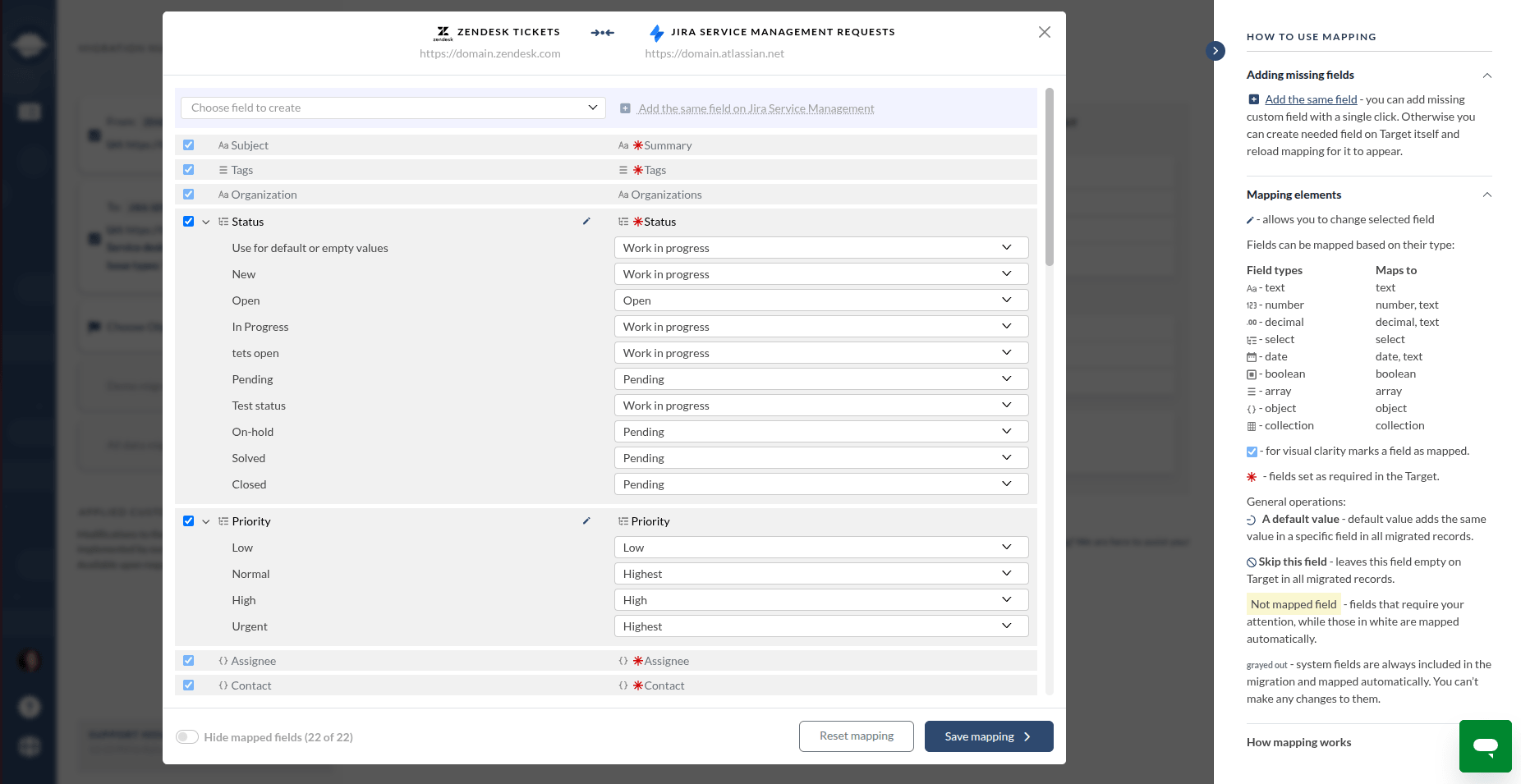
- Use automated mapping to align source and target fields
- Create missing custom fields in the target system before or during migration
- Review mappings manually, especially for dropdown and required fields
- Run a demo migration to validate how field values transfer
Pro tip
Help Desk Migration allows you to avoid most data mapping issues during migration. It maps fields automatically, lets you create custom fields directly in the Migration Wizard, and gives you a chance to review and validate everything before running the full migration.
Downtime and business disruption
Problem
Support agents are forced to pause work or operate with limited data during migration.
Why it happens
Traditional migrations move data in one large batch. This leaves teams with unpleasant compromises: pause work entirely, switch early and work with incomplete data, or continue working in the source system.
The last option seems practical as it helps minimize the risk of downtime during migration. However, it creates another issue. While migration is in progress, the source system keeps changing (e.g., new tickets come in, existing ones are updated), and those changes are not reflected in the migrated dataset.
As a result, teams still face downtime after migration, when they need to reconcile and sync missing data.
Example
A customer submits a high-priority ticket during migration and continues the conversation with several updates. After the switch, this ticket is missing from the new system. The agent has to go back to the old platform, manually copy the conversation, and recreate the ticket, delaying resolution and risking missed details.
Solution
- Allow agents to continue working in the source system during the process
- Use Delta Migration to transfer tickets created or updated after the initial migration (which you can schedule during off-hours)
- Schedule a final sync before switching fully to the new system
Pro tip
Help Desk Migration supports Delta Migration, which transfers only new or updated records after the main migration. This allows you to keep working during the transition and reduces the risk of missing recent data at cutover.
Automation and Workflow Conflicts
Problem
Automations, triggers, and SLA rules behave incorrectly (or start firing unexpectedly) after migration.
Why it happens
Business logic is not transferred together with the data. At the same time, migrated records can activate existing workflows in the target system, even though they were not meant to.
Example
After migration, thousands of tickets instantly trigger notifications, SLA timers, or status updates. Agents receive a flood of alerts, and performance metrics become distorted because the system treats migrated tickets as newly created or updated.
Solution
- Temporarily disable automations and triggers before starting migration
- Re-enable and adjust help desk automations after migration is complete
- Test workflows on a subset of migrated data before going live
Pro tip
If pausing operations or turning off workflows isn’t an option (e.g., your team deals with large volumes of requests and won't be able to manage all of them manually), consider using Interval Migration. It breaks the process into smaller batches that can be transferred one by one during off-hours, reducing disruption while keeping automations under control.
Data migration performance issues
Problem
Migration becomes slow, unstable, or difficult to predict when large volumes of data are involved.
Why it happens
In addition to infrastructure constraints and weak migration tools, API rate limits slow the process down.
Most help desk systems restrict how many requests can be sent to their API within a specific time frame. Every ticket is transferred through these requests. When the limit is reached, the system temporarily blocks further requests, forcing the migration to pause or slow down.
With large datasets, these limits are hit repeatedly, making the overall process longer and less predictable.
Example
A migration expected to take a few hours stretches into several days. The team delays the system switch, works across two platforms longer than planned, and struggles to track what has already been migrated.
Solution
- Use migration tools designed to handle large datasets efficiently
- Request an API limit increase from your provider in advance to speed up the process
- Calculate migration duration based on API limits of both source and target systems
- Plan migration in stages to maintain visibility and control
- Monitor progress throughout the migration
Pro tip
Help Desk Migration is built to handle large volumes of data with predictable performance. For example, migrating around 100,000 tickets typically takes up to 16 hours. Plus, our Interval Migration feature will help you break the data volume into portions that don’t exceed the API limits.
Security and compliance risks
Problem
Sensitive customer data may be exposed or mishandled during migration.
Why it happens
During migration, security risks might occur when data is transferred through unsecured channels, without encryption or proper access control. In some cases, too many people have access to migration credentials, increasing the risk of leaks or misuse.
Example
Ticket data is transferred without proper encryption; at the same time, access to the migration tool is shared with multiple team members without strict control. As a result, sensitive data can be intercepted or accessed by unauthorized users, creating a risk of GDPR violations and potential data breaches.
Solution
- Use secure, encrypted data transfer methods
- Limit access to migration tools and credentials
- Choose a migration solution that complies with GDPR and other regulations
- Follow best practices for data handling and storage
Pro tip
Help Desk Migration follows strict security standards, including encrypted data transfer and compliance practices. You can read our security policy to learn more details.
How to Overcome Data Migration Challenges
A migration plan on its own doesn’t guarantee a smooth process. You need to define what moves, adjust for how both systems work, prepare your data, and verify results before switching.
These data migration best practices show how to approach each of these steps.
Plan ahead
This happens more often than expected: the migration process drags on, data is transferred inconsistently, and teams are unsure when to switch systems.
A clear plan helps avoid this:
- Define the scope of the migration. Decide what data should be migrated and what can be excluded.
- Prepare a field mapping and data structure plan. Align how fields, relationships, and values will transfer between systems.
- Establish the timeline and milestones. Break the migration into clear phases with checkpoints.
- Assign ownership. Define who is responsible for each part of the process.
- Plan testing and validation. Include demo runs and data checks before full migration.
- Prepare the final cutover. Decide when and how the switch to the new system will happen.
Our Help Desk Migration team can support enterprise projects with a detailed migration plan and timeline, helping you avoid planning migration issues and ensure a controlled and predictable process.
Сonsider the specifics of the source and target platforms
Each help desk platform has its own data structure, field types, API limits, and migration capabilities. Ignoring these differences during planning is a common source of issues later.
To avoid help desk platform-specific migration challenges, make sure to account for:
- Data requirements: what fields are mandatory in the target system, and how missing values will be handled
- Mapping constraints: differences in field types, dropdown values, and supported relationships
- API limits: how many requests can be processed, and how this impacts migration speed
- Built-in migration capabilities: some platforms offer native tools, but they are often limited in scope and flexibility
With Help Desk Migration, platform specifics are easier to handle. The tool supports 100+ platforms, and if your system isn’t directly supported, you can still migrate data using CSV files.
Do your preparations
Once the plan is clear and platform specifics are accounted for, the next step is preparation.
Here are your key steps:
- Clean up your data. Remove duplicates, outdated records, and irrelevant tickets.
- Ensure data consistency. Standardize field values, statuses, and formats where possible.
- Prepare the target system. Create required fields, users, and structures in advance.
- Turn off notifications and automations. Prevent triggers, alerts, and SLA rules from firing during migration.
- Review access and permissions. Make sure migration credentials and roles are correctly set.
- Check integrations and dependencies. Understand how connected tools may be affected.
Well-prepared data and systems make the migration smoother, reduce errors, and minimize the need for fixes after the transfer.
Migration testing and validation are a must
Some issues only become visible after migration is complete.
Your agents may go live and then discover missing data, incomplete fields, or broken relationships between records. Instead of working in a ready system, they end up manually restoring tickets, fixing field values, or reconnecting users and organizations while support requests are already coming in. That’s why it’s important to validate results before fully switching to the new platform.
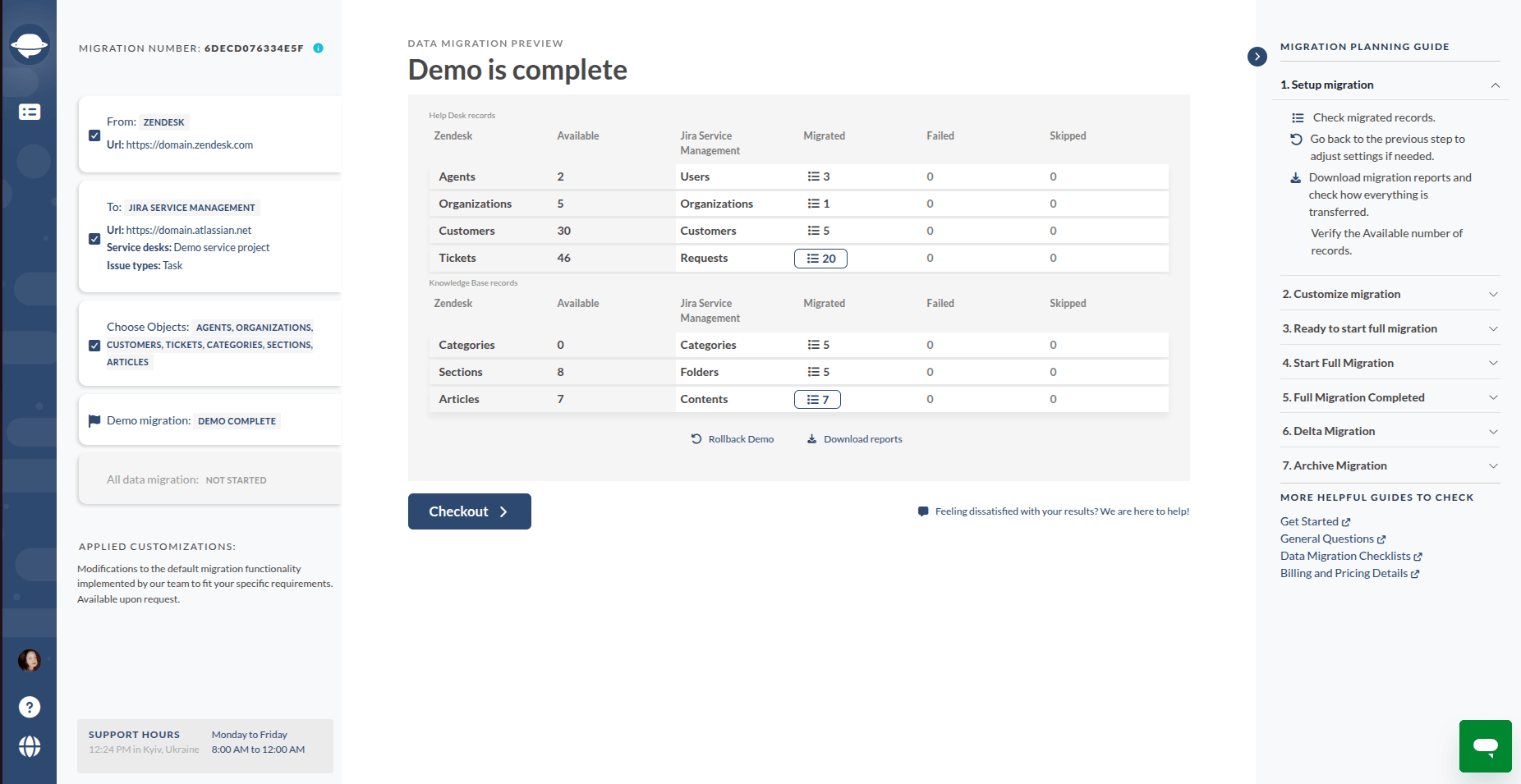
Help Desk Migration provides a along with a detailed report of the transferred data. The demo includes 20 tickets and 20 knowledge base articles. For larger projects, the number of records can be extended (up to 1,000 tickets) to reflect real migration conditions better.
Here’s how you get the most out of the Demo:
- Validate core data: check tickets, users, fields, and relationships
- Review data in the target system: make sure records appear as expected and retain context
- If necessary, adjust mapping and settings: fix issues before proceeding with the full migration
You can re-run the Demo multiple times at no cost to refine your setup.
In addition, Help Desk Migration is introducing a Reconciliation Report, which will allow you to compare source and target data after migration and verify that everything has been transferred completely and accurately.
Reduce Risks with Automated Data Migration
Successful data migration is about getting the sequence right, but even when you know the steps, you still need something to hold them together.
If you want to:
- Handle large data volumes efficiently and safely, automation keeps the process steady and predictable.
- Simplify field mapping, align fields accurately with a simple, zero-code interface.
- Reduce preparation work, use built-in options to filter data, skip unnecessary attachments, or migrate only relevant records.
- Avoid cleanup after migration, automatically tag the migrated tickets, move knowledge base content translation, transfer call recordings, and beyond.
- Check everything beforehand, test the process using a small portion of data with a Free Demo, manage risks with Migration Score, and validate the full transfer results with Reconciliation Report.
- Keep your team working during the transition, use Delta and Interval Migration to avoid gaps and delays.
- Move sensitive data safely, rely on secure, compliant transfer practices.
Help Desk Migration, our automated data migration solution, brings all of this together, so you’re not juggling steps or fixing issues after the fact. It helps you keep data quality and integrity in check while making the whole process more controlled.
Try it out with a before committing to the full transfer.
FAQs About Data Migration Challenges
The most common customer support data migration challenges include data loss, incorrect field mapping, broken record relationships, downtime, workflow disruptions, performance issues, and security risks during transfer. These issues can impact reporting accuracy, agent productivity, and customer experience if not properly managed. Careful planning and validation are essential to reduce risks and ensure a smooth transition between systems.
You can avoid data loss during help desk migration by cleaning and organizing your data before transfer, removing duplicates and outdated records. It’s important to validate record relationships, run a demo migration, and review the results carefully. Using a reliable automated migration tool with built-in validation checks further reduces the risk of missing or corrupted data.
Data mapping is important in data migration because it ensures that fields from your source system correctly align with those in the target platform. Proper mapping preserves ticket context, customer details, and workflow logic. Without accurate mapping, data may be misplaced or unusable, leading to reporting errors, broken processes, and reduced efficiency in your support operations.
To prevent downtime during customer support migration, allow your team to continue working in the source system while the initial migration runs in the background. Afterward, use Delta Migration to transfer newly created or updated records. This approach minimizes service interruptions, keeps support operations running smoothly, and ensures no important data is missed during the transition.
Delta Migration in help desk data migration refers to transferring only the data that has been created or updated after the initial migration. This method helps keep both systems synchronized without repeating the entire process. It reduces migration time, minimizes disruption to support teams, and ensures that no recent tickets, updates, or customer interactions are lost.
You can test a help desk migration before going live by running a demo migration with a limited dataset. This allows you to verify data accuracy, field mapping, and record relationships in the target system. Reviewing the results helps identify potential issues early, so you can fix them before performing the full migration and avoid costly errors.
Workflows often break after data migration because automations, triggers, and rules are not transferred along with the data. Additionally, migrated records may unintentionally activate existing automations in the new system. Without proper configuration, this can lead to unexpected actions, incorrect ticket updates, or duplicate processes, disrupting normal support operations and requiring manual adjustments.
Handling large volumes of data during migration requires using tools designed for high-load transfers and planning the process carefully. It’s best to migrate data in stages, monitor API limits, and track performance throughout. Splitting the migration into smaller batches helps reduce system strain, prevents timeouts, and ensures more stable and reliable data transfer.
Customer data can be secure during migration if proper security measures are in place. This includes using encrypted transfer protocols, restricting access to sensitive credentials, and working with migration solutions that comply with standards like GDPR. Regular monitoring and secure handling practices help protect data from unauthorized access, breaches, or accidental exposure throughout the process.
The best way to manage help desk migration challenges is through a structured approach that includes careful planning, data preparation, and thorough testing. Using an automated migration solution, such as the Help Desk Migration tool, helps ensure accuracy and efficiency. Combining these steps reduces risks, prevents disruptions, and maintains business continuity while transitioning your customer support operations to a new platform.