Smart Outlook Data Migration With No Coding Required
Level up your Outlook data transfer with the automated data migration tool. Effortless data migration—import, extract, or merge your Outlook data without any disruption. Test-drive the hassle-free data migration steps with our no charge Demo.

Lead the way in industry security
The data transfer tool offers encoded dialogues, secured servers, and leading authorization approaches across all levels
Built to bring value and save time
The automated data migration tool excludes workflow drops or inconveniences for your customers and agents
Transparent and scalable pricing
The trusted data replication tool delivers a balanced mix of feature + cost balance through its reasonable pricing policy


Success Story
How Seneca Hill successfully exported Outlook data to Freshdesk
Outlook → Freshdesk | Education Management
Challenge:
Seneca Hill needed to migrate a large portion of data from a simple emailing solution to a help desk.
Solution:
Automatic self-migration tool.
Result:
The company successfully moved all needed records to Freshdesk.
"Thanks for the proactive live chat support throughout the entire data migration process. I felt that I was in good hands, which made the overall experience pleasant and virtually stress-free."
The user experience of this Help Desk Migration tool is excellent. The simple, step by step interface allowed me to perform a full migration of our existing Outlook emails to Freshdesk tickets (over 200 items) in less than 1 hour. Absolutely worth the cost in terms of time, effort, and accuracy compared to our original manual data migration approach.
Given that Freshdesk does not provide a native data migration tool for the O365 email, we relied on this Help Desk Migration solution to automatically migrate all of our shared mailbox emails to Freshdesk as new tickets, without the need for manual data entry. Accuracy was a very important success criterion for us, and this automated tool completed the task of migrating over 200 emails with perfect accuracy in under 1 hour from "sign-up" to "data migration complete".
Due to a significant increase in technical support requests associated with our new remote learning platform, we decided to make the switch from our manual shared mailbox support channel to Freshdesk. We required all historical ticket and contact data in Freshdesk to ensure all support requests were properly resolved and to provide powerful self-service capabilities for all faculty and student users.
We chose Help Desk Migration because it is the most cost-effective way to migrate our historical data from O365 to Freshdesk with 100% accuracy, with as little time and effort as possible. This solution helped us achieve immediate results and realize the tremendous value in the process.
1. Check with your Help Desk vendor first, to confirm the availability of any native data migration tools in your chosen platform. If you require a 3rd party automated solution to get the job done, then look no further than this Help Desk Migration solution because it works. We got everything done within 1 hour. In contrast, we spent over 4 days communicating with Freshdesk support regarding our historical data migration needs, only to learn that they do not offer historical data migration for free. Had we known about that limitation upfront, we may have considered another help desk platform altogether. Thankfully, this Help Desk Migration tool allowed us to leverage our initial investment in Freshdesk and successfully migrate 100% of our historical data with just a few extra steps.
2. You may encounter an issue setting up your "Outlook" connection because you will need to sign-in as an Office365 Administrator to authorize the connection on behalf of your O365 tenant. When you complete the authorization step, however, you may find that your Administrator account becomes the "source" for migration, rather than your intended "helpdesk" shared mailbox. To fix this, first double-check the results of your demo load. If they are in fact coming from your admin account, then cancel, and start a NEW migration, this time sign into your "helpdesk" mailbox. I found that on the second attempt, it works perfectly because the tenant level authorization is already in place as a result of the initial sign-up, and you will be able to correctly map your data source to your intended "helpdesk" mailbox without issue.
Thanks for the proactive live chat support throughout the entire data migration process. I felt that I was in good hands, which made the overall experience pleasant and virtually stress-free.
Discover Outlook data export service functions and capabilities
Automated data import service
Data transfer software assists you in transfer data no coding, downtime, or disruption to your team.
Industry-grade protection
Help Desk Migration fulfills security compliance and regulatory requirements.
Data integration to fine-tuned all aspects
Move the required and custom fields during the Outlook replication to retain the data organization unmodified.
Overcome delay in during Outlook migration
Keep your processes flowing with ease as data replicates, thanks to our Delta option.
Committed customer service squad
Seeking help in Outlook data import? Our support team is just a click away.
Choose data for a custom demo
Shift up to 20 selected record IDs (20 tickets and 20 KB articles) free of charge.
Let us handle your import planning
Our professionals compile careful import planning to streamline the help desk data shift.
Enjoy your Outlook import with a Concierge Migration
Entrust the planning, mapping, and setting up Full shift to our team—we’ll take care of it perfectly for you!
Customized data migration
Let’s discuss what platform you wish to import data from and any other business needs you may have.
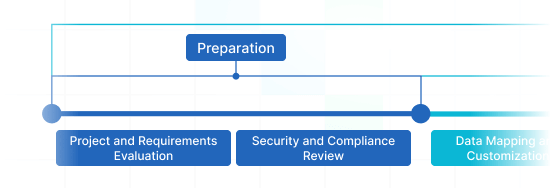
Data migration timeline: 1-2 weeks
Preparation
Project and Requirements Evaluation
Initiate your replication by evaluating Source data, operations, and applications. Review data filtering and field alignment to the Target. Make a transmit scenario, including the schedule and reps training.
Security and Compliance Review
Confirm data adheres to security protocols. Grant permissions and access controls to safeguard the migration.
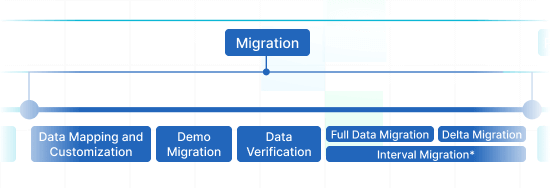
Migration
Data Mapping and Customization
Connect records fields amid the Source and Target. Choose in-built custom settings from the list or ask for specific tailoring for the record migration.
Demo Migration
Initiate a test Demo to check how the transition service performs. Review outcomes and alter mapping as you wish.
Data Verification
Ensure all replicated records in the Target is genuine, complete, and adequately formatted.
Full Data Migration
Move all selected records, containing tickets, contacts, attachments, and linked records.
Delta Migration
Catch any new or updated records that altered during the Full data replication.
Interval Migration*
Data transfer can be paused and restarted to accommodate your timeline, with no service disruption. You can pause up to five instances for five days per pause, coordinated by our sales squad during operating hours.
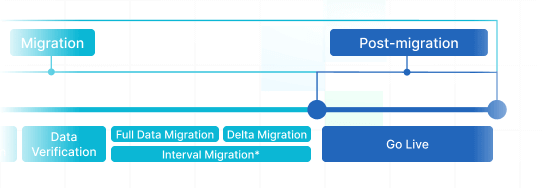
Post-Migration Phase
Go Live
Roll out the Target for all support reps. Disable the Source if necessary and save data backups.
-
 Having a smooth transition from Oracle Cloud to Zendesk. Amazing support and technical advice. Delivery was made according to the original project schedule. No extra charges than what was quoted.
 -
 The customer support team were kind, professional, and efficient throughout the entire process. We changed dates of our migration on them twice, and they rolled with the punches. Great customer service.
 -
 Did exactly what they advertised. They imported over 160,000 tickets for us from Desk.com to Zendesk. Quick support, good value and fairly priced.


Why transfer with Help Desk Migration?
-
No downtime
Migrate records without interruption - preserve workflows on track and assist customers seamlessly. -
Enhanced efficiency
Seamlessly transfer data and configure standard and personalized fields with the intelligent Migration Wizard. -
Easy ticket movement
The Migration Wizard transmits tickets and all associated data, ensuring the data structure unaffected on the Target. -
Always here for you
Our support agents is set to support you using chat, email, or phone. -
Detailed replication framework
Managers will develop a detailed plan for data import, providing a smooth process and reliable data. -
Custom options available
Choose pre-built options or ask for personalization, and we'll confirm your data is correct.
Find the perfect adjustment suite for Outlook data migration
-
Tailored data integration
Elevate your migration workflow by personalizing how data objects are migrated
-
Advanced data sorting Bestseller
Filter your data with advanced options leveraging criteria-based selection to get maximum rewards
-
Smooth migrate the integrated information
Effortlessly move integration details encompassing linked record IDs, URLs and more
-
Enriching migrated data
Enhance migrated data by incorporating supplementary information such as ticket tags, legacy IDs, and more
What is the Outlook data import cost?
The cost breakdown for your Outlook importing depends on several key aspects: the volume of records you need to import, the intricacy of movement requirements, and any adjustments or features in play. Run a Free Demo integration to test-drive the Migration Wizard's performance and discover the pricing for your Outlook data replication.
Outlook Export
Maximize your Outlook data export with our automated migration tool, delivering great results swiftly and without the need for coding. Use secure, robust features to simplify your Outlook data export process painlessly.
| Outlook objects | Zendesk objects | |
|---|---|---|
| Help desk | ||
| Users | Agents | |
| Companies | Organizations | |
| Contacts | Customers | |
| Emails | Tickets | |
Leverage our Help Desk Migration service for painless data export to Outlook using our automated data extraction app. The cost of exporting to Outlook hinges on variables such as record number, replication process complexity, and selected migration options or customizations. Our comprehensive data export tool ensures outstanding data shift and integration. Find out your Outlook export price by running a test Demo via our Migration Wizard.
Outlook data export app
Well-managed customer service operations turn to an effective Outlook data export. Our team has created full-featured Outlook extraction app to unravel this essential transfer process.
Our Outlook data exporter assets in moving data to Outlook securely. You can execute a Outlook CSV export or shift from any other help desk, service desk, ITSM in a few clicks. Forget about the copy/paste and hello to a more efficient data extraction workflow.
Use out-of-the-box customizations in a click
Augment your extracted tickets with tags, extract inline images, accelerate data extraction by bypassing attachments, smoothly move content translations, call-recordings, and other functionalities.
Test-drive before investing
Test-drive Help Desk Migration for Outlook exports in a free Demo. This data export process mimics the Full migration, enabling you to tune everything accordingly.
Remarkable support service
Help Desk Migration's support team is always prepared to assist you in Outlook replication setup, and find the suitable solution. Explore our support service packages for more personalized data replication experience.
Discover how Outlook data replication works
Help Desk Migration manages data replication within mere hours or days, contingent on the record load. It comes with a Migration Wizard and a step-by-step on-screen guide to transferring data from help desk platforms, databases, or shared inboxes and extracting it into CSV files or other help desk tools automatically.
Connect platforms
Configure your source and target platform
Map and match data
Define how your Outlook data should be shifted
Test-drive
Run a free Demo to check the transfer tool and outcomes
Full Data Migration
Launch or schedule your Outlook transfer
Automate your Outlook data import
Import your Outlook data with no confusion from what really matters—supporting your customers’ inquiries.